
Group Management
TIP
Groups organize accounts and control which accounts team members can see and use. Create a clear structure by platform, site, operating team, or business stage.
Group List
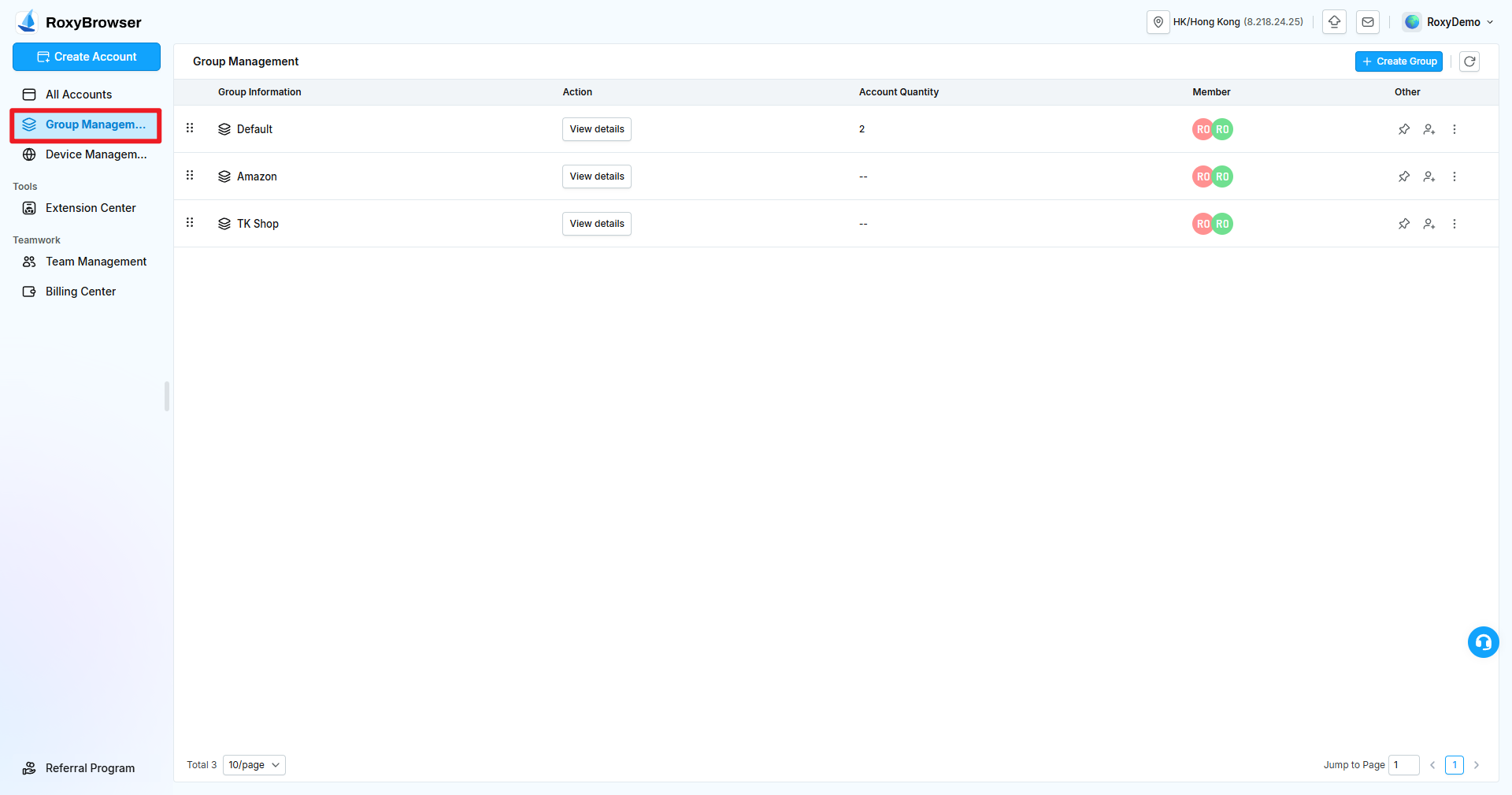
Group Management displays group information, account count, members, and available actions. Click a group name or its details entry to open that group's account list. Drag the sort control at the beginning of a row to reorder groups.
The default group is retained by the system. Accounts created without another group selection are placed there.
Create a Group
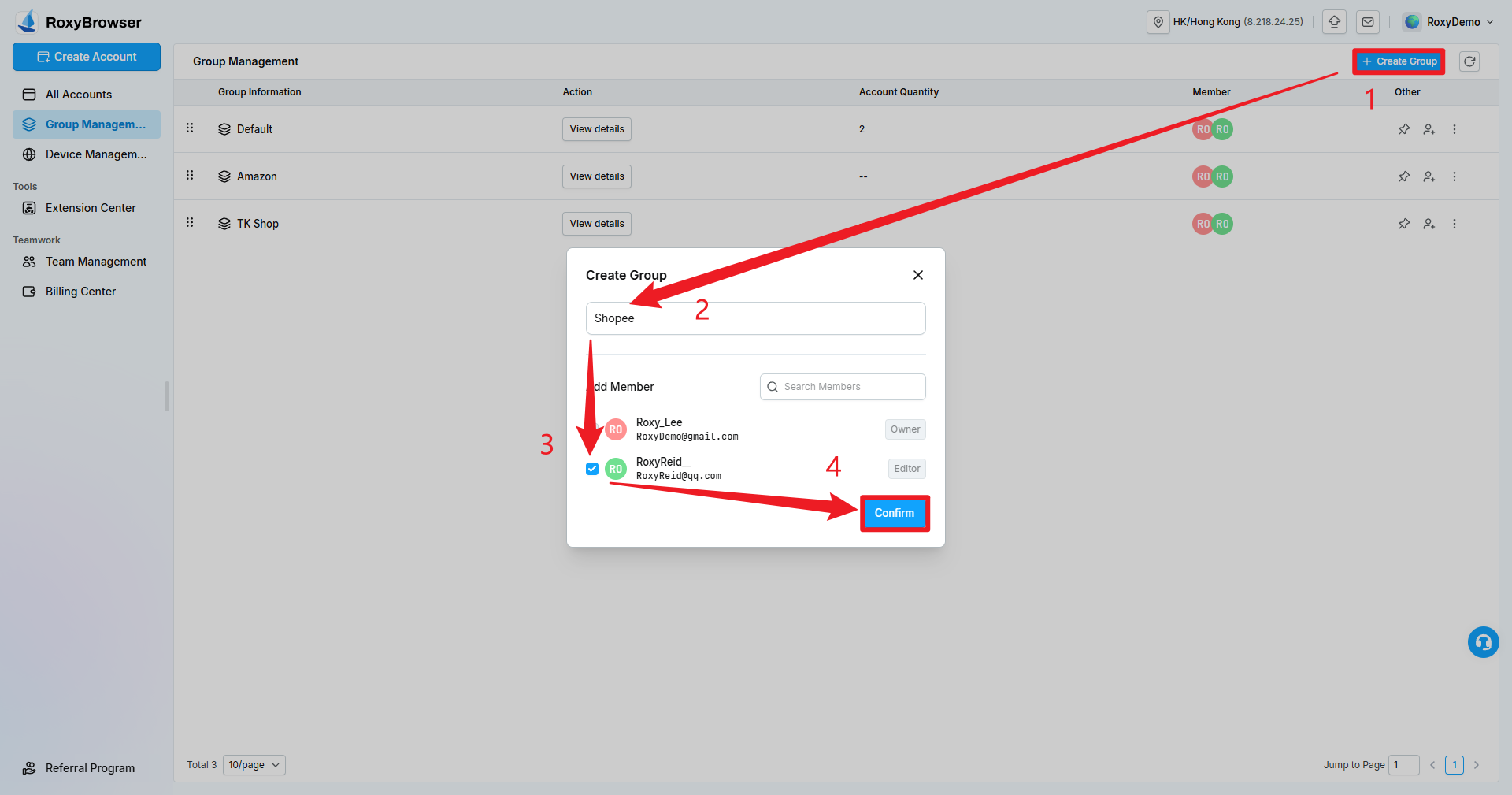
- Click Create Group in the upper-right corner.
- Enter a group name.
- Search for and select the team members who should have access.
- Click Confirm.
Common grouping methods include platform, country or region, operating team, and business stage.
Move Accounts to a Group
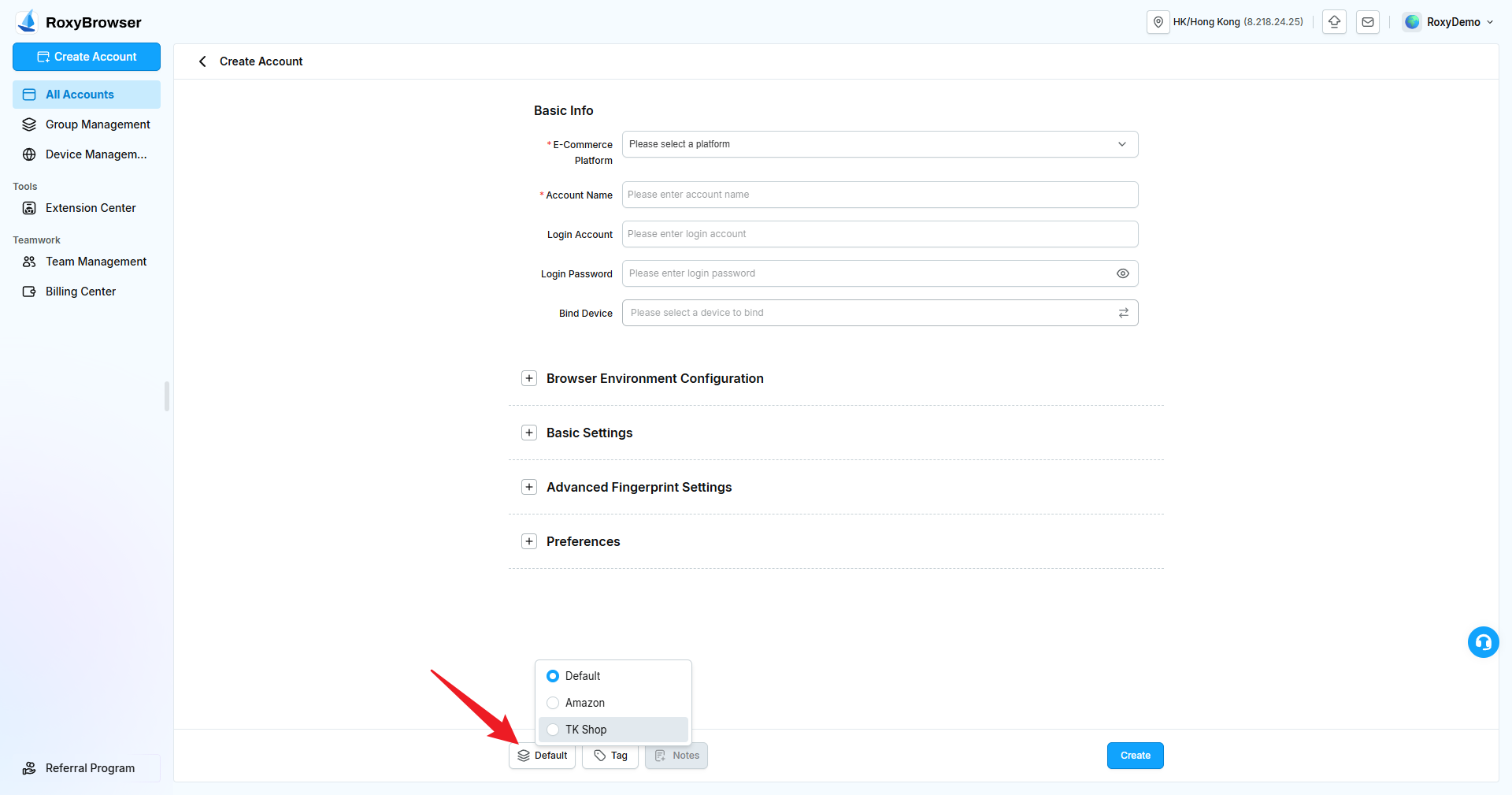
When creating an account, select its group near the bottom of the page.
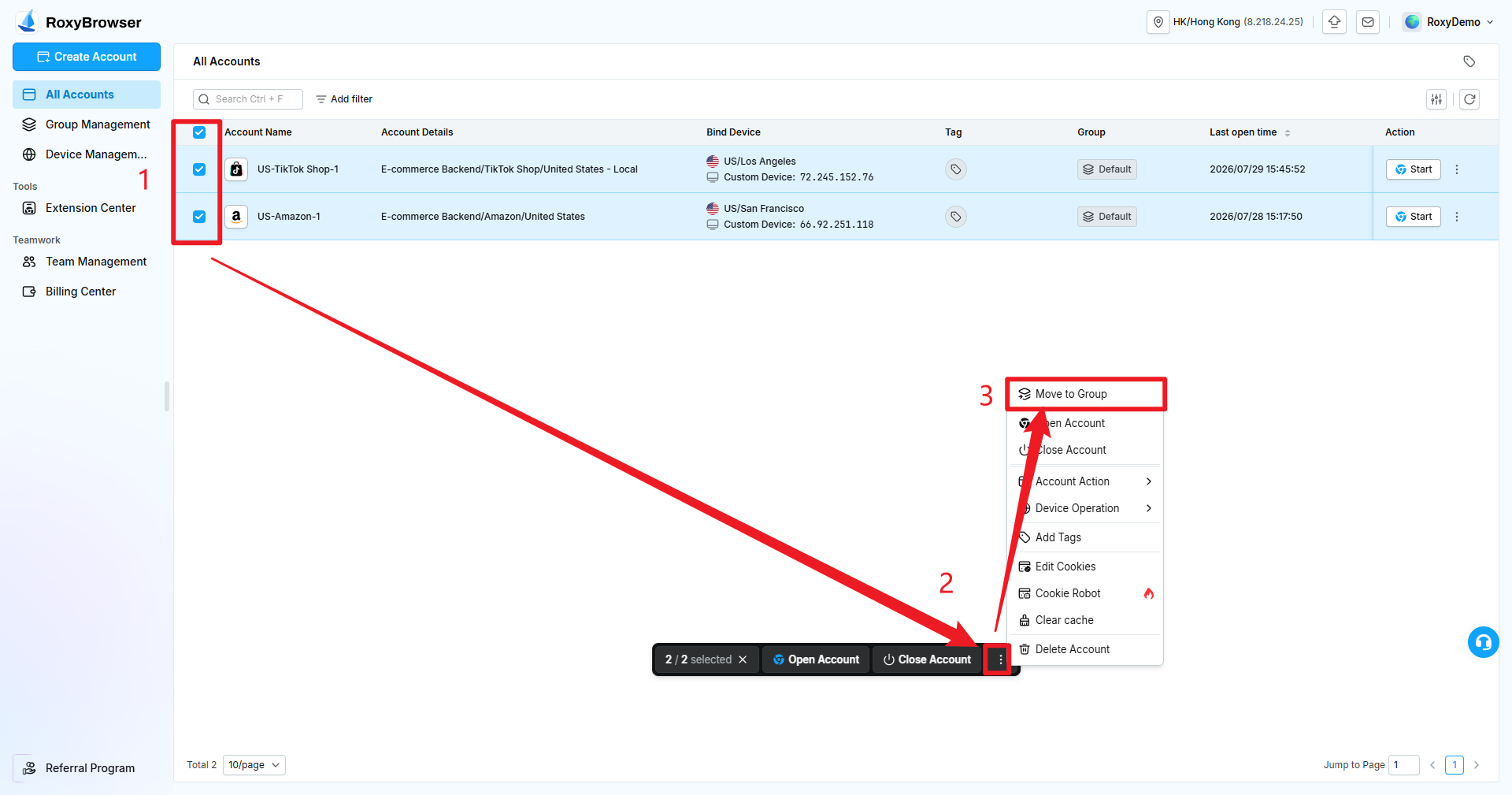
For an existing account, open its action menu and select Move to Group. To move several accounts, select them first and use Move to Group on the batch action bar.
Moving an account changes its group and member visibility. It does not change the browser environment, Cookies, or bound device.
Pin Groups and Manage Members
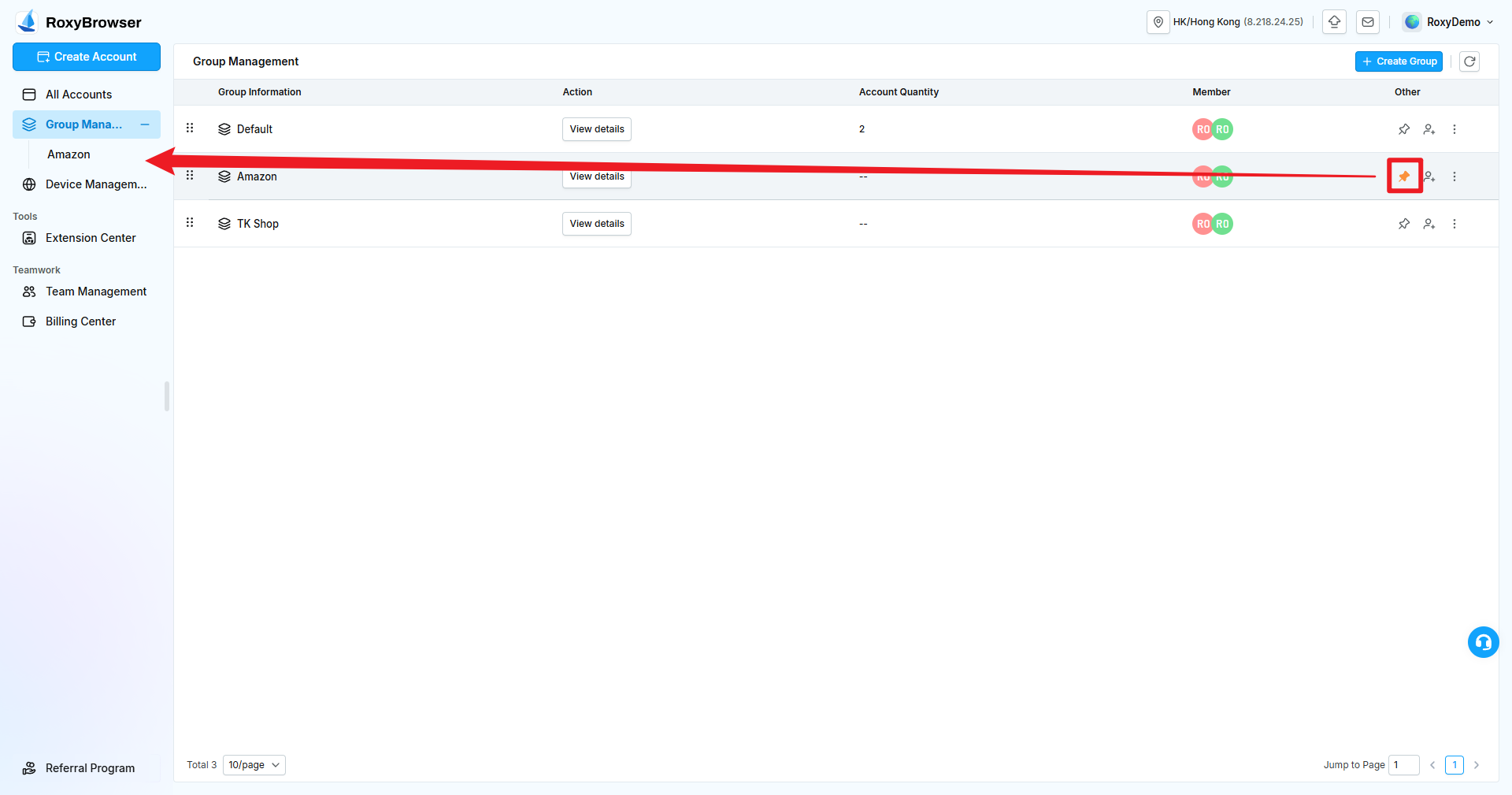
Click the pin icon at the end of a group row to display that group under Group Management in the left menu. Click it again to unpin the group.
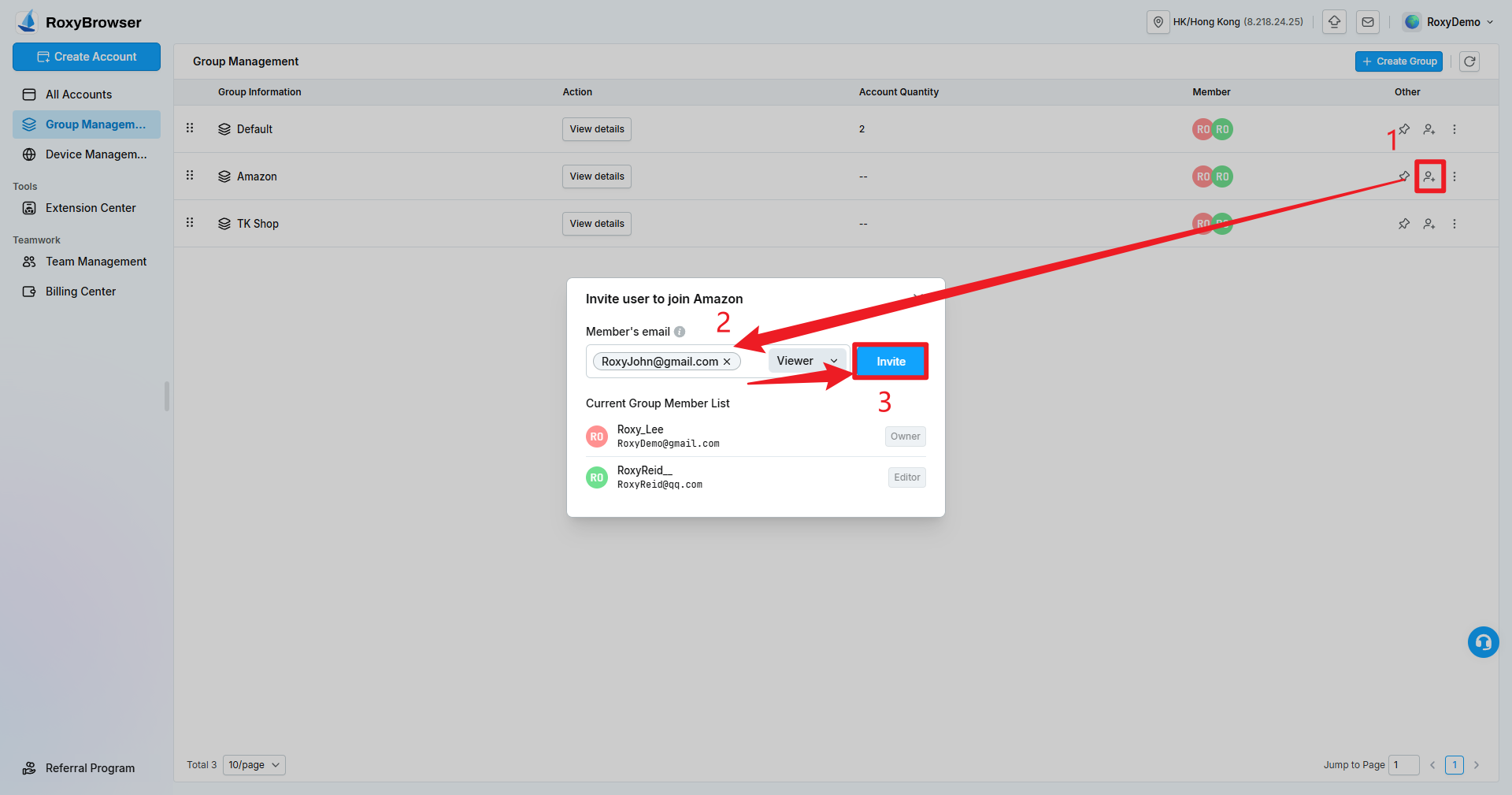
Click the member icon to invite team members to the group and select their group roles. The dialog also shows current group members.
Additional actions can rename or delete editable groups. The available options depend on the group type and the current member's permissions.
Groups and Permissions
A group is the primary account-access boundary in E-commerce Mode. Administrators can grant each operator only the groups they need. Role and feature permissions must still be configured separately under Team Management.
WARNING
Before renaming or deleting a group, confirm its accounts and member access so that operators do not temporarily lose access to required accounts.