Account Management and Configuration
TIP
In E-commerce Mode, each account is an independent browser environment. You can configure the platform, device network, browser fingerprint, and startup preferences separately for each shop.
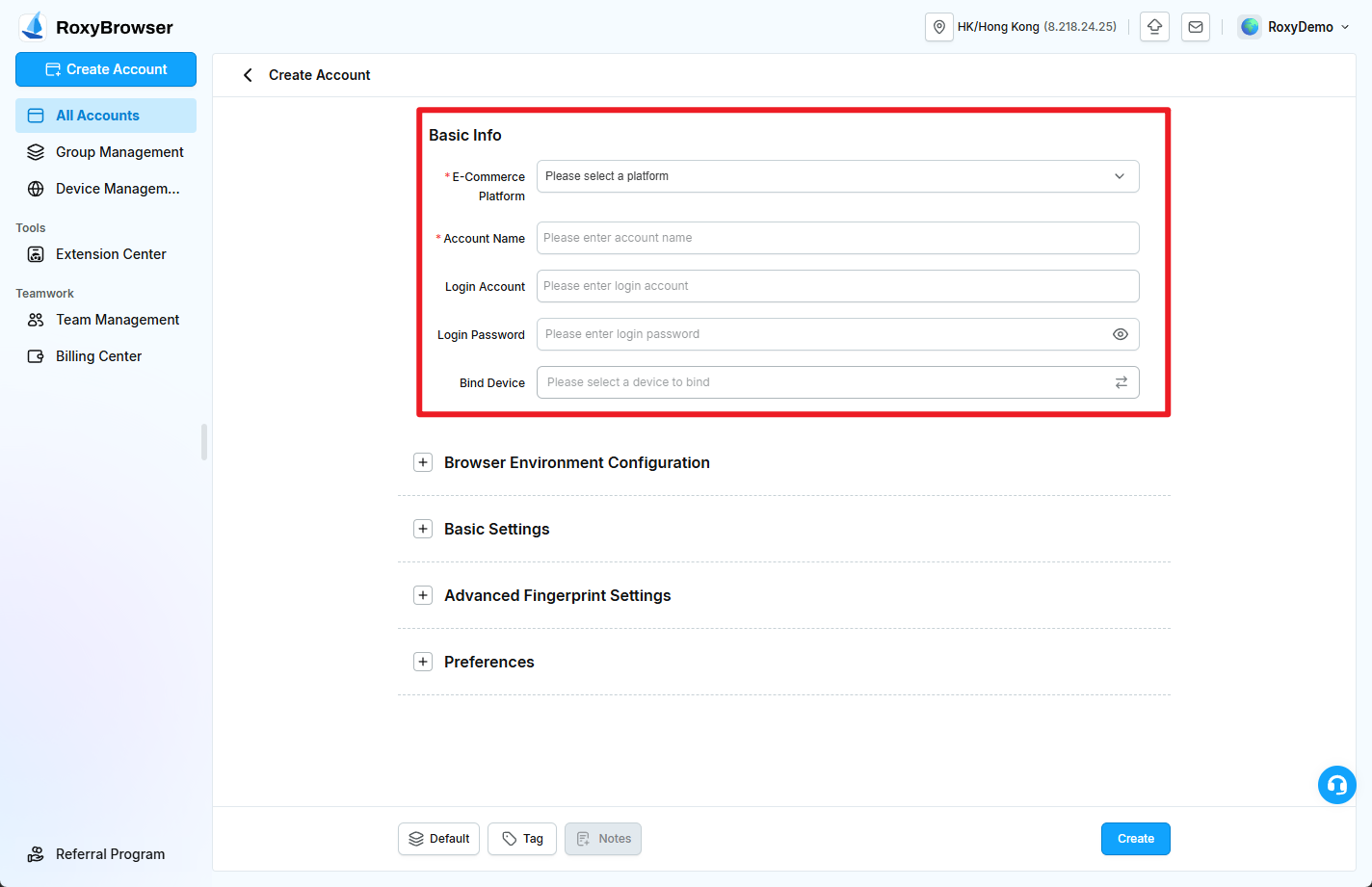
Basic Info
You can create unlimited accounts. E-commerce Platform and Account Name are required. Binding a device is optional when creating an account, but the account cannot start until a device is bound.
- E-commerce Platform (required): Select the platform type, platform, and country or region. You can search directly, or select a custom platform and enter its URL when the required platform is not listed.
- Account Name (required): Use a recognizable shop, platform, or operator name.
- Login Account: Optional. Enter the username, email address, or other login identifier used by the platform.
- Login Password: Optional. Enter the corresponding platform password.
- Bind Device: Optional during creation. An unbound account can be saved and edited, but Start remains unavailable. See Device Management to add or purchase a device.
Browser Environment Configuration
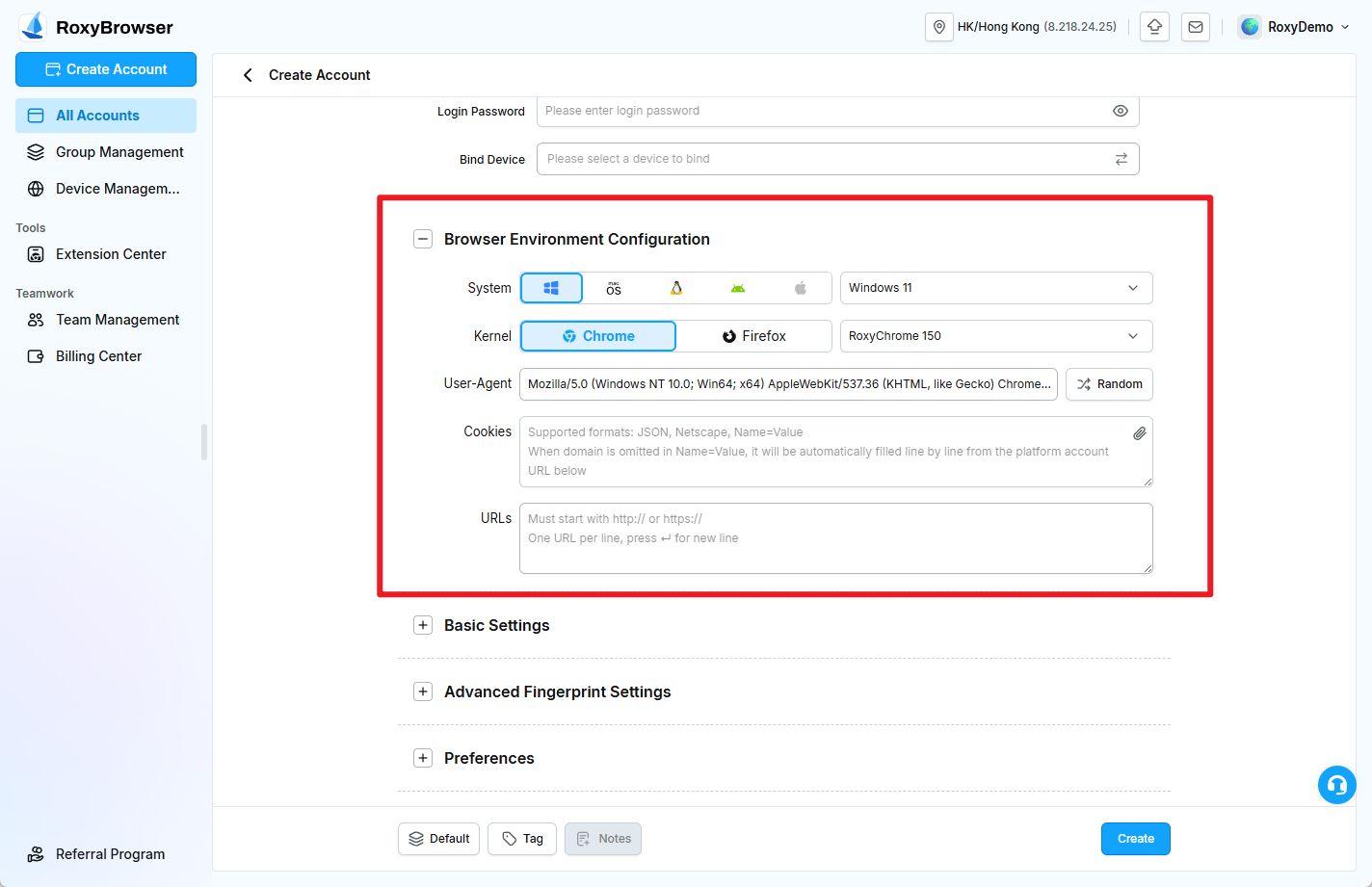
Configure the browser environment and device characteristics used by the account.
- System: Select Windows, macOS, Linux, Android, or iOS and a system version.
- Kernel: Select Chrome or Firefox and a kernel version.
- User-Agent: Generated from the selected system and kernel. Use Random to generate another value or enter a custom value.
- Cookies: Supports JSON, Netscape,
Name=Value, and Cookie file upload. When aName=Valueline has no domain, the client uses the platform account URLs below to complete it. - URLs: Pages that open automatically with the account. Each URL must start with
http://orhttps://; enter one URL per line.
Basic Settings
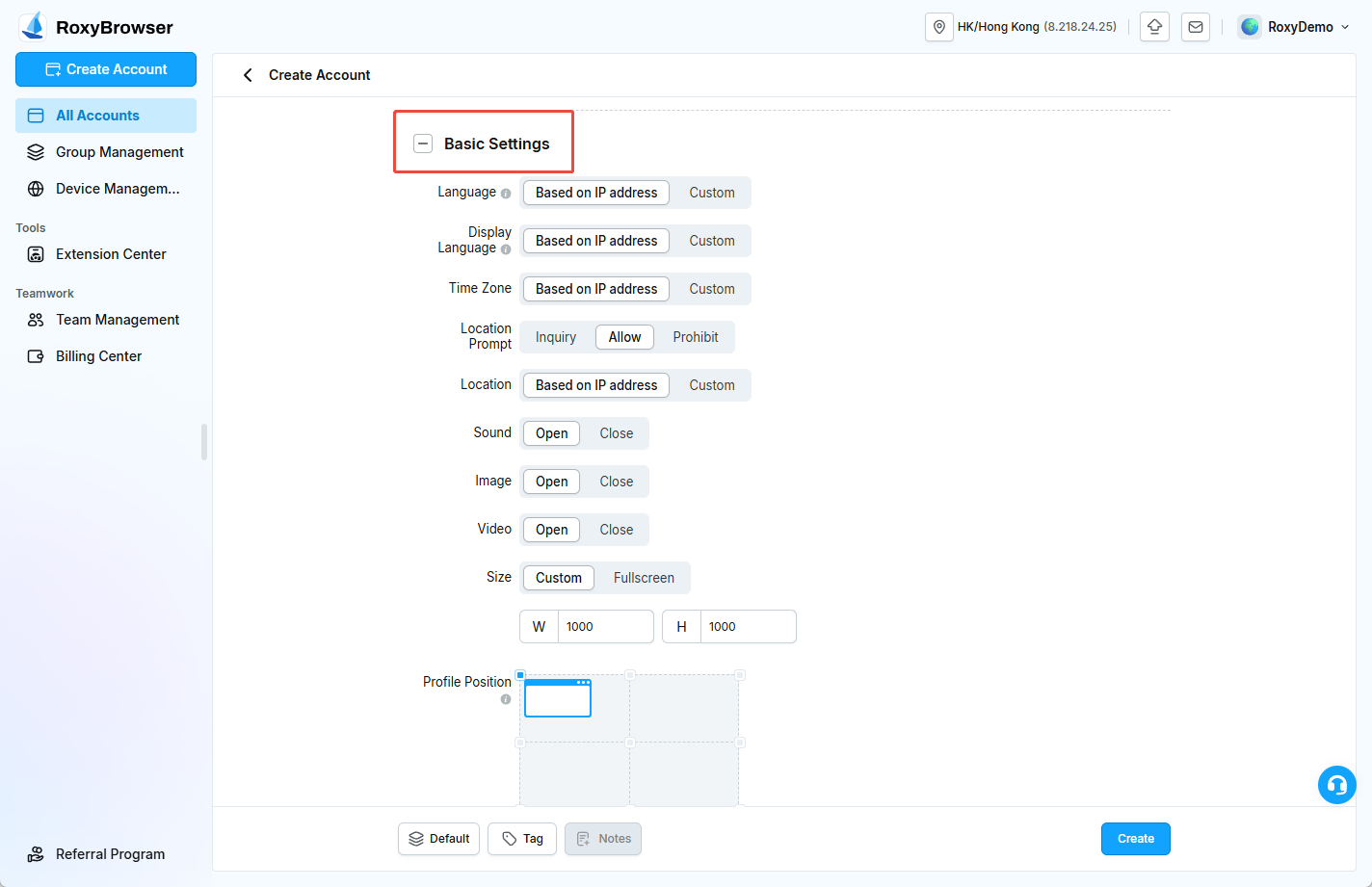
- Language: Preferred language for websites. The default matches the IP.
- Interface Language: Language of the browser frame, address bar, menus, settings, and context menus. The default matches the IP.
- Time Zone: The account time zone. The default matches the IP.
- Geolocation Prompt: Controls whether websites ask, are allowed, or are blocked from accessing location.
- Geolocation: The account location. The default matches the IP; custom coordinates are supported.
- Sound, Images, and Video: Control whether sites can play or load the corresponding content.
- Window Size: Set a custom width and height or use full screen.
- Window Position: Set the initial position on the display.
- Search Engine: Select the default search engine, such as Google, Microsoft Bing, or Yahoo.
WARNING
Unless the platform has a specific requirement, keep the language, interface language, time zone, and geolocation set to match the IP. This helps avoid conflicts between the environment and the outbound IP location.
Advanced Fingerprint Settings
Resolution, fonts, WebRTC, Canvas, WebGL, and other values affect the browser fingerprint. The defaults are suitable for most use cases. When customization is required, review each item in Advanced Fingerprint Settings and keep related values consistent.
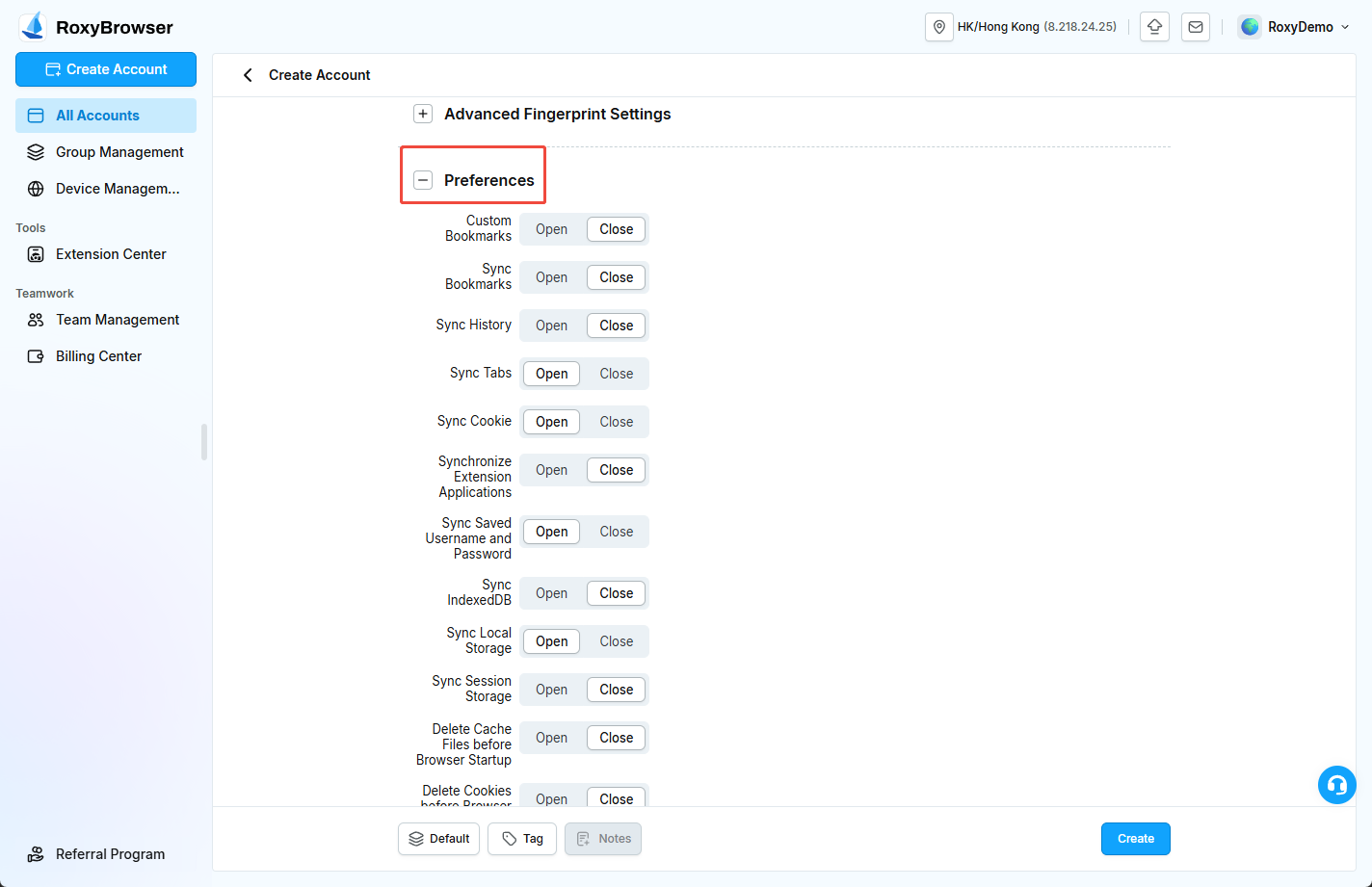
Preferences
These settings control account-specific behavior. Keep the defaults unless your workflow requires a change.
- Custom Bookmarks: Load the custom bookmark file configured in software preferences.
- Sync Settings: Choose whether bookmarks, history, tabs, cookies, extensions, saved usernames and passwords, IndexedDB, Local Storage, and Session Storage are retained and uploaded.
- Clear Cache: Choose whether cache files, cookies, or Local Storage are deleted before the browser starts.
- Random Fingerprint on Browser Startup: Assign a new random fingerprint at each start.
- Prompt to Save Passwords: Control website password-save prompts.
- IP/Network Change Settings: Stop opening when the network is unavailable, the IP changes, or the IP country or region changes.
- Open Workbench, IP Change Reminder, and Google Login: Enable, disable, or follow the software-level setting.
- URL Blacklist / Whitelist: Enter one URL per line to control the pages the account can access.
All Accounts
All Accounts displays the account name, account details, bound device, tags, group, last opened time, and available actions. Account details include the platform type, platform, and country or region. Bound device information includes its location, outbound IP, and source.
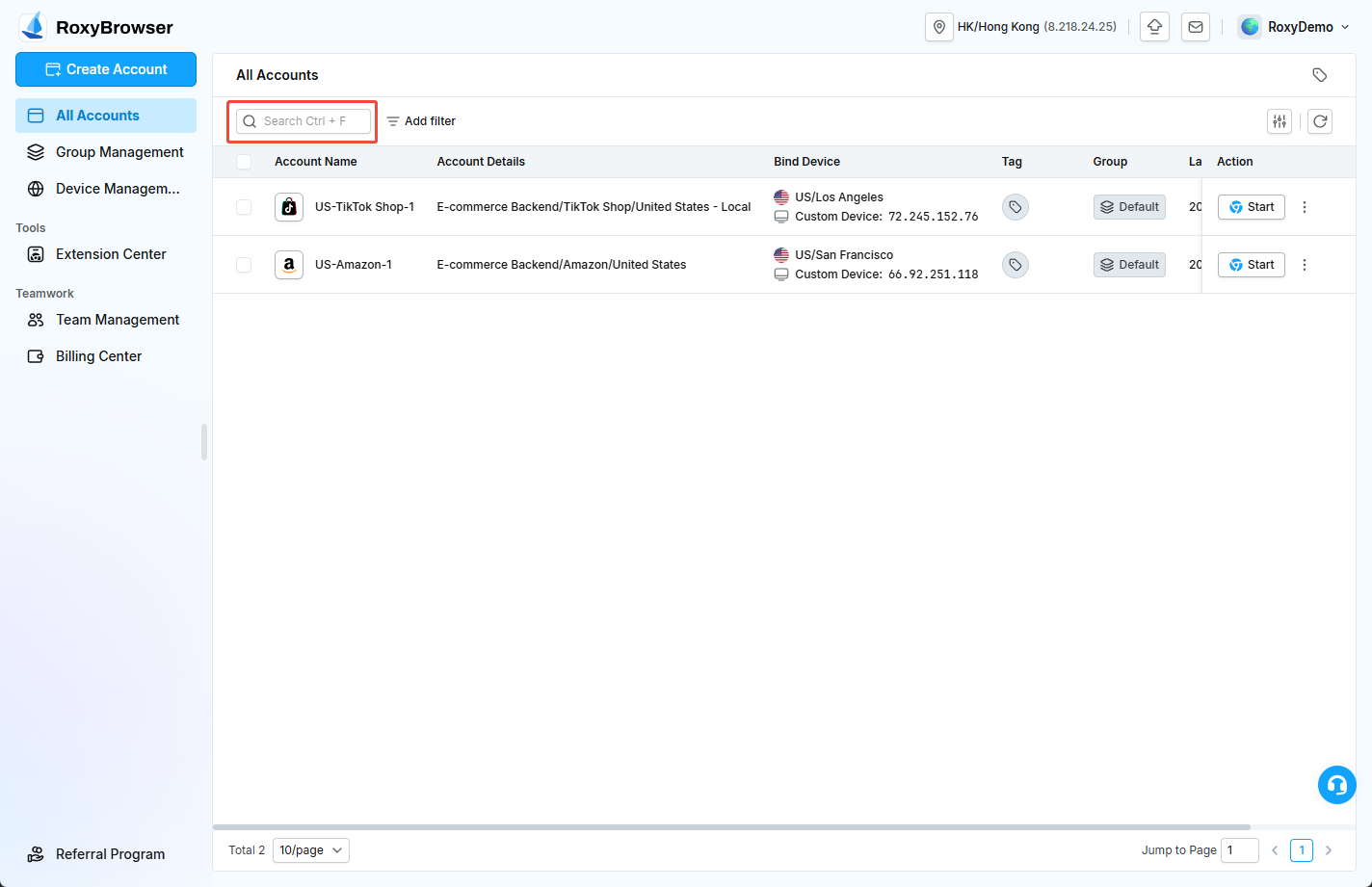
Search: Find an account by account-related keywords.
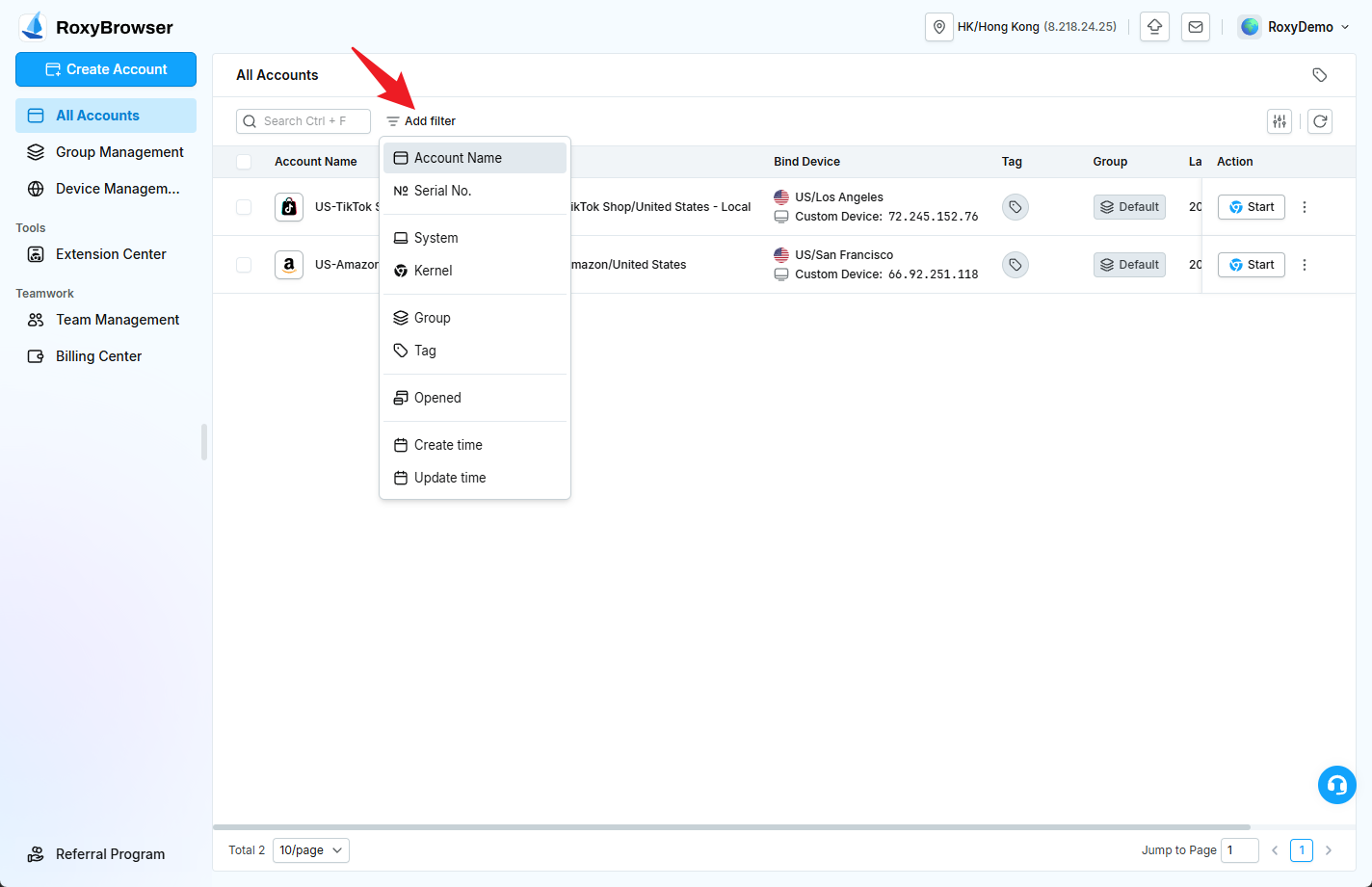
Filter Conditions: Filter by account name, ID, operating system, kernel, group, tag, opened status, creation time, or modification time.
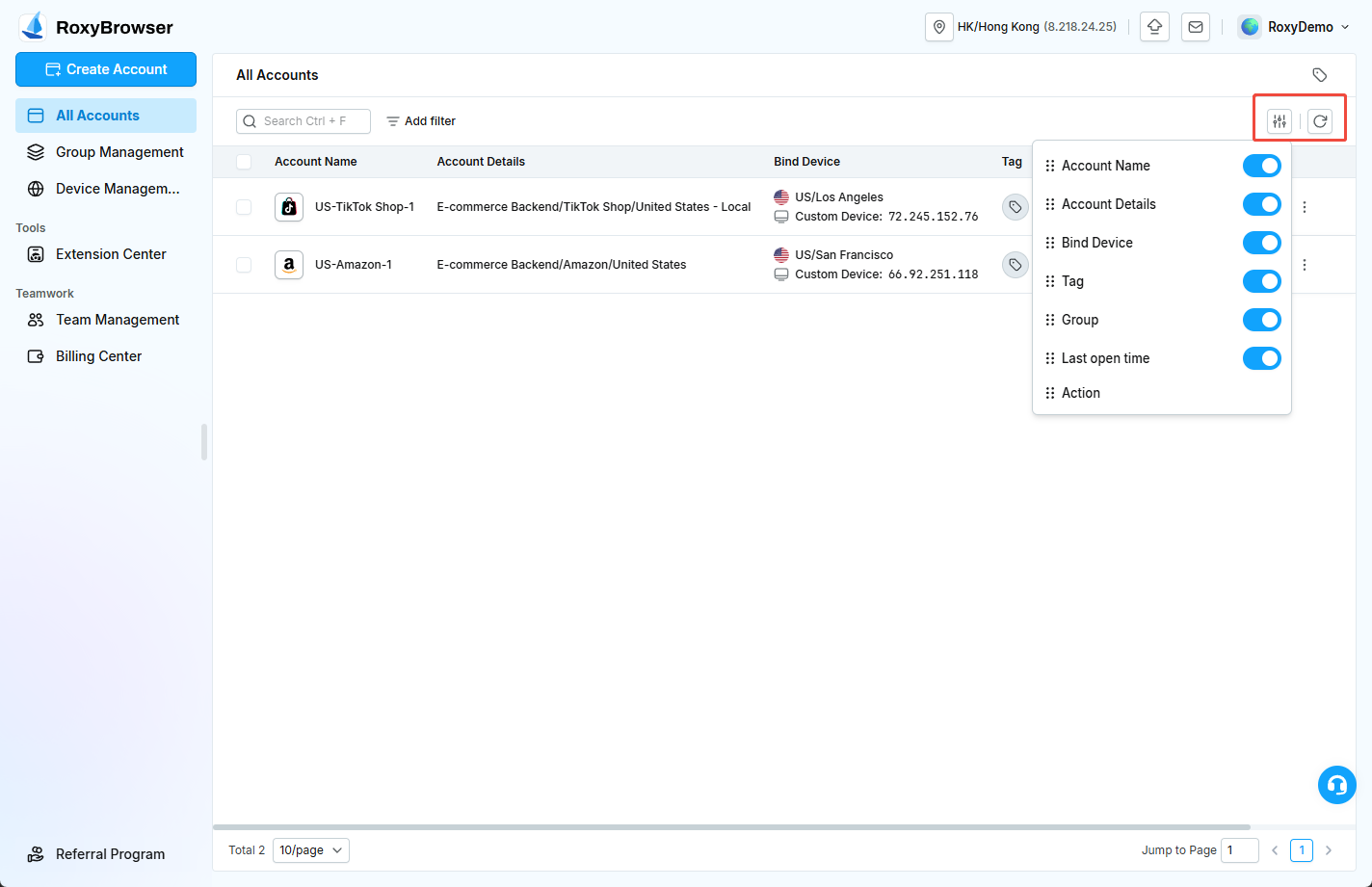
View and Refresh: Change the list display and refresh the data manually.
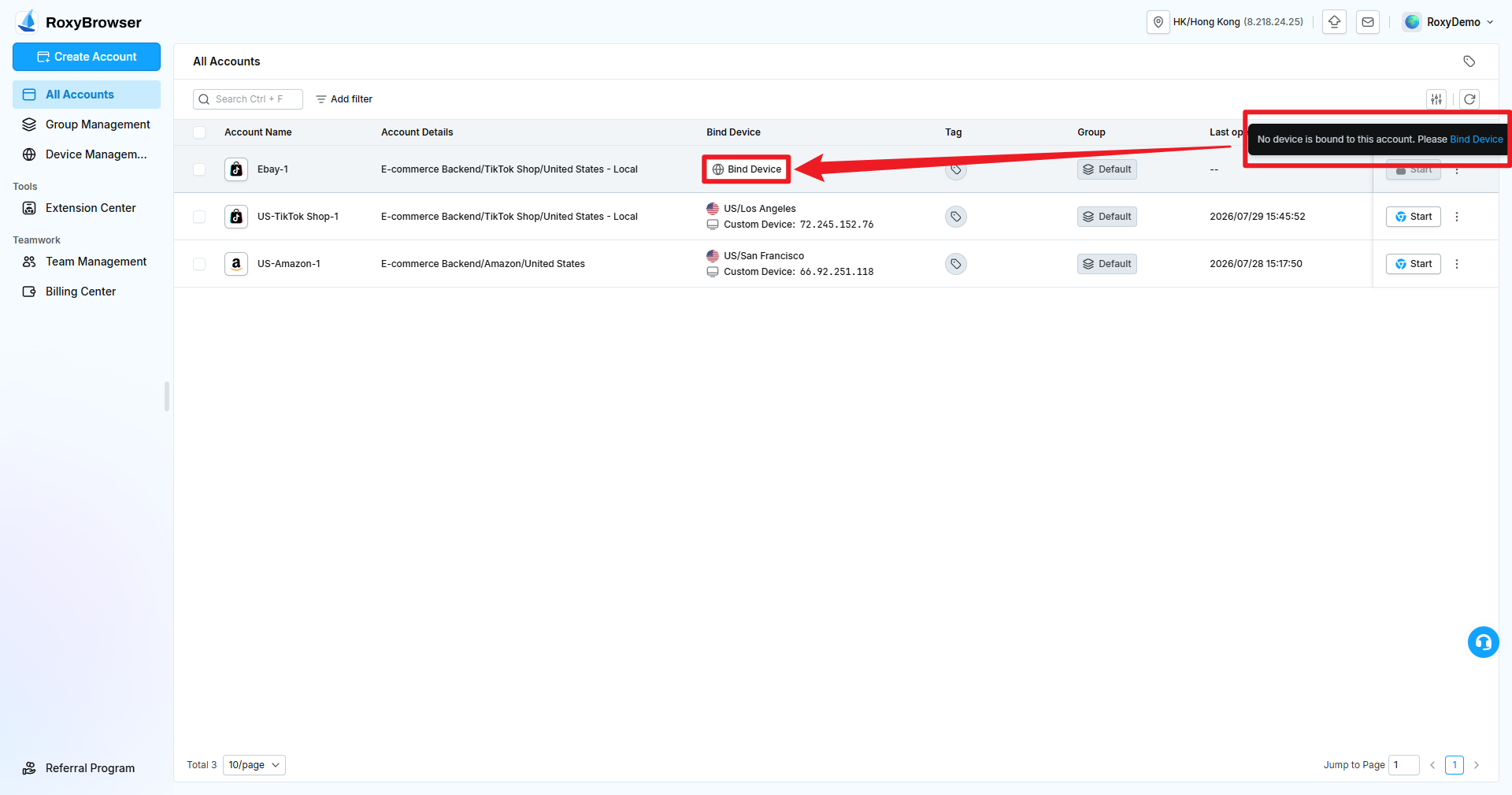
An account without a device shows Bind Device, and Start is unavailable. After binding, click Start to open the account.
Actions for One Account
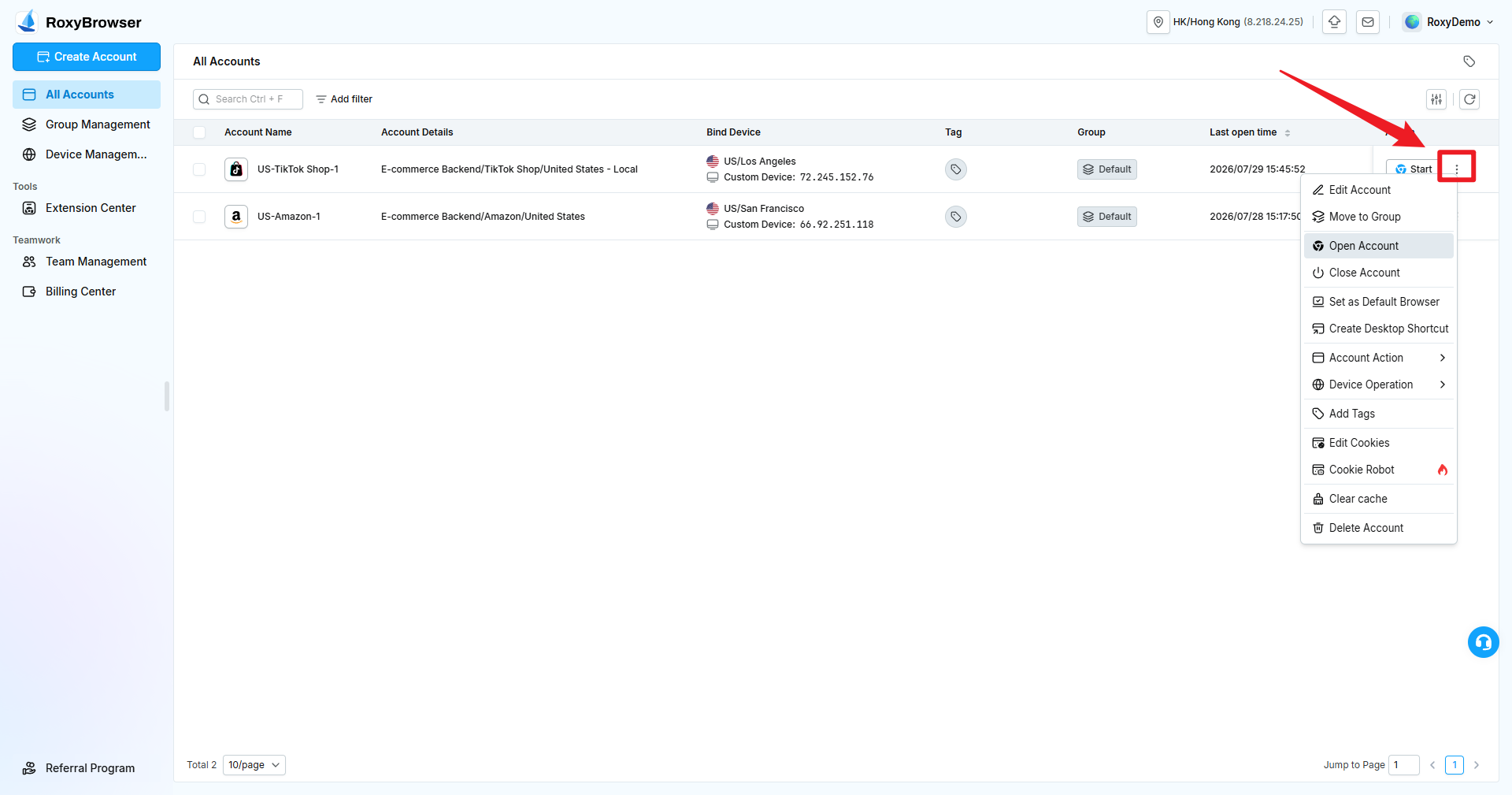
Open the action menu at the end of an account row to access options such as:
- Edit the account, move it to a group, start it, or close it.
- Set it as the default browser or create a desktop shortcut.
- Use account actions, device actions, or add tags.
- Edit Cookies, run Cookie Robot, clear cache, or delete the account.
Available actions depend on the account state and the current member's permissions.
Batch Actions
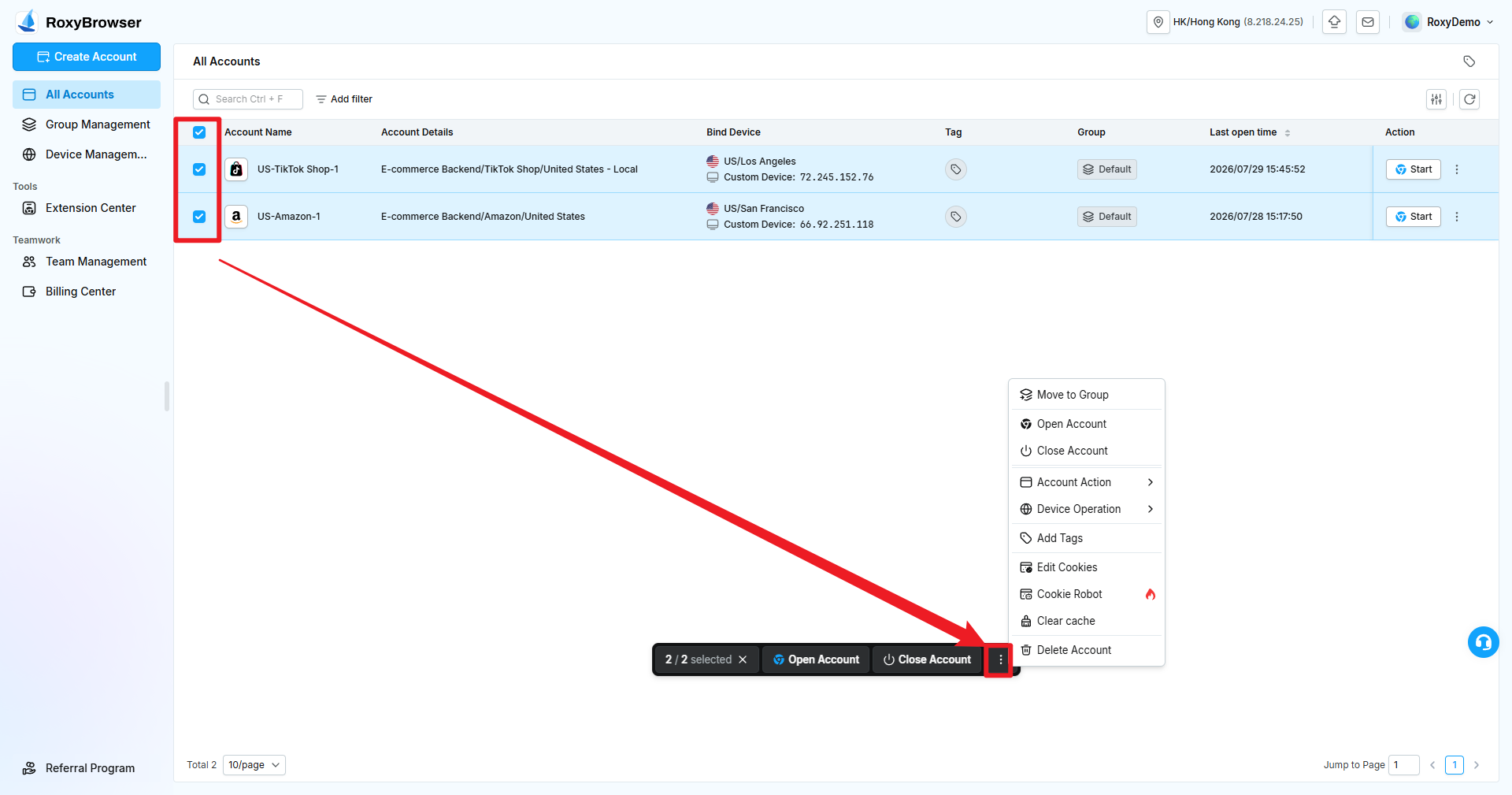
Select one or more accounts to display the batch action bar. You can open or close the selected accounts, or use the additional menu to move them to a group, run account or device actions, add tags, edit Cookies, run Cookie Robot, clear cache, or delete them.
WARNING
Platform rules for multi-account operations vary. Follow the target platform's policies, use a stable outbound IP for important shops, and avoid sharing one browser environment across unrelated accounts.