
Device Management
TIP
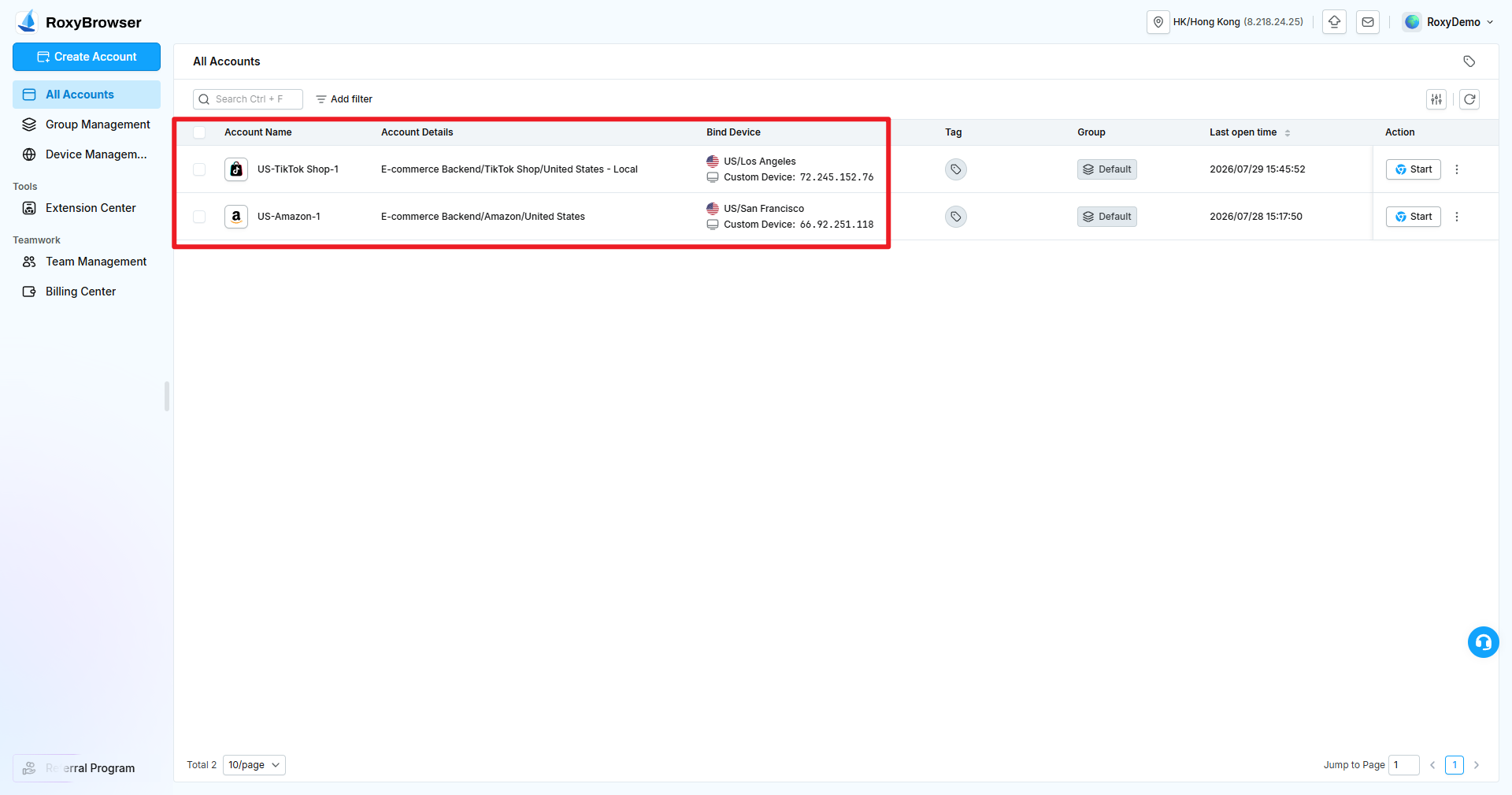
In E-commerce Mode, a device is a network resource that provides an outbound IP to an account. It is not the computer running RoxyBrowser. You can purchase devices from Roxy or import your own IPv4 or IPv6 resources.
Relationship Between Devices and Accounts
- An account can be created without a device, but it cannot start until a device is bound.
- After binding, All Accounts shows the device location, outbound IP, source, and other details.
- Device availability and team permissions determine which accounts can use a device. Follow the target platform's rules and use stable, independent outbound IPs for important shops.
Import Your Own Device
Roxy charges a software service fee for imported devices:
- The first imported device is free permanently.
- Starting with the second imported device, the fee is
$2/month/device.
This fee covers managing, testing, and binding the device in RoxyBrowser. It does not include charges from the third-party network provider. Review the device count, free allowance, service period, and amount due before saving.
Add One
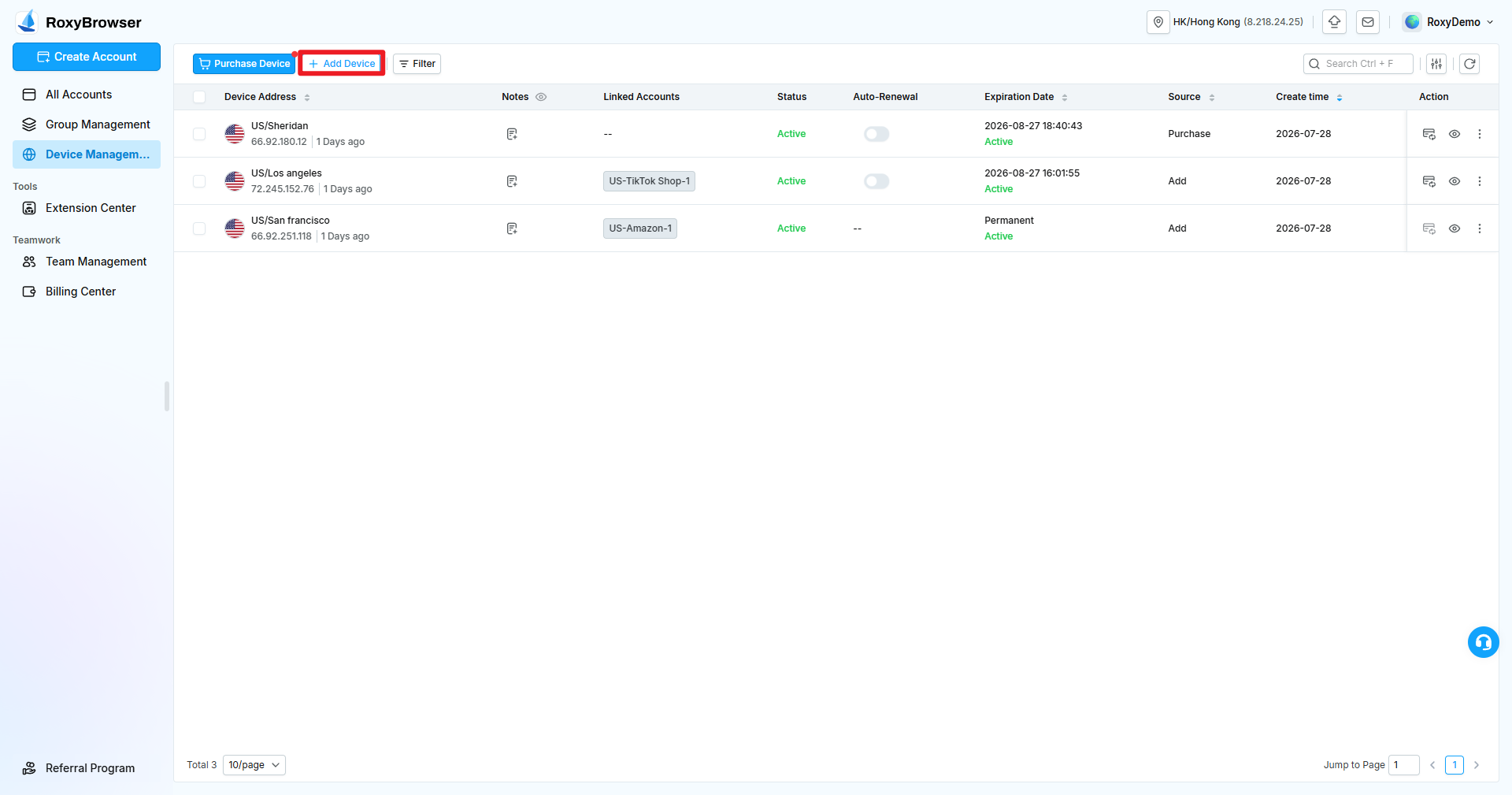
Open Device Management and click Add Device.
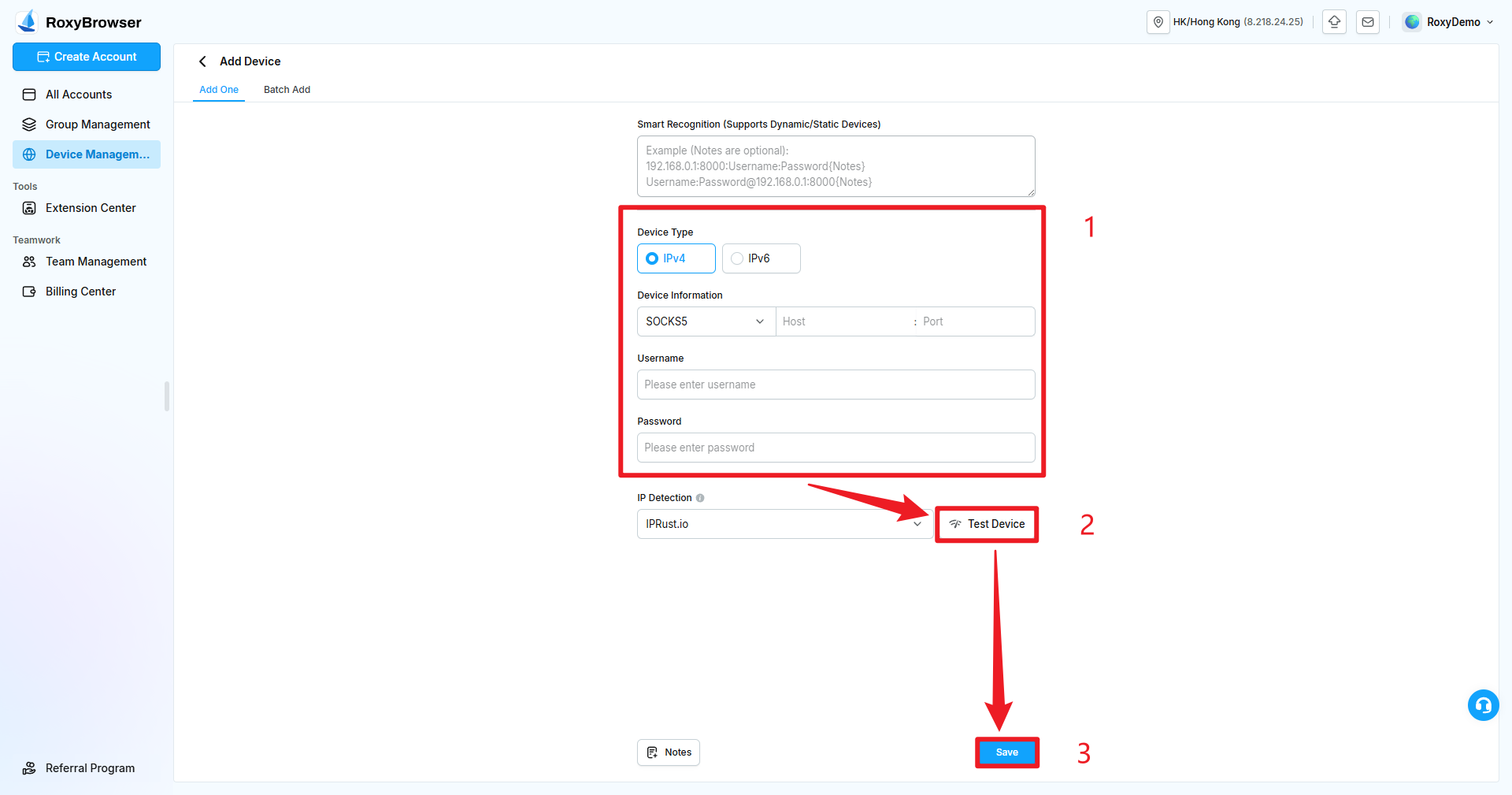
Under Add One:
- Select IPv4 or IPv6.
- Select the protocol and enter the host, port, username, and password.
- For a dynamic device, enter a Refresh URL when required. You can also choose an IP lookup channel and add notes.
- Click Test Device, confirm the outbound IP and location, and save.
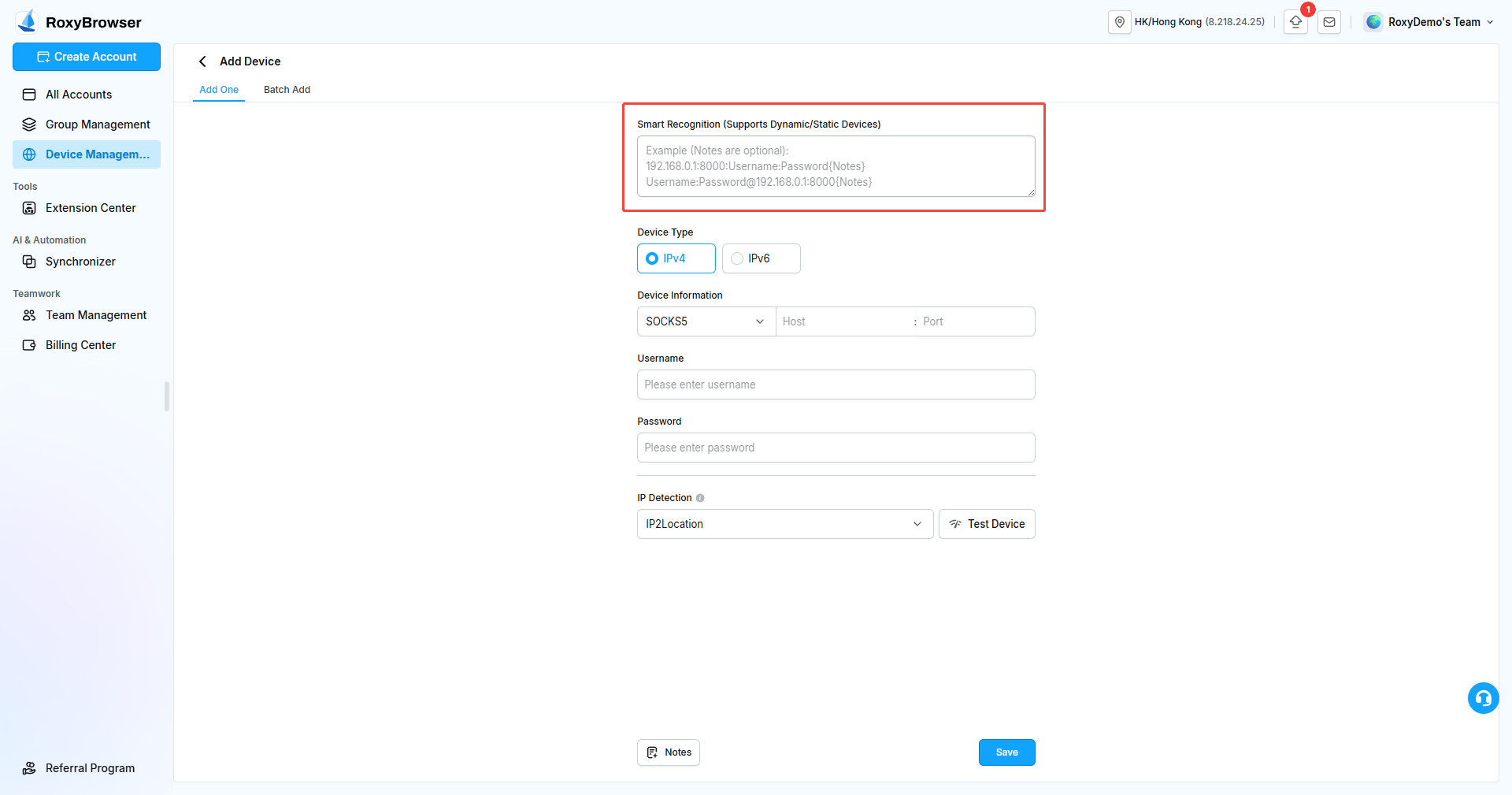
Smart Recognition accepts dynamic and static devices in formats such as:
192.168.0.1:8000:username:password[Refresh URL]{Notes}
username:password@192.168.0.1:8000[Refresh URL]{Notes}
The refresh URL and notes are optional.
Batch Add
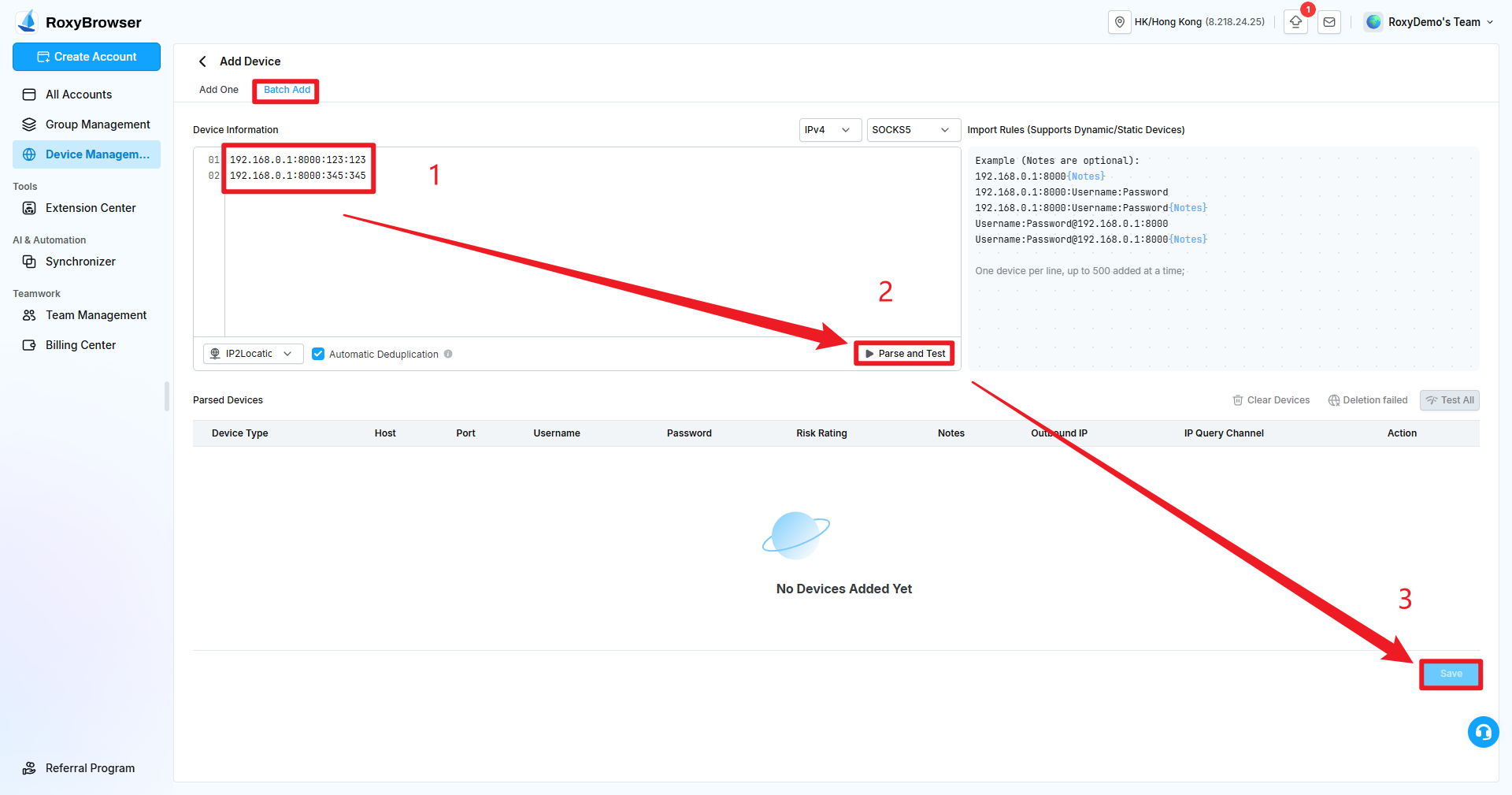
To import several devices, switch to Batch Add:
- Select the device type, protocol, and IP query channel.
- Enter one device per line and enable Automatic Deduplication when needed.
- Click Parse and Test.
- Review the parsed device type, host, port, username, risk rating, refresh URL, notes, outbound IP, and IP query channel, then click Save.
TIP
Test a small sample before a large import. Before saving, confirm the number of parsed devices and the service fee so that format errors or duplicates do not add unintended devices.
Purchase Devices
In Device Management, click Purchase Device, then select the intended use, country or region, duration, and quantity.
Purchased devices follow these rules:
- Each device supports SOCKS5 and HTTP.
- It is assigned to the current account and has unlimited traffic during its validity period.
- If a device cannot connect, you can request a replacement or refund under the applicable after-sales rules.
- Renewal uses the same price as purchase. Renew before expiration to keep the same device; an expired device is disabled and cannot be recovered.
- Identity verification is required before exporting a purchased device.
Before payment, confirm the country or region, duration, quantity, after-sales conditions, and final amount. The current device price is $6; the exact total shown on the confirmation page takes precedence.
View and Maintain Devices
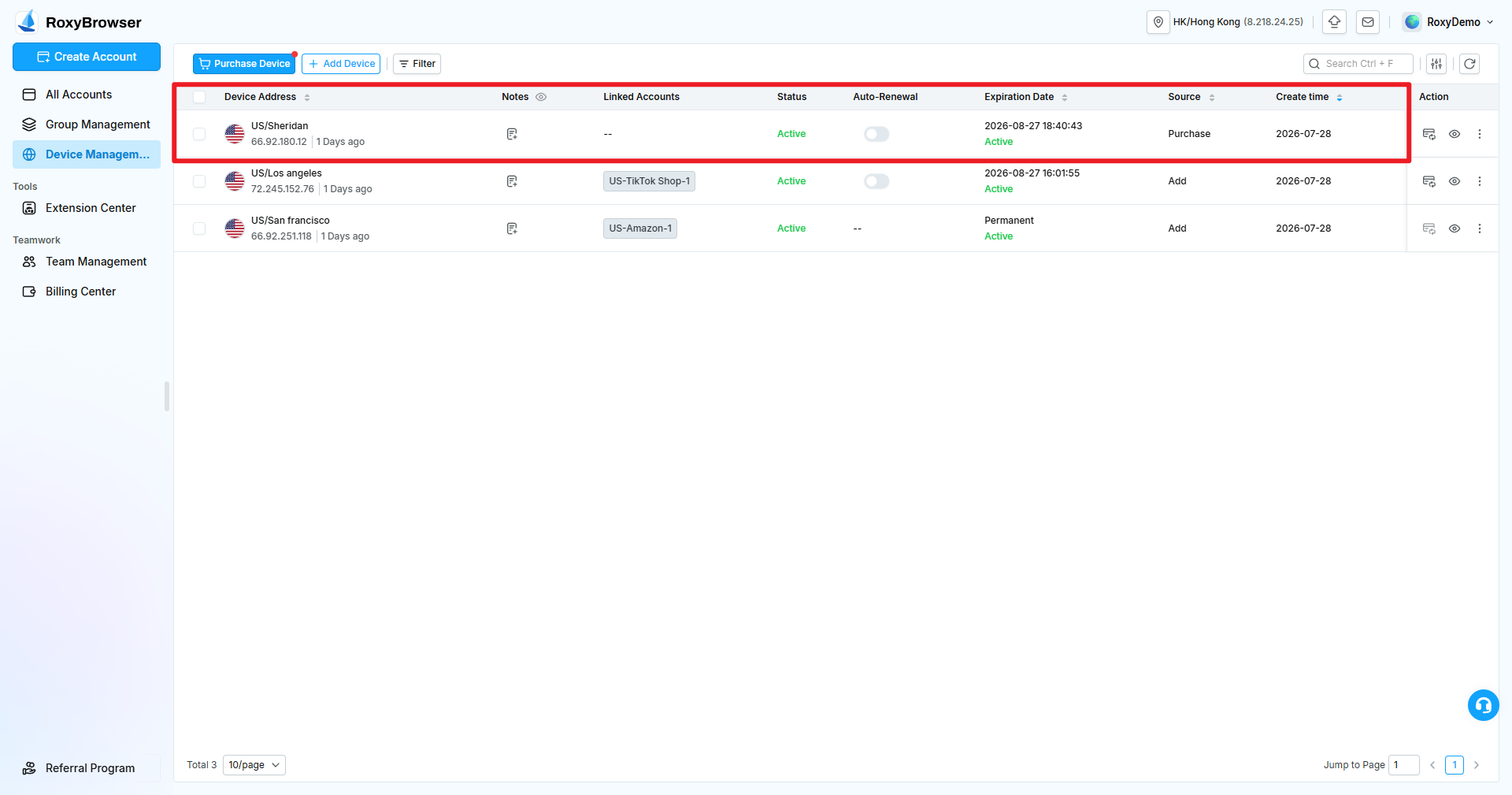
The device list shows:
- Device Address: Location, outbound IP, and last test time.
- Notes and Related Accounts: The device purpose and current binding relationships.
- Status: Whether the device is currently available.
- Renewal and Expiration: Validity and renewal status for purchased devices.
- Source and Creation Time: Whether the device was purchased or imported.
Use search, filters, and refresh to locate resources. Test the relevant device before starting an important account and monitor purchased-device expiration dates.
WARNING
- Before changing a bound device, confirm the new IP's location, stability, and risk information.
- Refresh URLs, usernames, and passwords are device credentials. Use only values from a trusted provider and protect them appropriately.
- Multi-account policies differ by platform. Choose device-to-account bindings that comply with the target platform.