
Software Installation and System Requirements
TIP
E-commerce Mode often runs several account environments at the same time. Before installation, make sure your computer has enough memory and disk space and that your network connection is stable.
Download the Client
- Open the RoxyBrowser download page.
- Select the installer that matches your computer.
- Run the installer after the download finishes and follow the on-screen instructions.
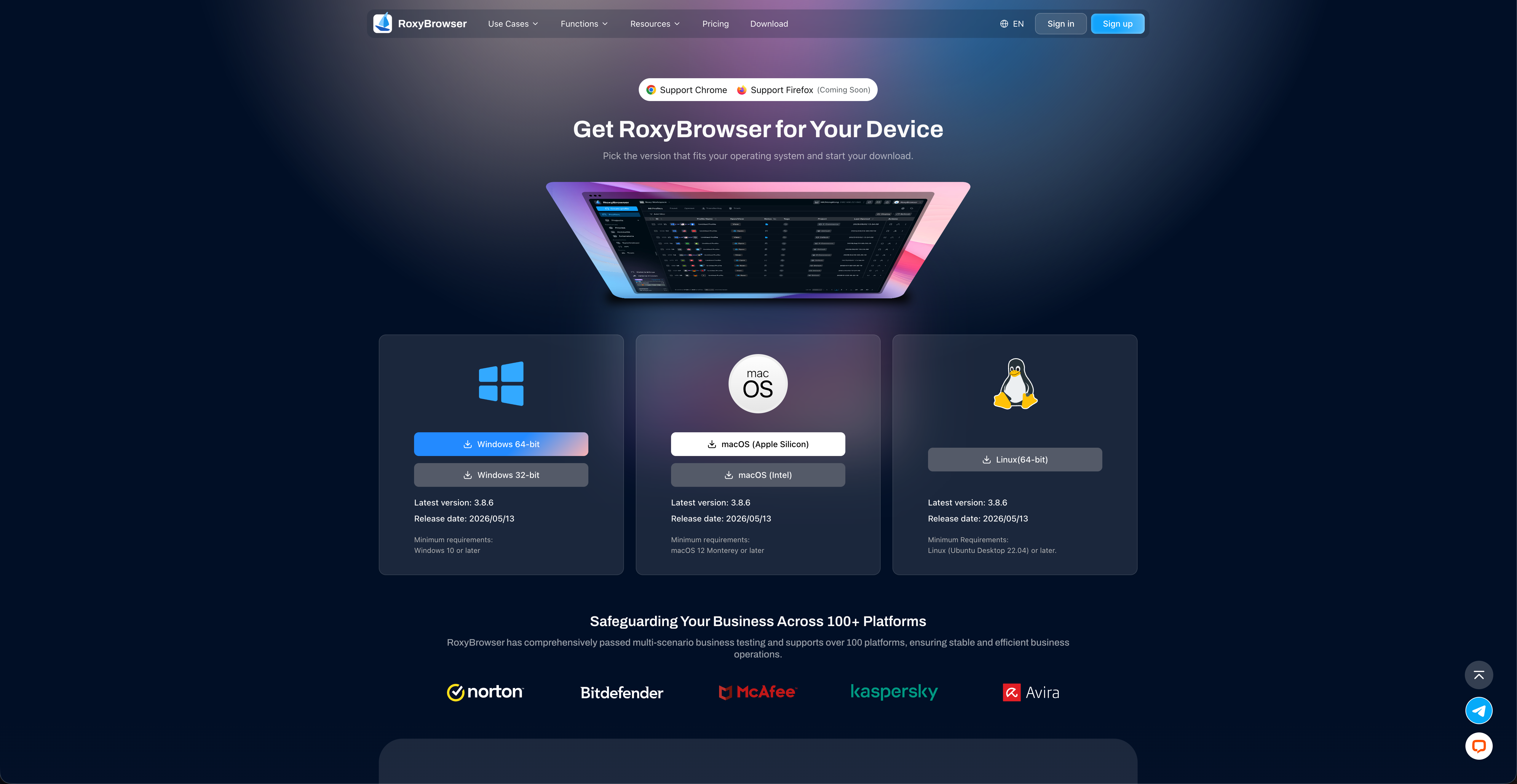
Supported Operating Systems
The RoxyBrowser client supports:
- Windows 10 or later.
- Windows Server 2016 or later.
- macOS 10.12 or later.
Windows installers are available for 64-bit and 32-bit systems. macOS installers are available for Apple silicon and Intel processors.
WARNING
The installer must match your operating system and processor type. If you are unsure which processor your Mac uses, open the Apple menu in the upper-left corner and select About This Mac.
Installation and Usage Recommendations
- Disk space: Account cache, browser kernels, and extensions all use disk space. On Windows, consider installing the client on a non-system drive with sufficient free space.
- Memory: Memory usage increases with the number of accounts running at once. If the computer becomes slow, reduce the number of concurrent accounts or close applications you are not using.
- Network: The client, browser kernels, and account pages all require network access. High latency can slow downloads, device tests, and page loading.
- Updates: After the first launch, update the client and browser kernels before creating production accounts.
After installation, continue with Registration and Login.