
Personal Settings
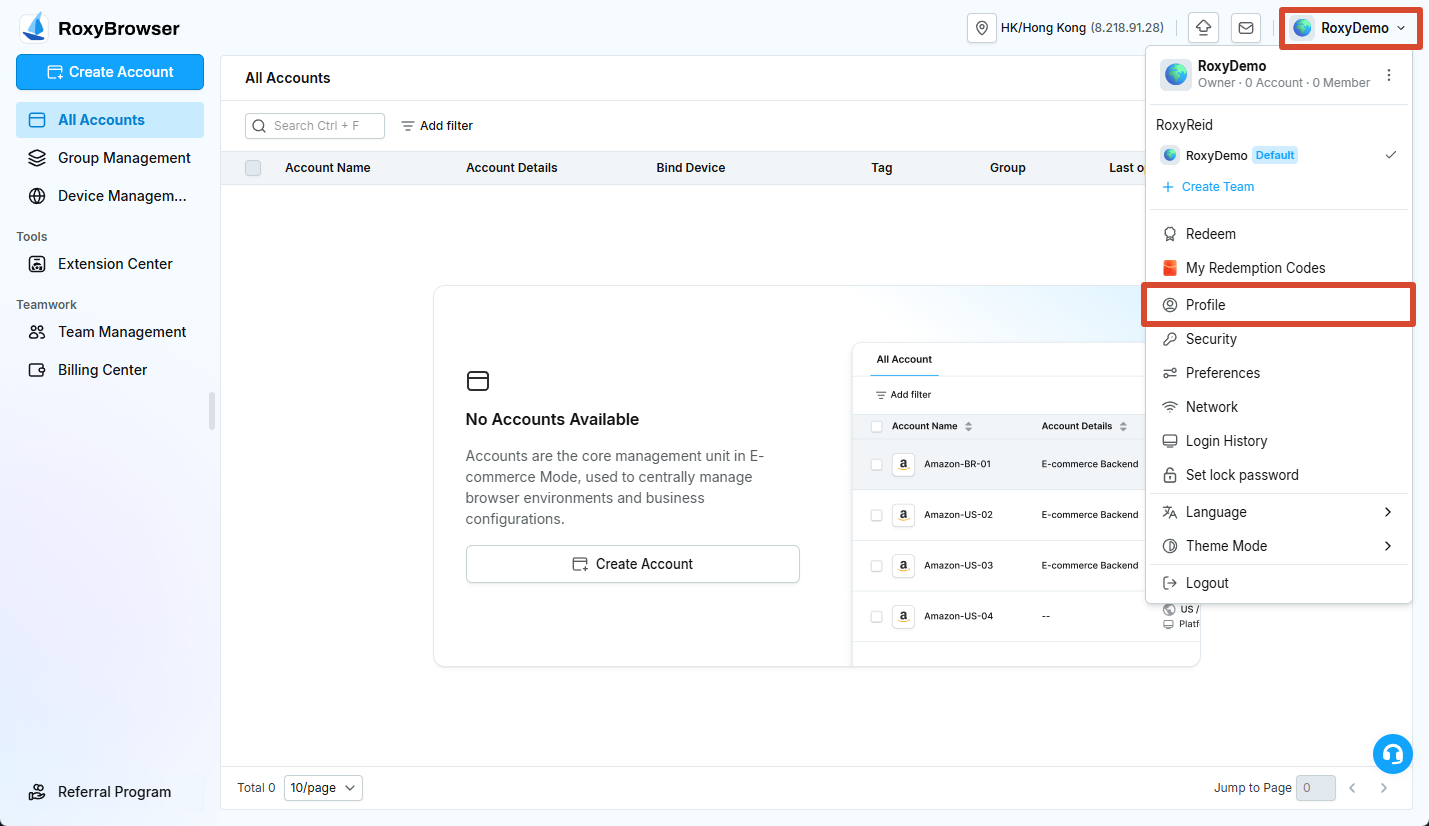
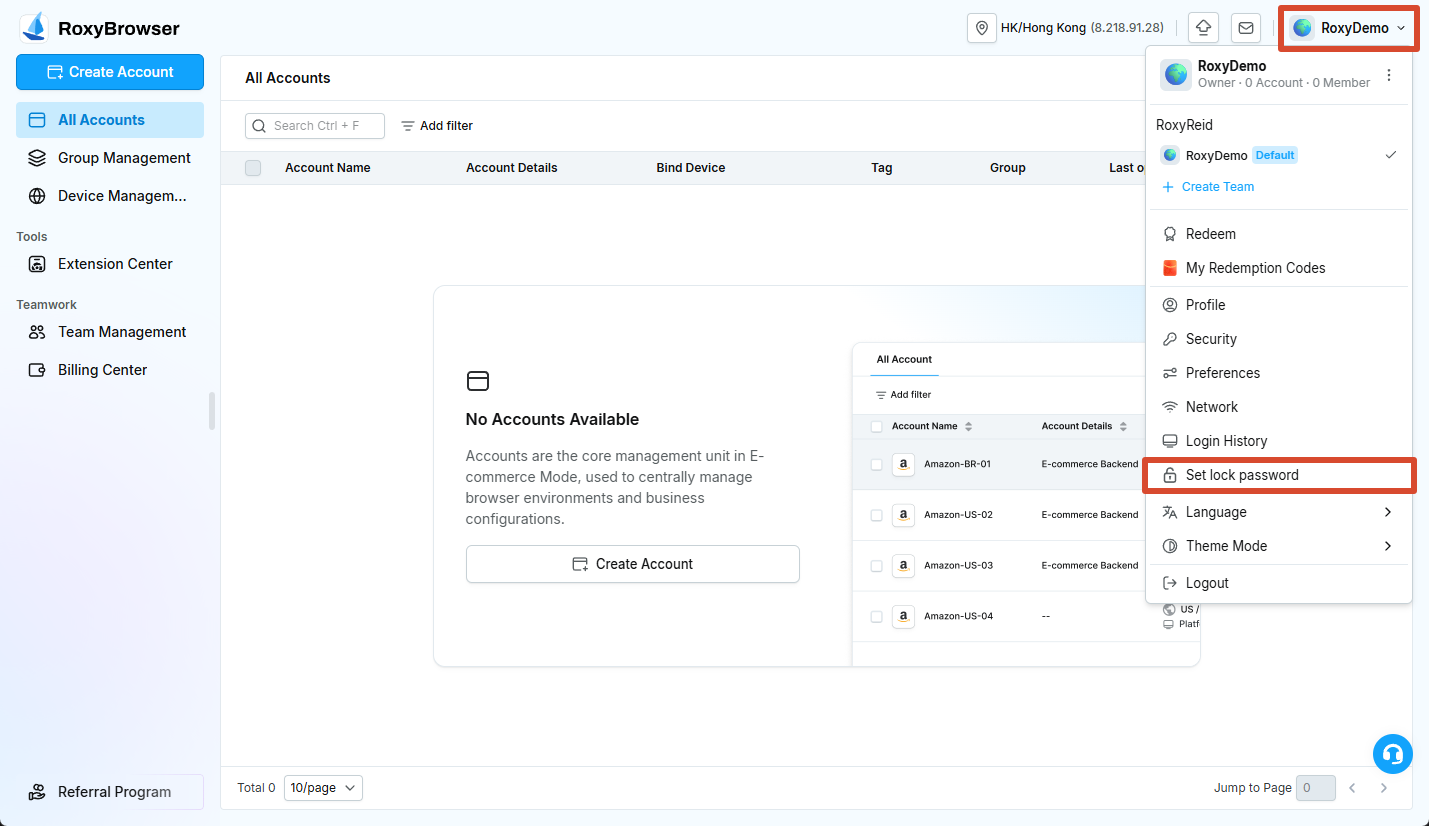
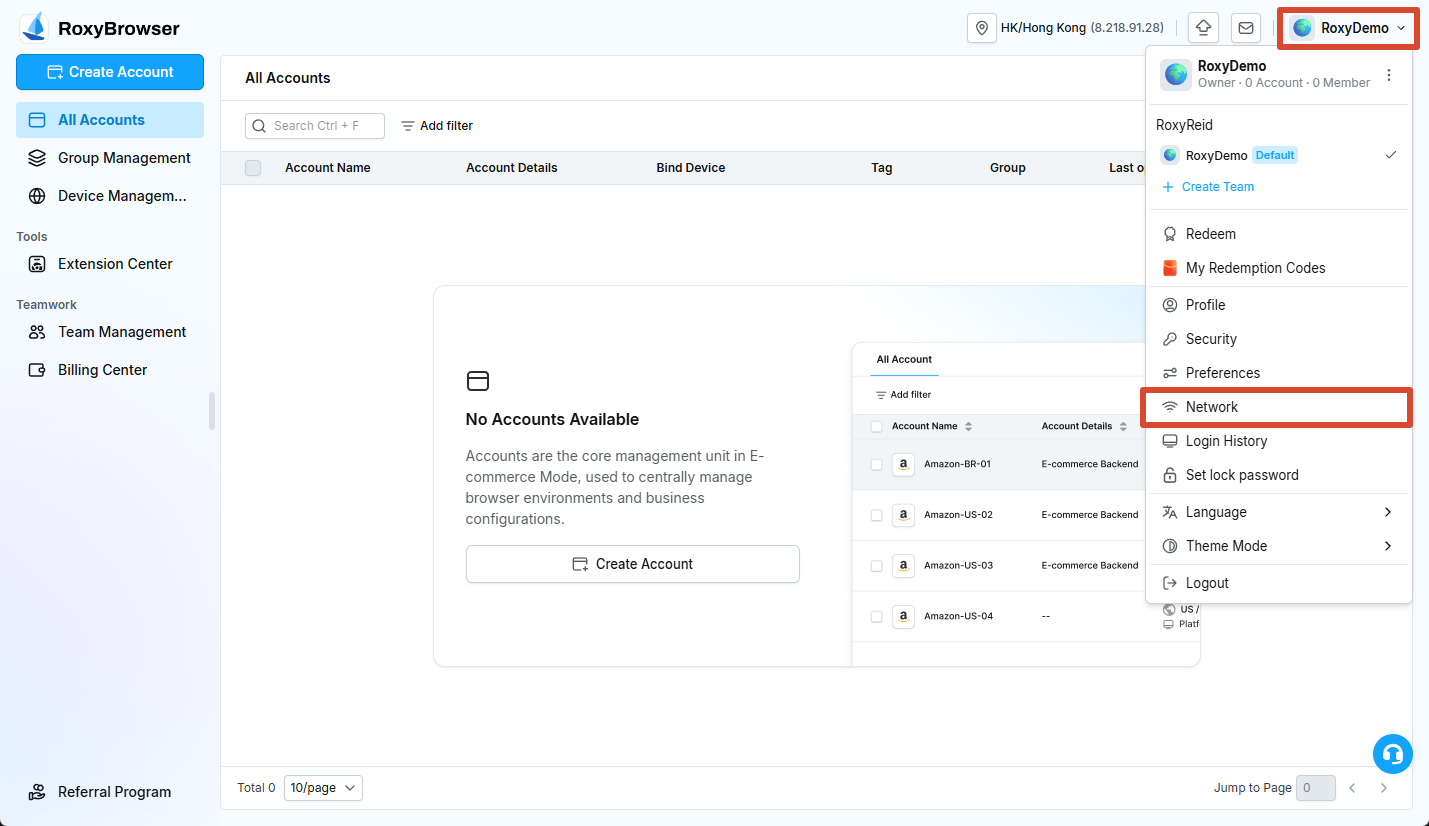
After signing in, click the team or avatar area in the upper-right corner to access Profile, Security, Preferences, Network, Login History, Set lock password, Language, and Theme Mode.
Software and Kernel Updates
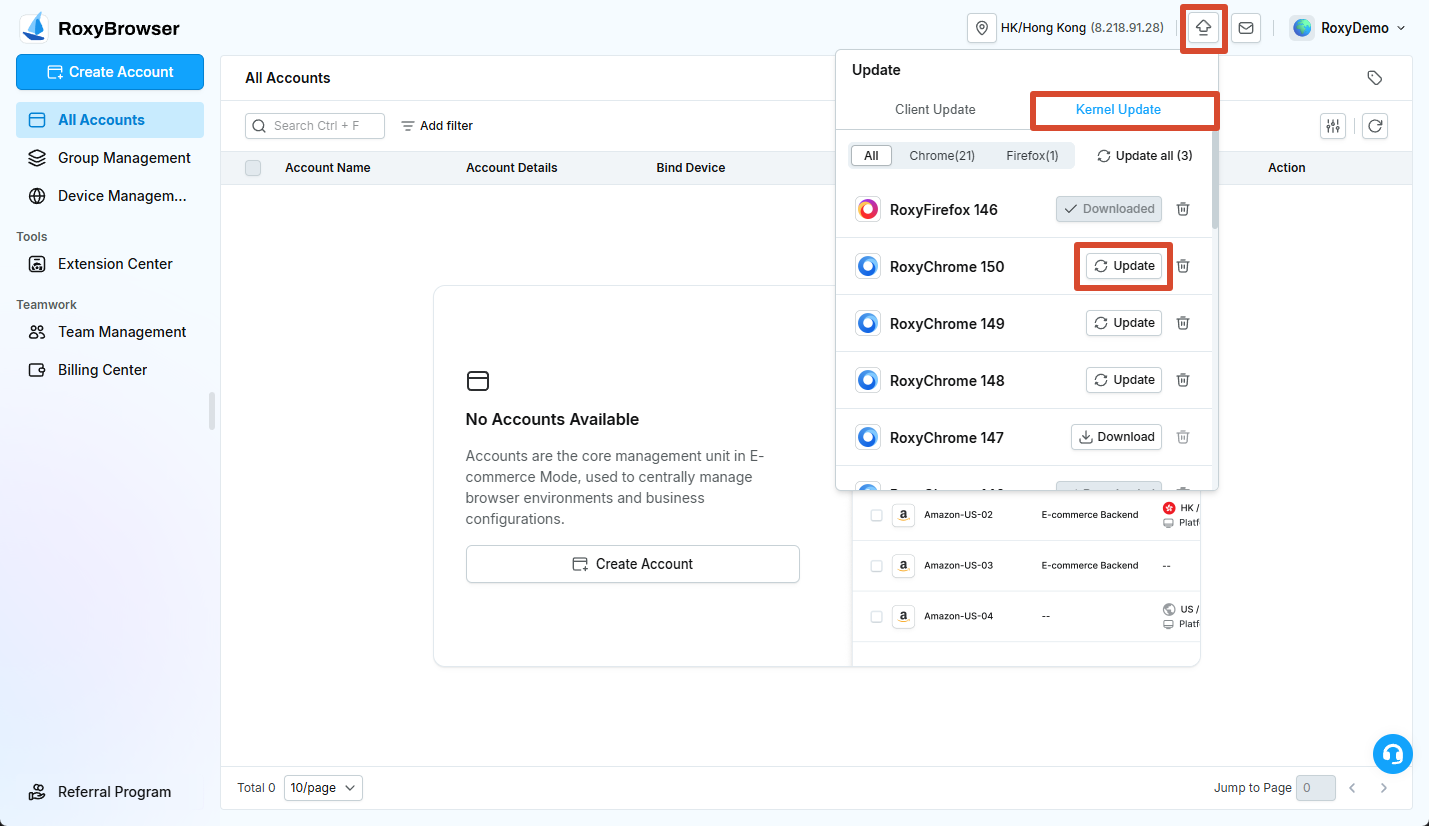
The update entry at the top of the client shows available Client Updates and Kernel Management items. Complete updates when no accounts are running so that active work is not interrupted.
The kernel manager also lists installed versions. Before deleting a kernel, make sure no account is using it. The client may need to download it again the next time a related account starts.
Profile and Security
Profile
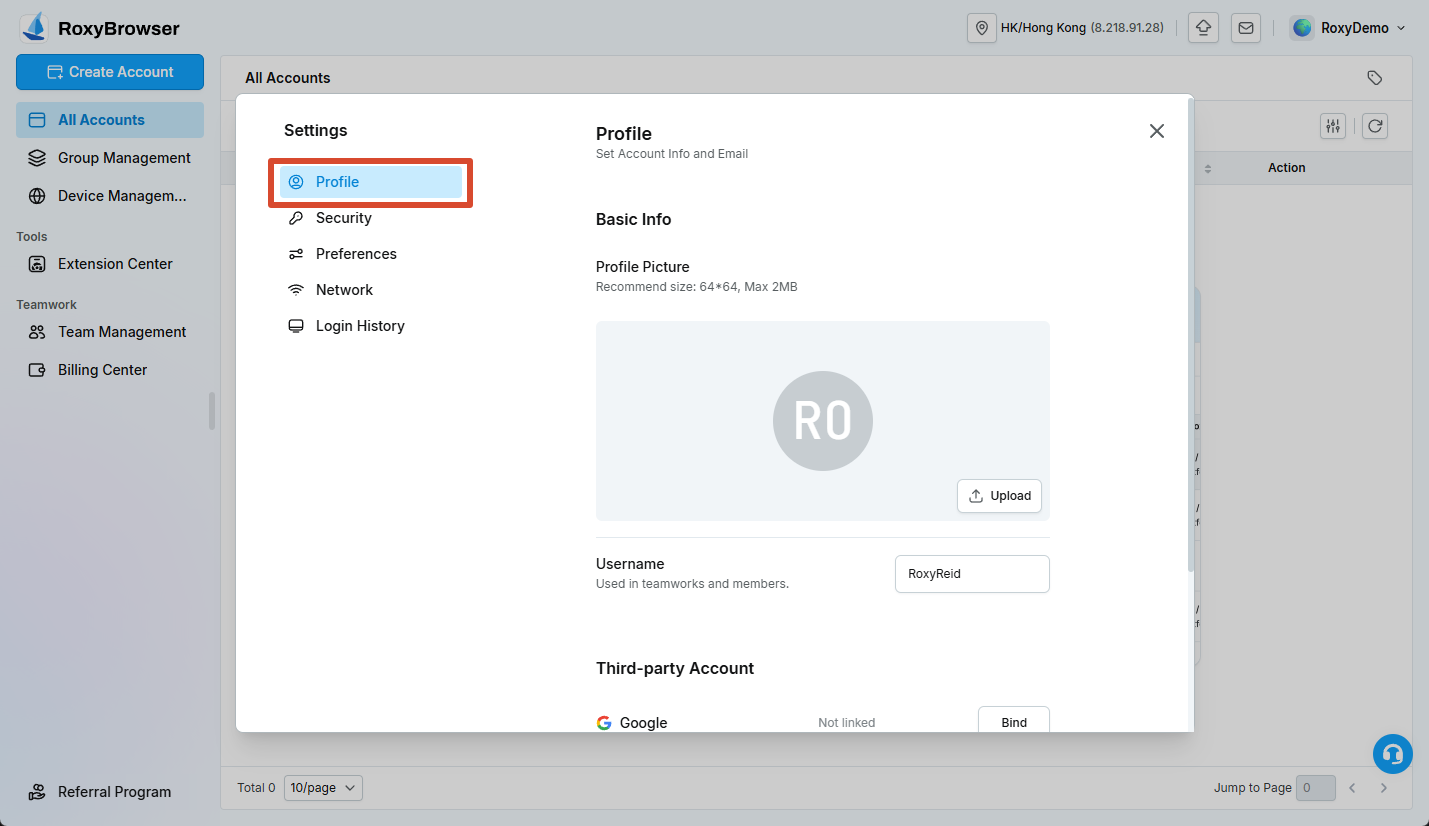
Under Profile, view or change the profile picture and username and review linked third-party accounts. Return to the main screen after saving and confirm that the new information is shown.
Security
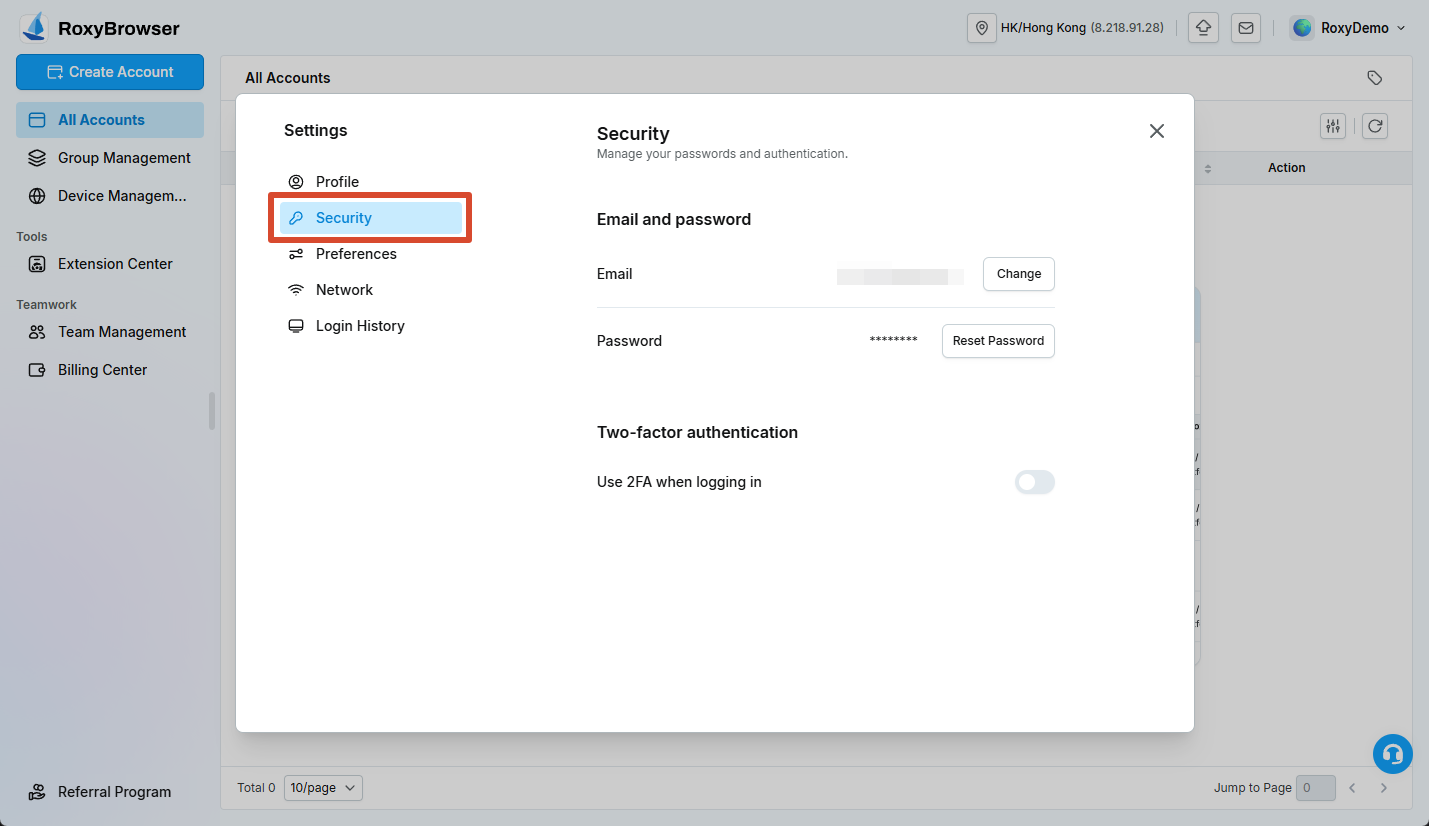
Under Security, manage the email, password, and two-factor authentication settings. After changing the password, use the new password when signing in on other devices.
WARNING
Never share verification codes, login passwords, or authentication keys. If you suspect an unauthorized login, change the password immediately and review Login History.
Application Lock
Use Set lock password to lock RoxyBrowser temporarily on the current computer. Follow the page instructions to create a 4-12 character lock password using letters, numbers, or symbols.
The application lock password is not the same as the RoxyBrowser account password. Store it safely so that you do not lose local access.
Preferences
Browser Environment Defaults
- Strict UA mode: Keeps the browser version and User-Agent aligned. Disable it only when you need to choose a custom browser version.
- Open Workbench: Controls whether the workbench opens when an account starts. It applies when the account preference is set to follow the software setting.
- Google login: Controls whether account environments allow Google account login. Individual account preferences can override it.
- IP change reminder: Controls whether the client displays a notification when the IP changes.
- Default search engine: Sets the default search engine for new accounts.
Simulated Input
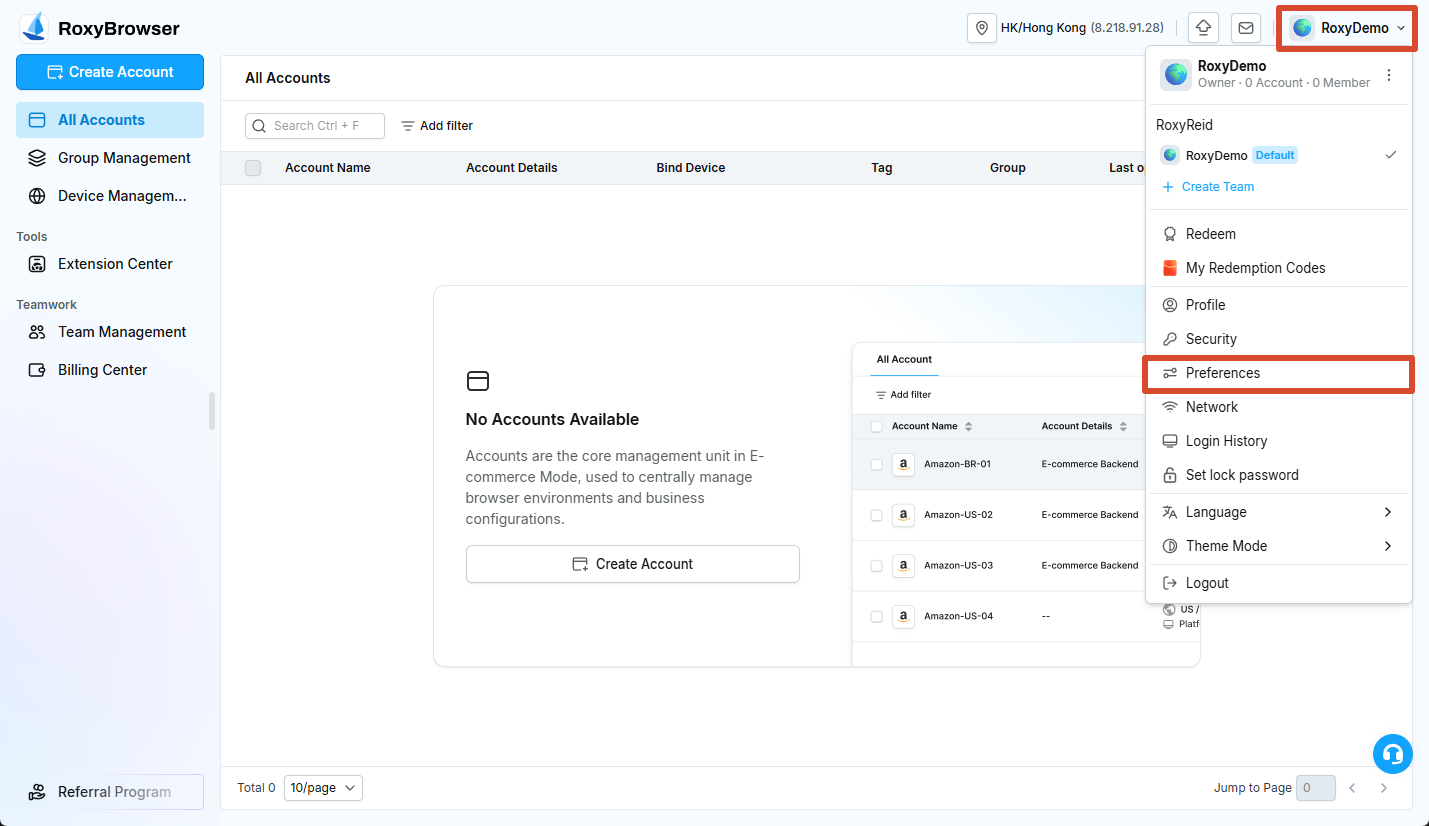
Simulated Input controls how input is sent during synchronized operations. You can enable it, set the input delay range, and configure a shortcut key. Test changes with a non-production account first.
Local Cache
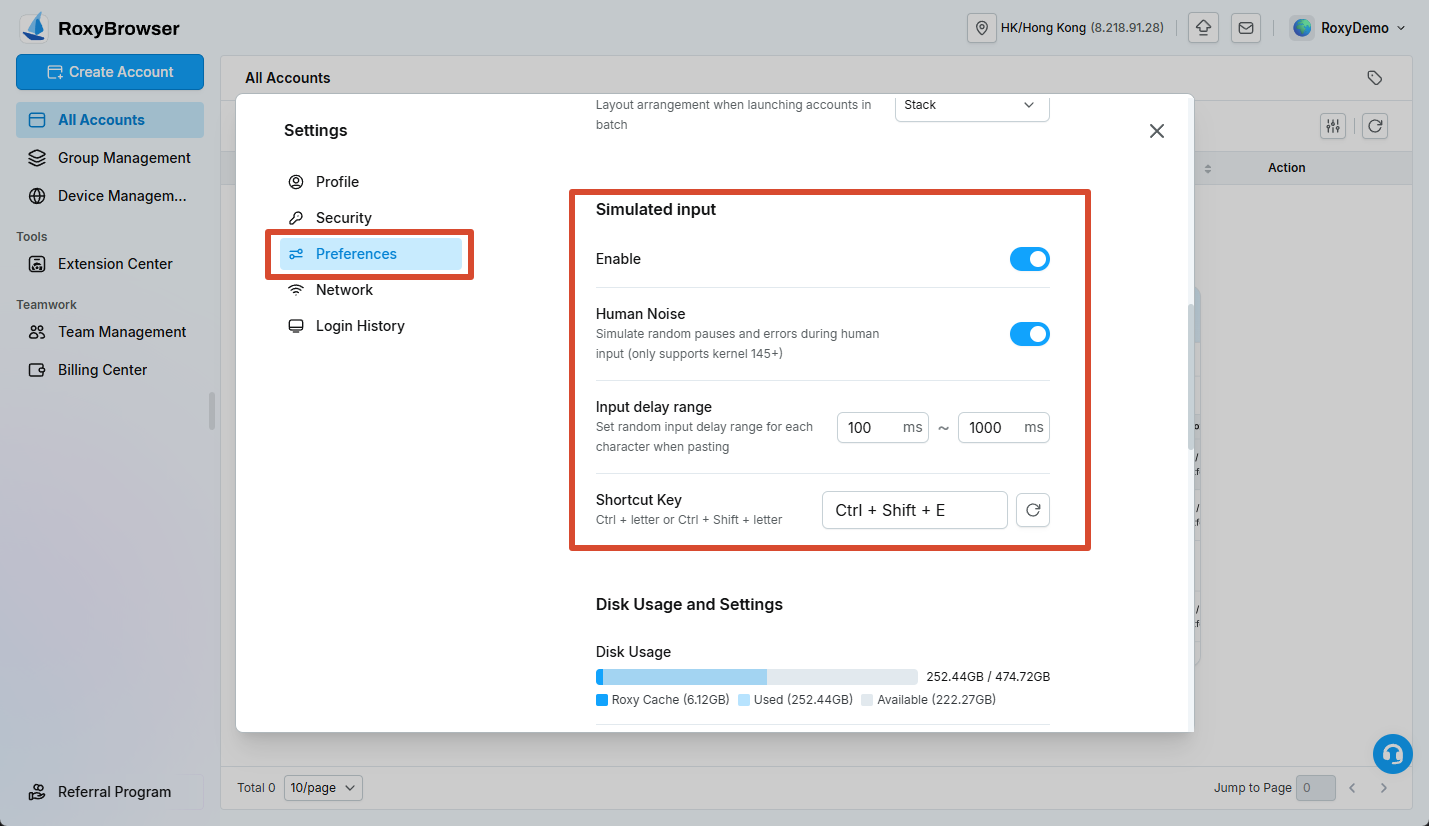
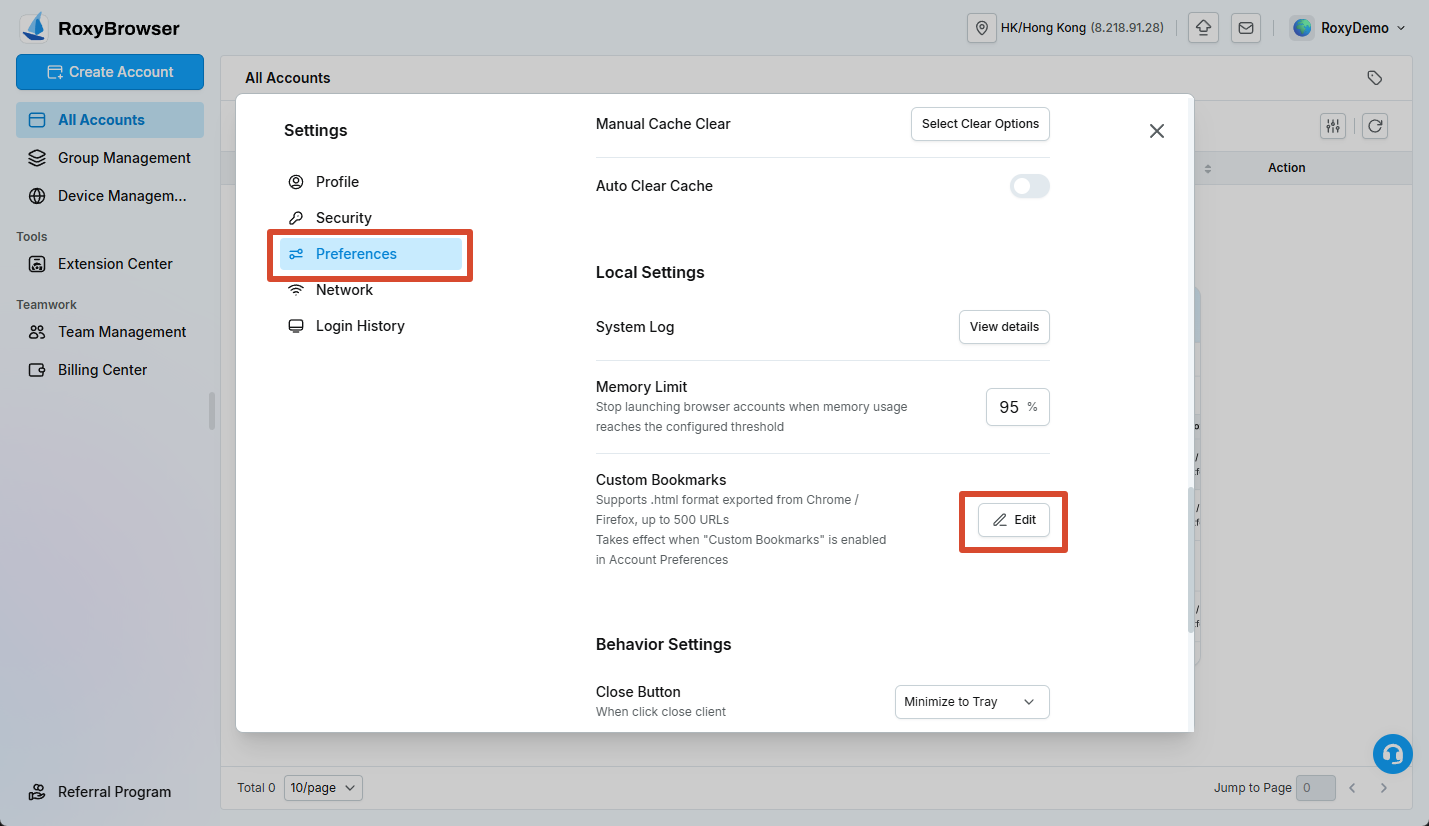
- Cache Directory: Sets where account cache files are stored and the disk usage threshold.
- Manual Cache Clear: Clears account cache based on the number of unused days. Check the value before running it.
- Auto-Clear Cache: Periodically clears cache for accounts that have not been used for a long time.
- System Log: Stores client and browser logs for troubleshooting.
- Memory Limit: Stops additional accounts from starting after the configured memory threshold is reached.
Clearing cache can cause web resources to be downloaded again. Deleting cookies or site storage can also sign accounts out of platforms, so confirm the scope before continuing.
Custom Bookmarks
Upload an HTML bookmark file containing no more than 500 URLs. After uploading, enable Custom Bookmarks in the account's preferences so that the bookmarks load when the account starts.
Close Button and Automatic Updates
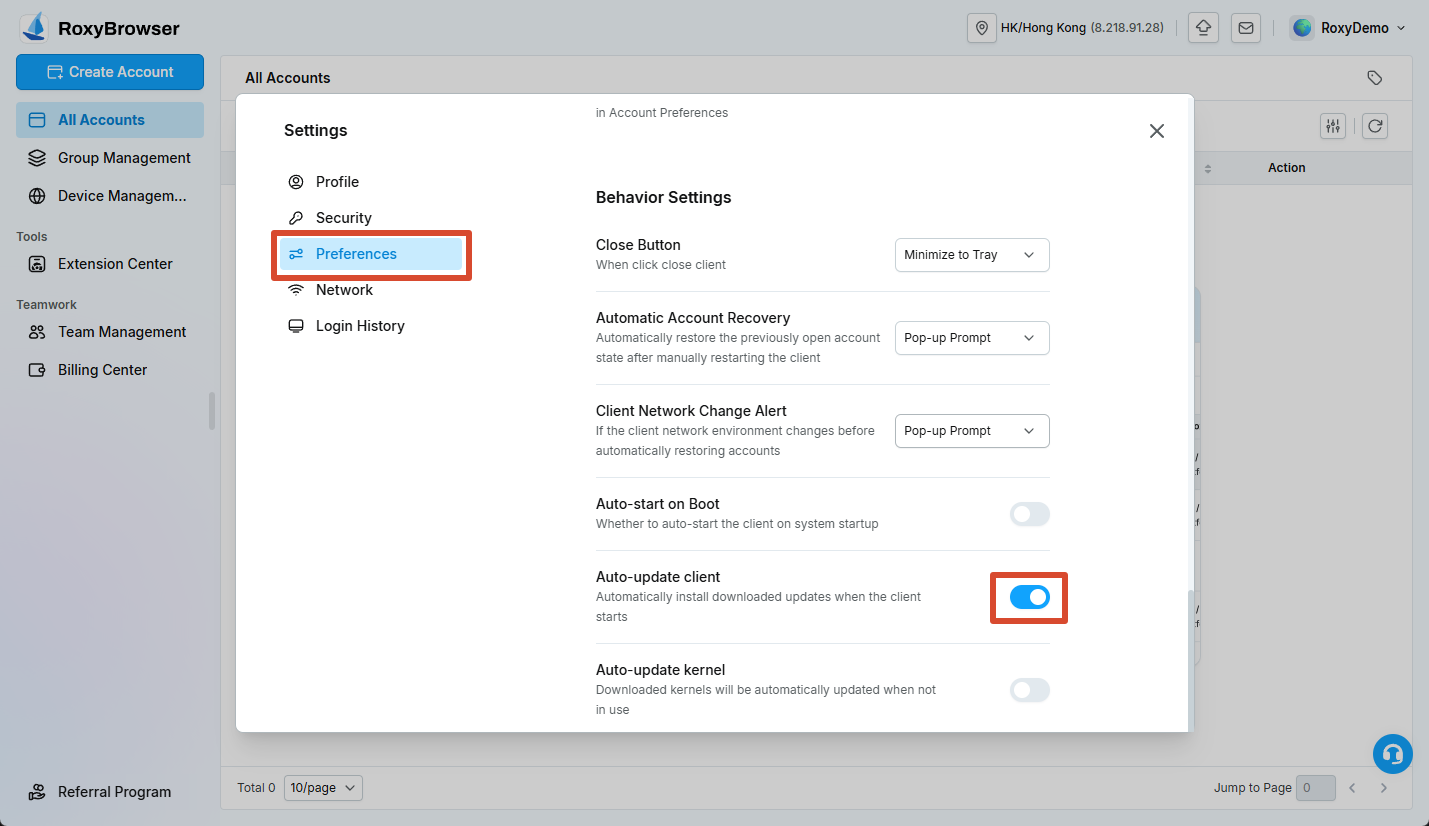
For Close Button, choose whether the client displays a prompt, minimizes to the tray, or exits. Automatic Account Recovery and update-related options should be reviewed before important operations.
Network
Network settings affect how the client accesses services, tests devices, and starts accounts.
- Use System Proxy: Uses the computer's current system proxy when enabled; otherwise the client connects through the local network.
- Network compatibility mode: Use it when system proxy detection does not work correctly.
- Check system proxy: Displays the outbound IP and location of the system proxy.
- Check local network: Displays the outbound IP and location of the local network.
- Default IP lookup channel: Selects the service used to query IP information.
- Switch service line manually: Switches to another service line when the current line is unstable.
- Whitelist: Domains on the whitelist use the local network.
TIP
When using a VPN or system proxy, check both the system proxy and local network and confirm that their outbound IPs are as expected before starting production accounts.
Login History
Login History records recent devices, times, and locations and lets you assign a recognizable name to the current device. If you see an unknown device or location, change the password immediately and review the security settings.
Language and Theme Mode
- Language: Switch between Simplified Chinese, English, and Russian.
- Theme Mode: Follow the system setting or use light or dark mode.
If some content does not update immediately, return to the main screen or reopen the page.