
Extension Center
TIP
An extension loads only after it is assigned to a group. Install new extensions in a test group first, review their permissions and source, and verify compatibility before assigning more groups.
Choose an Add Method
Extension Center includes Installed Extensions and Recommended Extensions and supports three add methods.
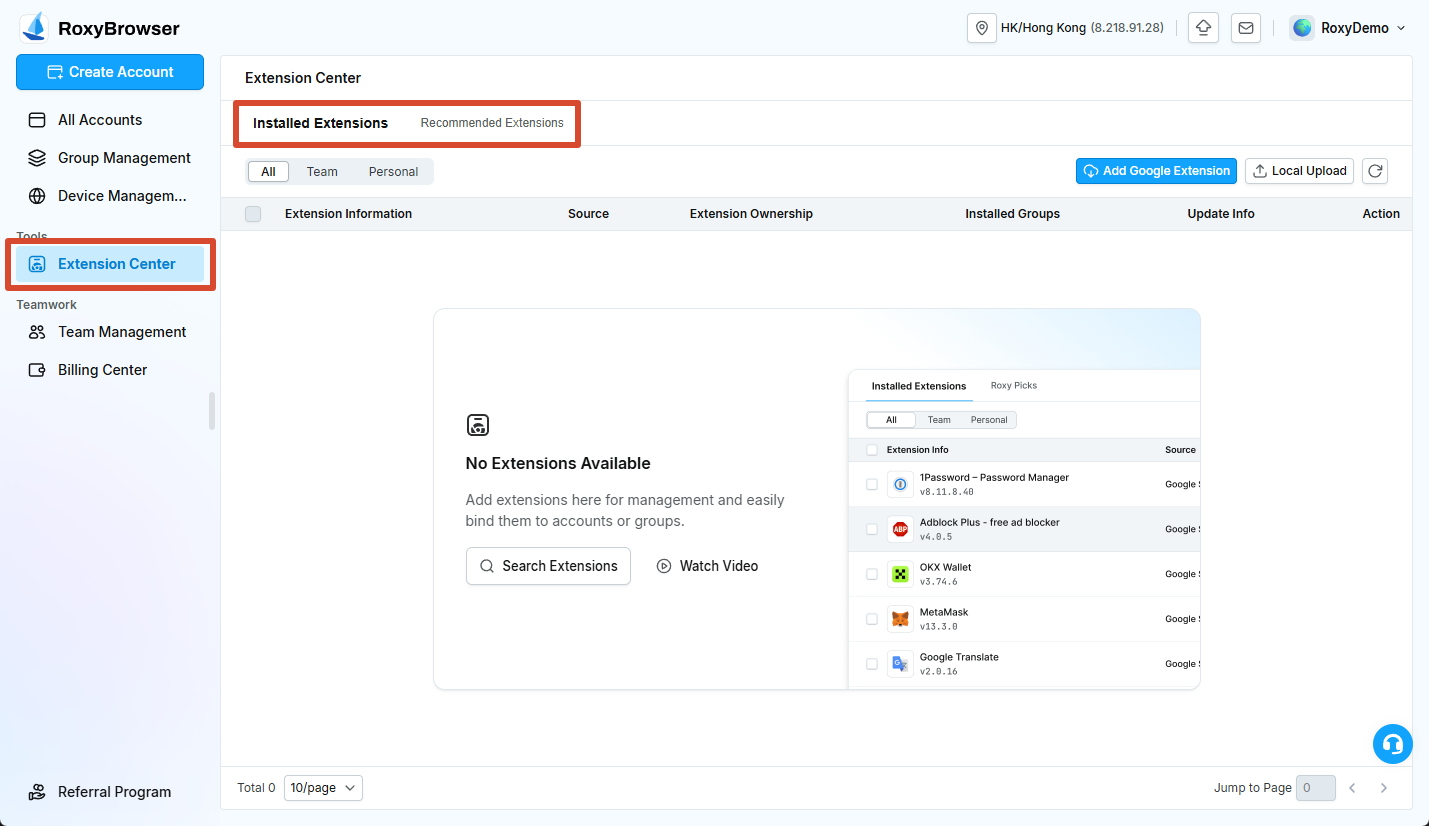
Add from Recommended Extensions
- Open Recommended Extensions.
- Browse by category or search by name.
- Open the extension and add it.
- Select the installed groups and extension ownership.
Categories include shop management and ERP, browser productivity, product and data analysis, translation, creator marketing, image and video tools, price comparison and sourcing, account and security tools, screenshots and recording, and AI assistants.
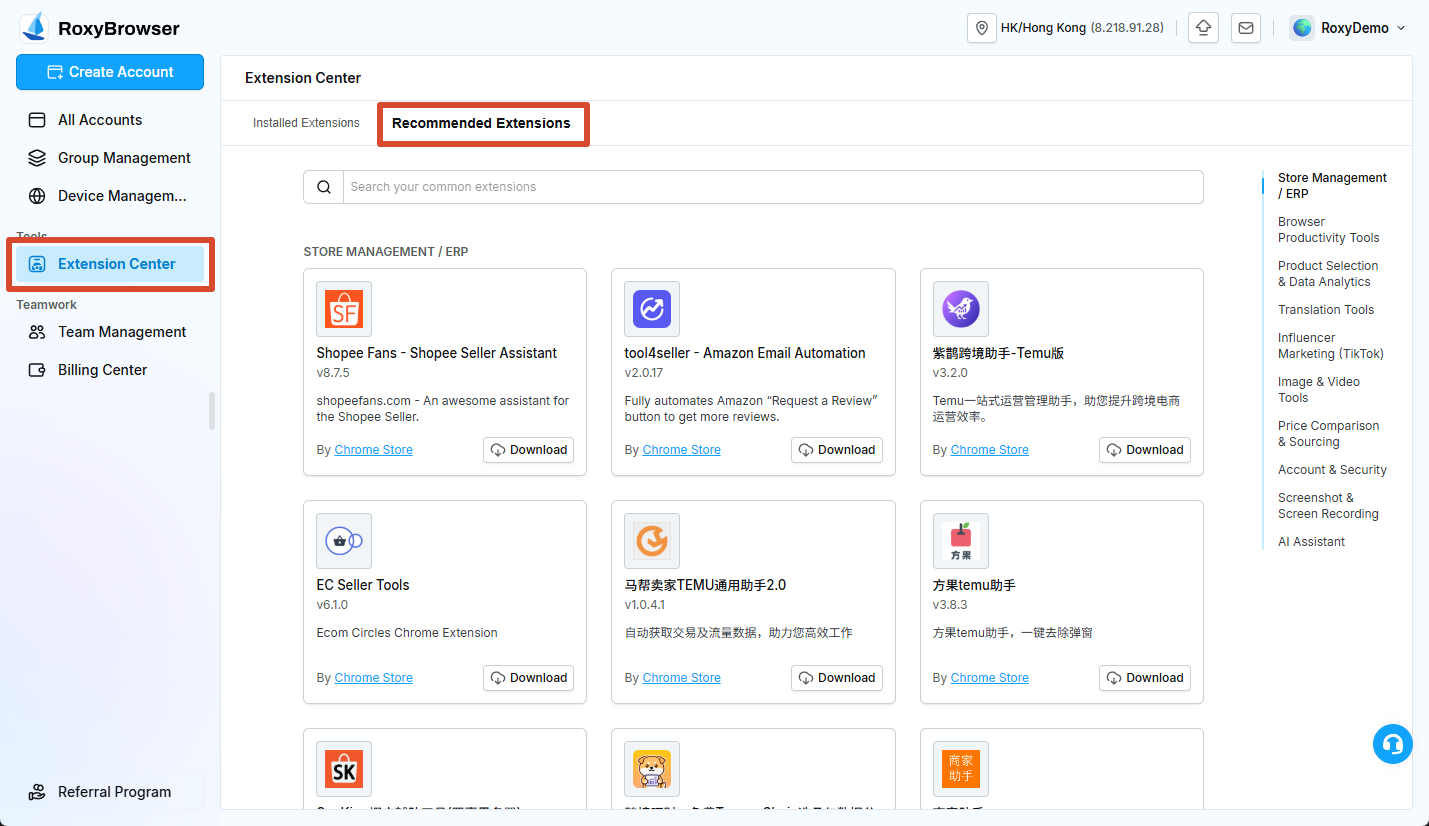
Add with a Google Store URL
- Under Installed Extensions, click Add Google Extension.
- Paste the extension's complete Google Store URL.
- Click Confirm Add.
- Select the installed groups after the extension is added.
Local Upload
- Click Local Upload.
- Select a ZIP or CRX package, or an unpacked extension folder.
- Wait for the client to parse the extension.
- Review its name, version, permissions, and description.
- Select the installed groups and extension ownership.
Add limits
- Only Chrome/Google extensions are supported. Firefox extensions are not supported.
- ZIP and CRX files must not exceed 50 MB.
- Up to 50 extensions can be added per day across all methods.
Set the Installation Scope
Installed Groups determines where the extension loads:
- All Groups: Load in every group in the current team.
- Partial Groups: Load only in selected groups.
Extension Ownership determines who manages it:
- Team: Team members with the required permissions can view and manage it.
- Personal: Only the current user manages it.
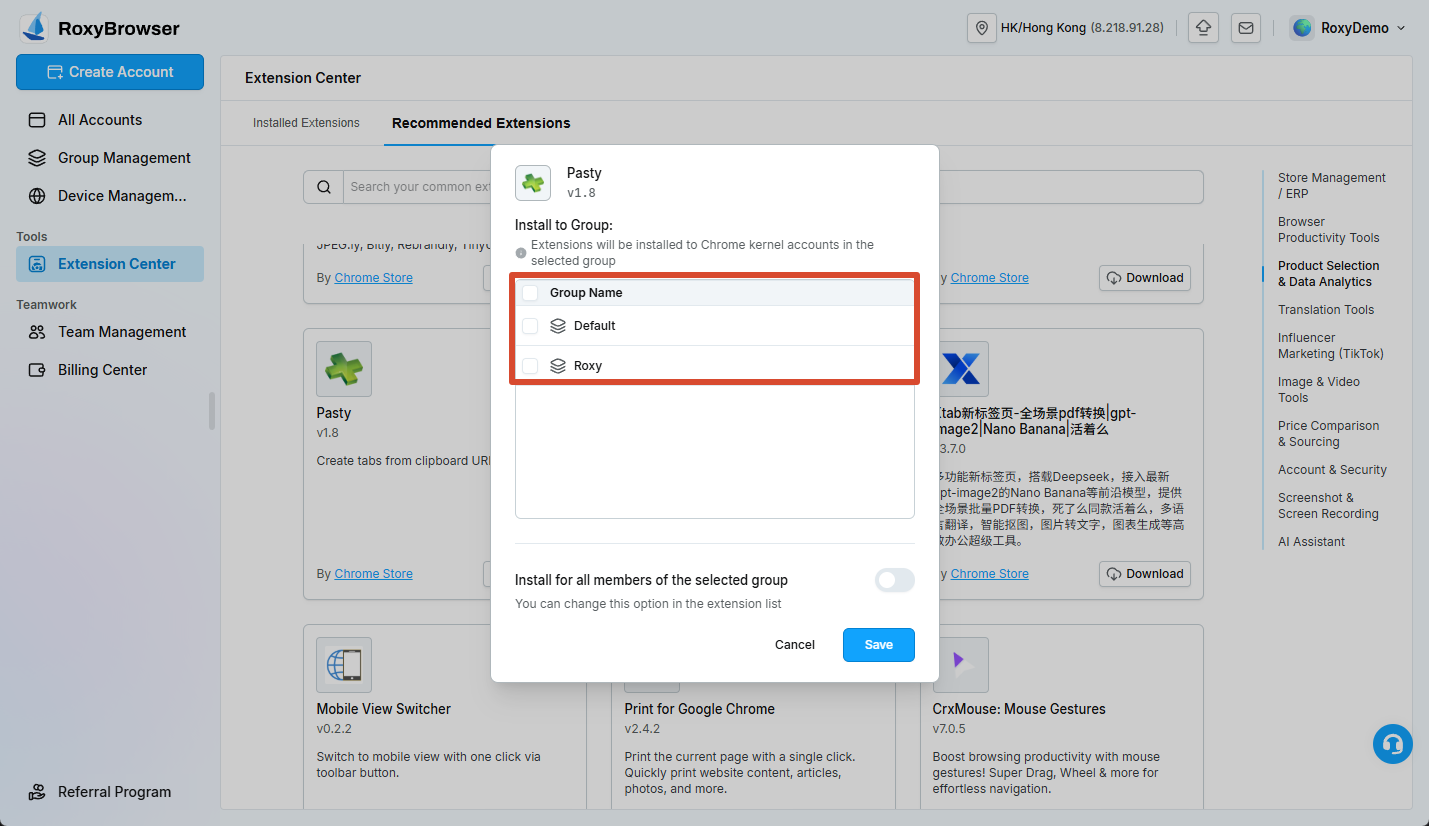
An account that is already running usually does not load a newly added extension immediately. Close and restart a test account after assigning the extension.
Manage Installed Extensions
Filter Installed Extensions by All, Team, or Personal. The list shows the extension name, version, source, ownership, installed groups, and update information.
- Use the pin control to show or hide an extension on the browser toolbar.
- Use Check for Updates for one extension or select several extensions for a batch update.
- Use the action menu to delete one extension, or select several extensions for batch deletion.
Restart a test account after an update. Deleting an extension removes it from every associated group.
Security Recommendations
- Prefer official stores and trusted developers.
- Before a local upload, verify the file source, requested permissions, and update method.
- Avoid extensions that request unrelated website data, clipboard, download history, or all browsing data.
- Have an administrator review extensions used with shop back offices, payments, or customer data.
- Remove an extension immediately if it causes unexpected redirects, advertising, or data access.