
TL;DR: If your Facebook ad account is restricted, first confirm which Meta asset is affected and read the exact notice in the account’s status or support area. Address the issue named there, then use the review option shown for that asset if you believe the decision is wrong or the issue has been resolved. Keep the asset ID, evidence, submission date, and case reference together. A browser profile or proxy can organize an authorized team workflow, but it cannot remove a Meta restriction or accelerate Meta’s review.
This guide is for advertisers, agency teams, and social media managers handling authorized business assets. It explains how to check whether your Facebook ad account is restricted, address the stated issue, prepare an appeal for a disabled ad account, and track the review. Meta’s interface and available review actions can vary by account and change over time, so use the notice shown for the affected asset as the source of the next step.
On this page: Check status · Fix the issue · Appeal · Review time · RoxyBrowser workflow
How to Check If My Facebook Ad Account Is Restricted
Start with the affected asset, not with a guess based on ad performance. Sign in through a trusted Meta entry point, open the account status or support destination linked from the notice, and select the correct business portfolio and ad account. Compare the ad account ID on screen with the ID used in Ads Manager. Record the exact wording, date, affected asset, requested action, and any deadline or reference displayed.
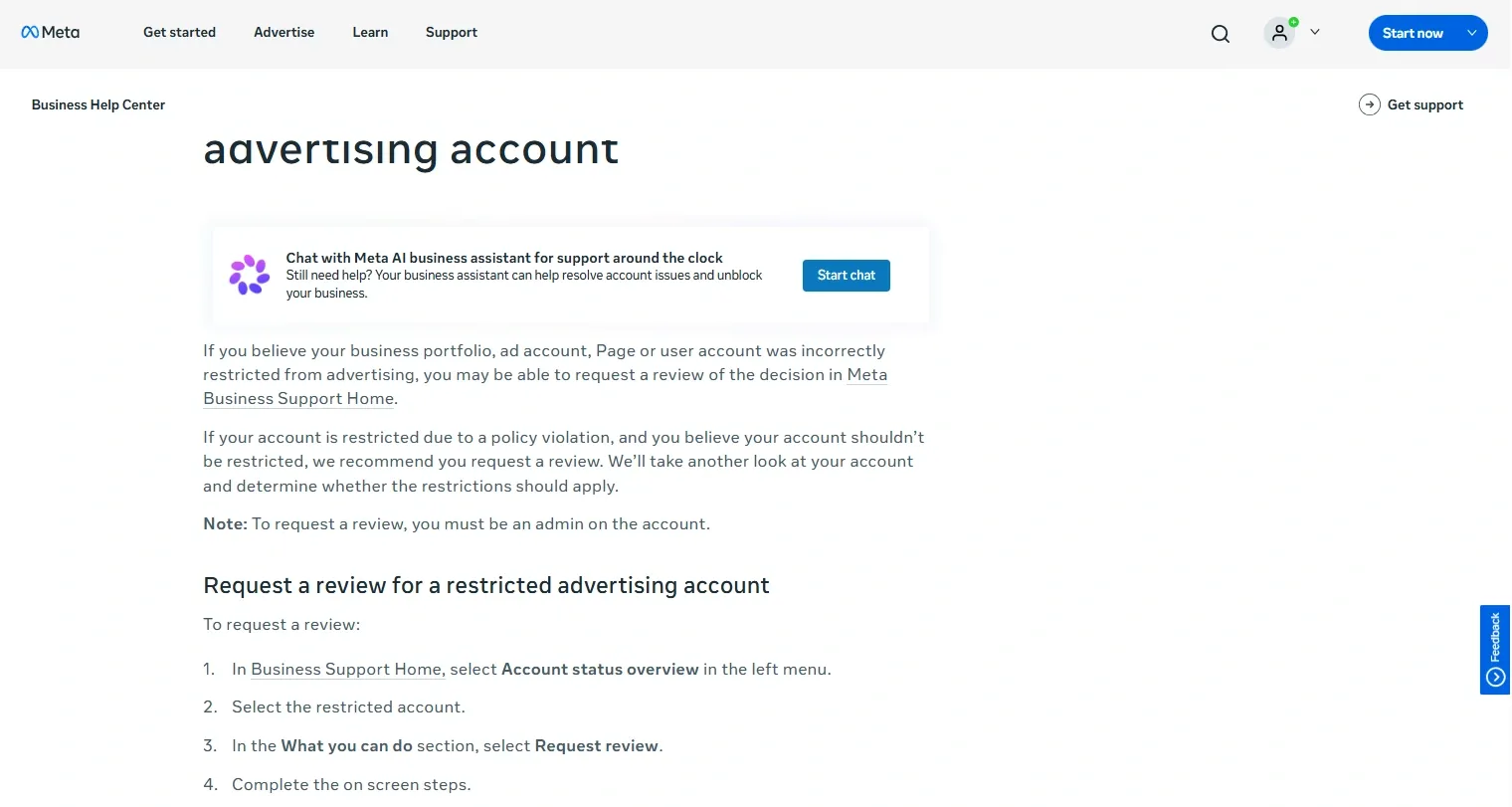
Meta’s official Business Support Home and Account Quality are common places to inspect account and business issues. To check if your Facebook ad account is restricted, rely on the status shown for the exact asset rather than a delivery drop alone. The page available to you may depend on the asset, permissions, and current interface. If a notice links to a specific review flow, follow that flow for the named asset.
Distinguish a restricted account from other ad problems
| What you see | What to check first | Where to start |
|---|---|---|
| One ad is rejected | Ad ID, stated reason, creative, and destination URL | The ad’s rejection details and available edit or review action |
| An ad account is restricted or disabled | Ad account ID and its restriction notice | The action shown for that ad account |
| A person cannot advertise | The person’s own access or eligibility notice | That person’s stated verification or review path |
| A Page or business portfolio is restricted | The asset named in the notice and its status | That asset’s status and available action |
| Ads are not delivering, but no restriction appears | Billing, schedule, audience, permissions, and delivery status | Ads Manager diagnostics and billing/access settings |
A rejected ad is not automatically the same as a restricted ad account. Likewise, low or stopped delivery by itself does not prove an account-level restriction. Check the named asset and the exact status before filing an appeal or changing business settings.
Status check complete: You should be able to name the affected asset, provide its ID, quote or save the notice, and identify the available next action.
How to Fix a Facebook Ad Account Restriction
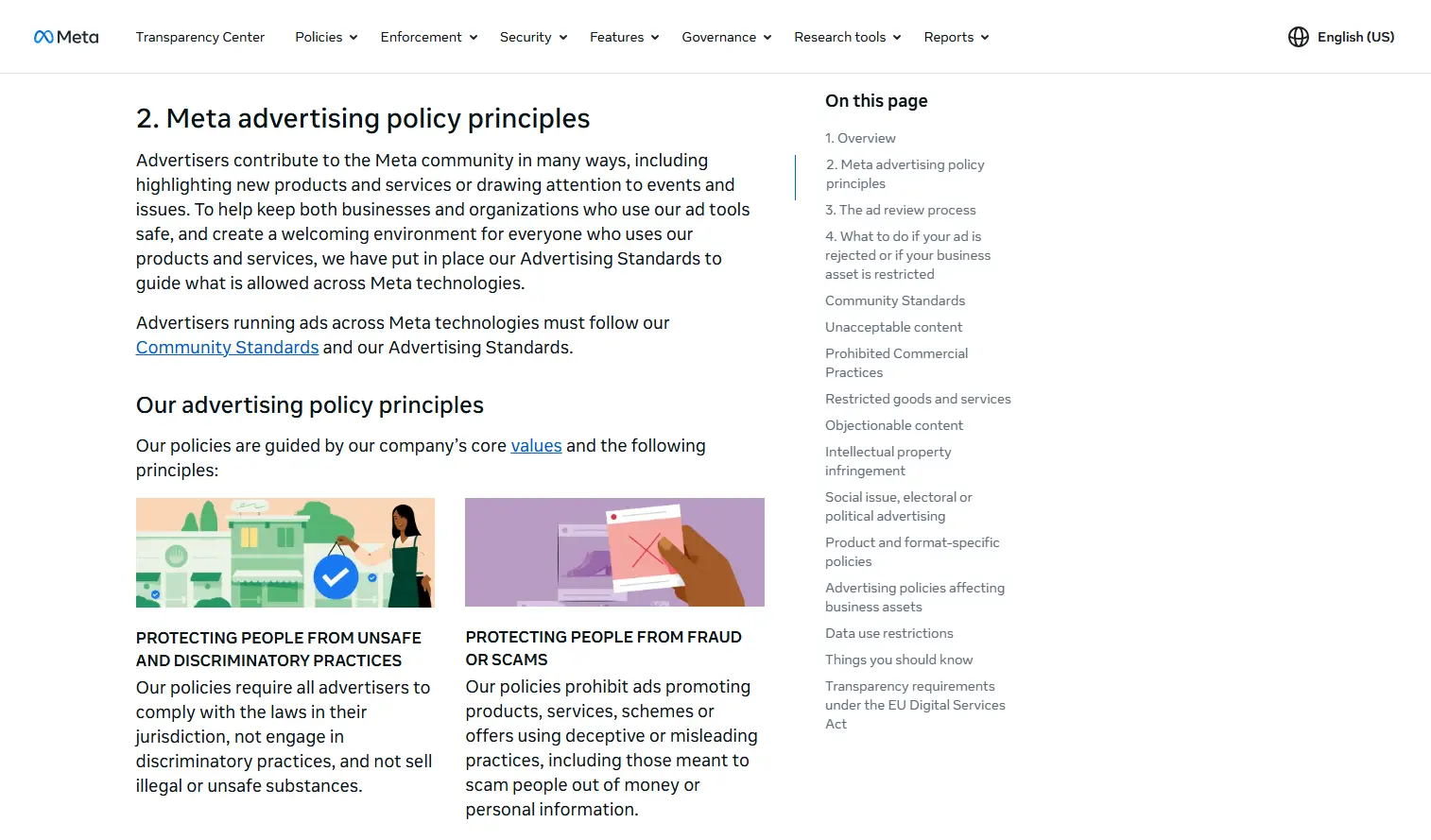
To fix a Facebook ad account restriction, first identify the affected asset and the issue named in its notice. Resolve that issue or prepare evidence explaining why the decision appears incorrect. Changing unrelated ads, moving campaigns to another Page, or creating a replacement account can complicate the record and does not resolve the original decision.
1. Preserve the notice and secure the account
Save a screenshot or copy of the notice, including the asset name, ID, date, and any instructions. If you suspect unauthorized access, first secure the legitimate account: review active sessions and people with access, remove access that is no longer authorized, update compromised credentials, and complete the security prompts available in Meta. Do not wait to gather perfect documentation while unauthorized access continues.
Use Meta’s own login and support flows. Do not give passwords, session cookies, authentication codes, or payment credentials to anyone offering guaranteed reinstatement. If you keep records for an agency or client, redact sensitive personal and payment data unless Meta’s secure form specifically requests it.
2. Match the action to the reason shown
| Confirmed issue in the notice | Practical response | Keep for your records |
|---|---|---|
| Policy concern about an ad or destination | Review the cited policy and the specific creative, claims, targeting, and landing page. Correct the issue if the notice identifies a real problem; if it appears mistaken, preserve the relevant facts for review. | Ad ID, destination URL, notice, and a dated record of changes |
| Payment or billing issue | Check the balance, payment status, and exact billing message. Use the payment or support option presented for the account. Verify status again after the payment issue is addressed. | Transaction or support reference; redact card and bank details |
| Identity or business verification request | Submit accurate information through the verification flow requested for that asset. Do not upload documents through an unrelated link or to an unofficial intermediary. | Submission date, confirmation, and requested document type |
| Suspicious or unauthorized activity | Secure the account, review business access, and complete the security steps shown by Meta. Check whether the notice identifies a person, Page, or business asset as well as the ad account. | Relevant access changes, dates, and security case reference |
| A connected asset or person is named | Open that asset’s status and verify its ID and permissions. Follow the action attached to the named asset; do not assume every connected asset has the same status. | Each affected asset ID and its separate status |
A payment correction, ad edit, identity submission, and security action solve different problems. Completing one does not establish that other restrictions have been lifted. Revisit the affected status page after each required action and note whether Meta requests more information, shows a review option, or changes the asset’s status.
If you believe the restriction is incorrect, do not invent a policy violation or claim a compromise that did not happen. State the facts accurately and provide the evidence relevant to the notice.
How to Submit a Facebook Ad Account Disabled Appeal
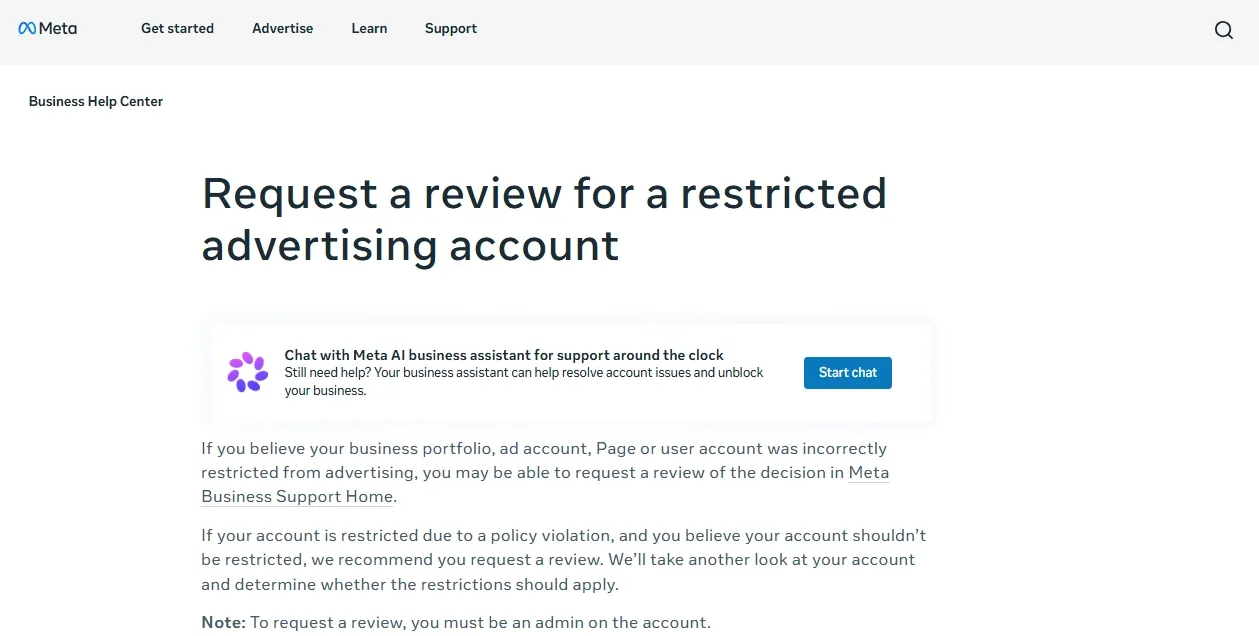
A Facebook ad account disabled appeal should address the decision on the affected account, while a review of one rejected ad concerns that individual ad. Confirm the asset ID and the review option before writing. The signed-in person should have appropriate authorization for the business asset; access to a browser profile does not itself grant Meta business permissions.
Prepare a concise evidence pack
Before submitting, collect only information relevant to the notice:
- The affected asset type and ID, restriction date, and exact notice.
- Relevant ad IDs, landing-page URLs, or verification references.
- A factual timeline of what happened and what was changed, with dates.
- The specific supporting information requested in Meta’s flow.
- A case or confirmation number, if the interface provides one.
Submit identity or payment documents only through the secure Meta workflow that requests them. Avoid attaching unrelated material: a short, organized record makes it easier to connect your explanation to the stated issue.
Use a factual appeal message
The following template is a starting point. Keep only statements that are true for the case:
Subject: Review request for [asset type and ID]
I am authorized to manage [business or asset]. On [date], the account displayed: “[exact notice].”[If accurate: We addressed the identified issue by [specific action] on [date].]
[If accurate: We believe the restriction may be incorrect because [specific facts tied to the notice].]Relevant references: [ad IDs, URLs, verification or support reference]. Please review the restriction on [asset ID] and identify any additional information required through this support process.
Remove the bracketed option that does not apply. Avoid broad claims such as “we follow all policies” without explaining the relevant facts. Do not claim that content was changed, verification was completed, or an account was compromised unless the record supports it.
Submit through the review action available for the affected asset, then save the submission date and any confirmation or case reference. If the form fails, record the displayed error and use the support route available in the same account. Repeatedly submitting identical requests without new information may not help and can make case tracking harder.
Appeal check: The request names the correct asset, addresses the stated issue, includes relevant evidence, and has a saved confirmation or documented submission problem.
How Long Does Facebook Take to Review a Restricted Ad Account?
There is no reliable single turnaround time for every restricted ad account. The status and estimate shown for your specific case are more useful than a general “24–48 hours” promise. Ad review, identity or business verification, billing support, and an account restriction review are separate processes and may have different timelines.
Record when you submitted the request, the latest status update, whether Meta asked for more information, and any estimate shown. While the review is pending, gather requested evidence and monitor the same case. A new browser profile, IP address, or proxy does not speed up a Meta decision.
| Current status | Next step |
|---|---|
| More information requested | Provide the specific information through the designated secure flow and retain its confirmation. |
| Review pending | Track the existing case. If a displayed estimate passes, use the available support option and include the same case reference. |
| Review approved | Recheck the affected asset’s status, permissions, billing, and ad delivery before resuming planned activity. |
| Review denied | Read the reason and check whether another review action is available. Submit new, relevant evidence only where the flow permits it. |
| No review option is visible | Confirm the selected asset and your permissions, then read the notice for prerequisites or other available support routes. A missing button alone does not explain why the action is unavailable. |
| No further review is offered | Follow the limitation and official options shown for that case. Do not use another identity or account to evade the decision. |
Organize Authorized Advertising Work with RoxyBrowser
An account restriction may involve a security issue as well as an advertising policy concern. Unauthorized access, unfamiliar sign-ins, and poorly controlled shared sessions deserve investigation when the notice points to suspicious activity. However, a restriction alone does not prove that an IP address or browser environment caused it.
RoxyBrowser can help teams reduce avoidable login-environment risks through separate browser profiles, documented network settings, and controlled workspace access. These practices may help reduce the likelihood of recurring security-related problems that could disrupt advertising access. That is an operational benefit, not a measured reduction in Meta restriction rates: policy, billing, identity, and other eligibility issues still require their own fixes.
What makes an advertising login environment risky?
A risky login environment has weak control over who can access a session, which browser data belongs to each workspace, or how the connection is configured. Calling an environment “clean” does not establish its security or its acceptance by Meta.
| Operational risk | What to check | How RoxyBrowser can support the workflow |
|---|---|---|
| Client sessions are mixed in one browser workspace | Whether the operator has opened the intended business and asset | Separate profiles and clear names help keep local session data and client work organized |
| Network settings change without a record | Proxy assignments, unexpected route changes, and who changed them | A documented profile configuration makes route changes easier to identify and troubleshoot |
| Too many people can open authenticated environments | Workspace access and each person’s separate Meta authorization | Project permissions help limit access to the relevant browser environments |
| A session may have been compromised | Unrecognized access, exposed credentials, or unauthorized activity | Environment records can support investigation; Meta security controls and credential protection remain necessary |
1. Keep authorized client sessions in dedicated profiles
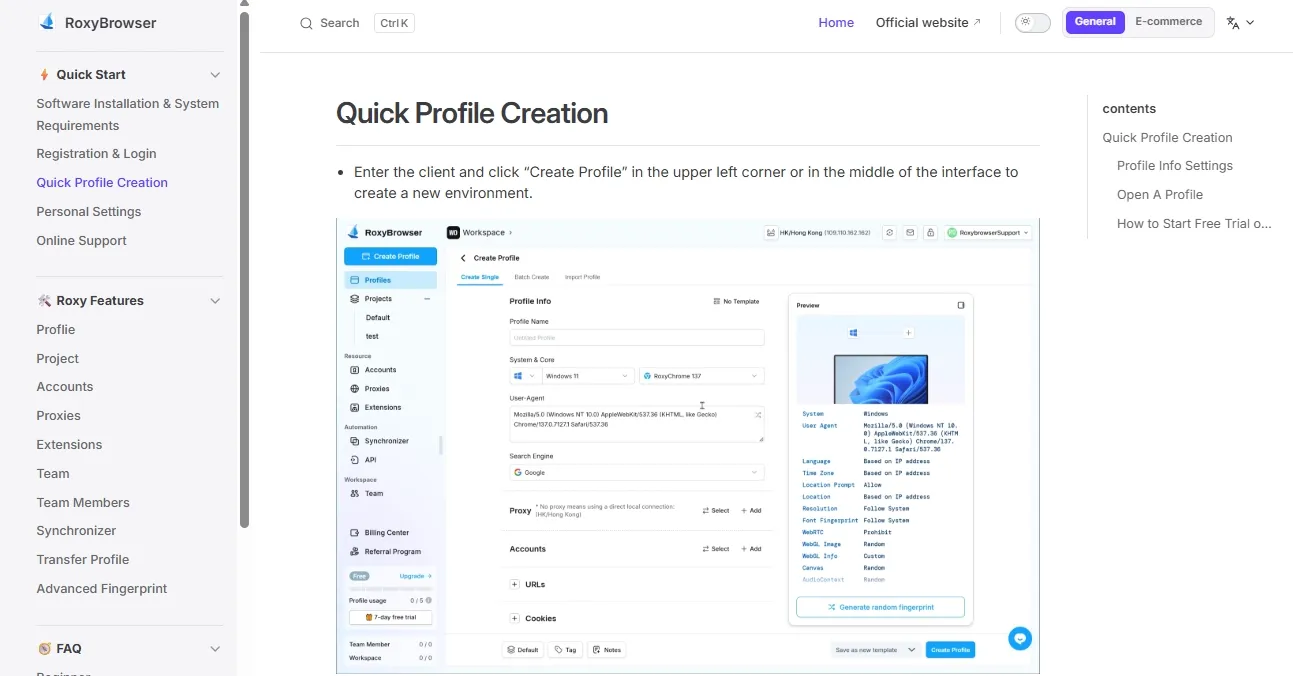
Use the RoxyBrowser profile creation guide to create a clearly labeled workspace, such as Client A — Ads — Operator, and associate it with the relevant project and tags. Before opening Ads Manager, confirm that the workspace belongs to the intended client.
For teams that manage multiple accounts, profile isolation separates cookies and other local browser storage between profiles. This helps reduce session mix-ups and accidental work in the wrong client account. It does not erase Meta’s account history, business relationships, or existing restrictions.
Use genuine, individually authorized Meta identities. Keep profile settings documented and avoid unnecessary changes during an incident. A dedicated profile does not make a compromised device trustworthy, so device updates, extension checks, and credential protection remain part of the workflow.
2. Use a trusted connection and record network changes
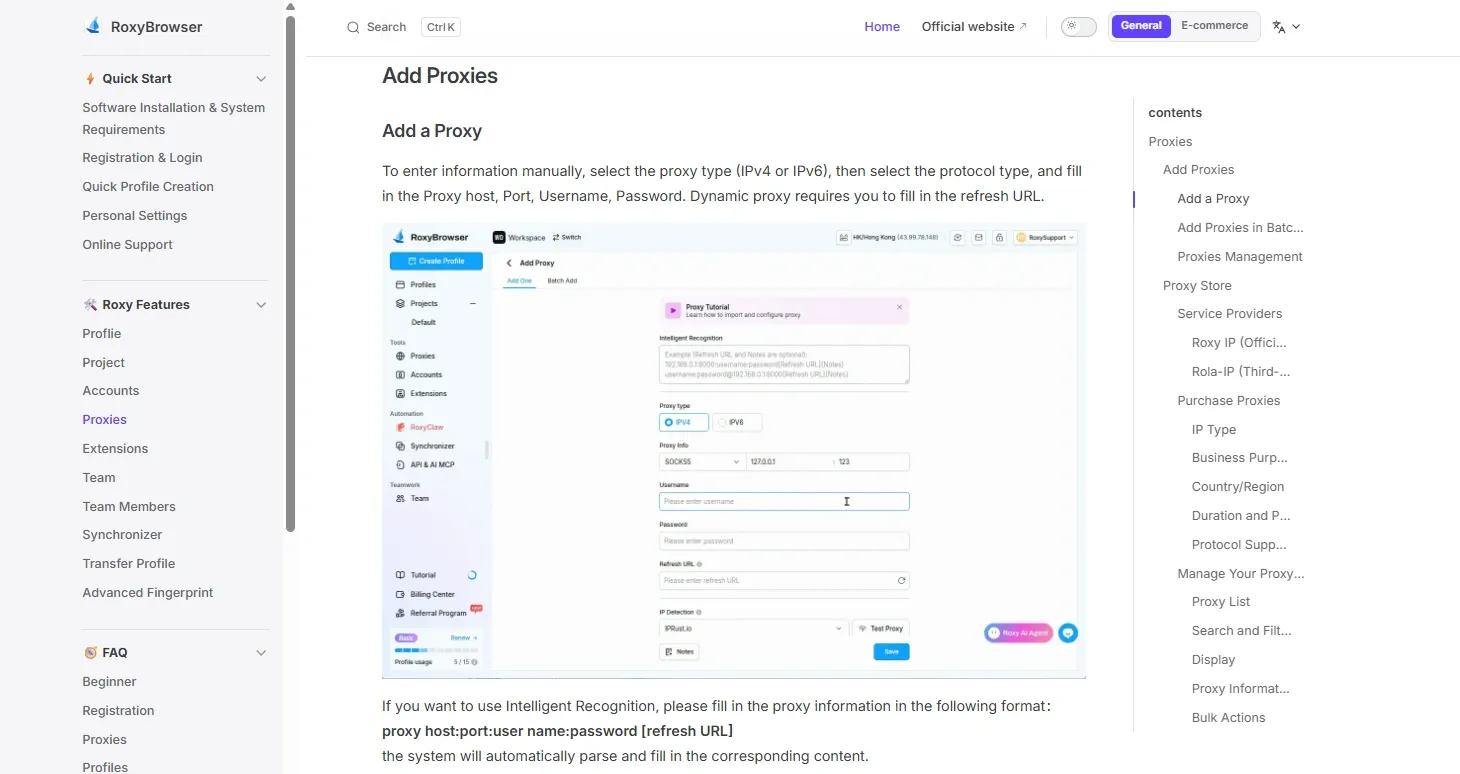
Direct access may be appropriate for a workflow. If the business requires an approved proxy, follow the RoxyBrowser proxy setup instructions, enter the issued protocol, host, port, and authentication details, then use Test Proxy. A successful test confirms connectivity to the test endpoint; it does not confirm Meta access, account eligibility, or policy compliance.
Prefer a trusted connection with a clear business purpose and avoid unexplained changes during account recovery. If a proxy is required, review its provider, access credentials, and assignments rather than assuming that a “clean IP” label guarantees suitability. Changing a shared proxy record can affect its bound profiles, so check those assignments first.
Do not rotate locations or refresh proxy identities to try to reverse an enforcement decision. Keep a familiar, authorized environment during an active review unless there is a documented technical or security reason to change it.
3. Limit workspace access and review team handovers
Assign only the RoxyBrowser project access each teammate needs, and remove access when that responsibility ends. Fewer unnecessary people with access to authenticated workspaces means fewer opportunities for accidental or unauthorized use. Grant Meta business permissions separately through Meta’s own controls; a RoxyBrowser role does not make activity inside an authenticated website read-only.
Review RoxyBrowser’s team permission guide and use the workspace’s operation records to investigate relevant Roxy configuration changes. These records are not a complete audit of actions taken inside Meta.
Before handover, check the profile label, project, Meta asset ID, operator permissions, and expected network configuration. Keep passwords, session tokens, and recovery codes out of shared notes. If a session is compromised, use Meta’s security controls to secure the account; simply deleting browser cookies does not revoke every active session or remove an account restriction.
The practical goal is to reduce preventable access and configuration problems before they recur. RoxyBrowser supports that process, while account security, compliant advertising, accurate verification, and Meta’s review requirements determine the broader recovery path.
A Short Checklist for Ongoing Account Management
- Before launch: Review the relevant advertising policies, destination pages, billing readiness, and verification requests.
- During operations: Check asset notices, access assignments, billing status, and unusual sign-in activity.
- At handover: Confirm the correct client workspace and Meta asset; remove access that is no longer needed.
- After a decision: Recheck the named asset’s status and preserve the case record before resuming planned campaigns.
These steps support a controlled, authorized workflow. They do not replace Meta’s policies or official review process.
Conclusion
When your Facebook ad account is restricted, identify the affected asset, follow the requirements in its notice, and submit truthful, relevant evidence through the available review process. Keep the case reference and monitor its status. RoxyBrowser can help authorized teams organize client workspaces and permissions, while Meta remains responsible for advertising eligibility and appeal decisions.


