








TL;DR:
To spoof geolocation, first identify the signal your test needs. Chrome DevTools and coordinate extensions override browser latitude and longitude; a VPN or proxy changes the IP location seen for routed traffic. Tests that use both signals may require both changes. Verify the public IP, browser coordinates, and website response separately. Saved browser profiles help reuse regional settings and browsing data.
A retail site might choose UK pricing from your public IP while its store locator asks the browser for coordinates. Changing one signal can update the prices without moving the map, or move the map without changing the prices.
This guide explains how to spoof geolocation for ad verification, local SEO auditing, localized browsing, and authorized account management. It covers four methods and a reusable regional workflow.
What Is Geolocation Spoofing?
Geolocation spoofing changes the geographic position a website receives, either by overriding browser coordinates or by changing the network exit used for IP-based location estimates.
Common applications include:
- Ad verification: Checking regional landing pages, currency, and location-aware campaign content.
- Local SEO auditing: Comparing search and map results under recorded regional test conditions.
- Localized QA: Testing store finders, shipping areas, language selection, and regional storefronts.
- Privacy and account management: Controlling coordinate sharing and keeping authorized regional sessions separate.
A desktop browser geolocation spoof changes web location data. Mobile mock locations affect a phone’s operating system location provider, while radio-level GPS spoofing involves synthetic navigation signals. These mechanisms operate at different layers.
Blocking browser location permission also leaves the public IP visible. If your goal is to withhold coordinates, denying permission may be enough. If you need to spoof geolocation for a location-aware feature, an override supplies the test position that feature needs.
Browser Location vs. IP Location: What Websites Can See
Browser Location: Coordinates Shared Through the Geolocation API
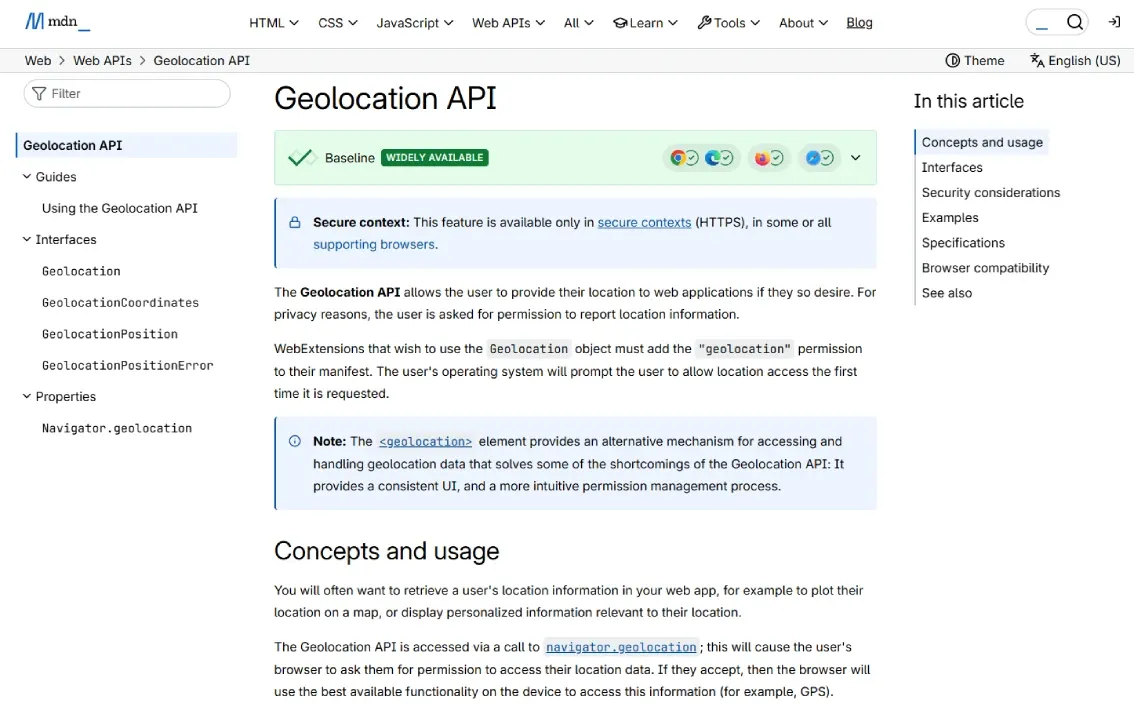
Websites request browser location through navigator.geolocation. The getCurrentPosition() method requests one position; watchPosition() subscribes to updates. The MDN Geolocation API documentation describes the secure-context and permission requirements.
A successful result includes latitude, longitude, an accuracy estimate in meters, and a timestamp. The browser may use operating system location services, Wi-Fi positioning, or GPS hardware. A previous permission grant can remain active, so a site may receive coordinates without showing a new prompt.
These coordinates are estimates, not necessarily a precise street address. A 1,000-meter accuracy estimate may suit a city map but cannot reliably distinguish branches 200 meters apart. Ordinary pages receive the resulting position rather than unrestricted access to raw Wi-Fi or satellite measurements.
IP Location: An Estimate Based on Your Network Exit
A website can look up the IP address it sees without requesting browser location permission. Databases such as MaxMind and IP2Location associate IP ranges with estimated countries, regions, and cities.
When you spoof geolocation through a proxy, the site looks up the proxy exit for traffic routed through it. City estimates can differ: one database may label an exit London while another assigns it to a nearby area. An IP lookup pin represents a database estimate, not a reading from your device’s location services.
| Attribute | Browser coordinates | IP location |
|---|---|---|
| Source | Browser and OS location services | Database lookup of the public network exit |
| Precision | Coordinates with a variable accuracy estimate | Country, region, or city estimate; database dependent |
| Permission | Site permission and a secure context | No browser location permission |
| How to change it | DevTools, extension, or profile location controls | VPN or proxy for the relevant traffic |
When Do You Need to Change Both?
You need both when the test involves features that use both signals:
- London coordinates, US exit: The store locator moves to London, but an IP-based currency selector continues showing USD.
- UK exit, unchanged coordinates: The homepage shows GBP, but the nearest-branch button returns local stores when the browser shares its actual position.
Before you spoof geolocation, decide which result should change. A coordinate override is enough for many map tests; an IP change is enough for many country selectors.
Time zone, language, cookies, and account preferences add context. A saved delivery address may preserve the previous country after both signals change. These settings should reflect your test scenario. Travelers and corporate VPN users routinely have different network locations, languages, and time zones; a mismatch alone does not establish misuse.
How to Spoof Geolocation: Four Methods Compared
| Method | Changes IP? | Changes browser coordinates? | Best for |
|---|---|---|---|
| Chrome DevTools | No | Yes, for the inspected page | Quick location tests |
| Coordinate extension | No | Yes, where supported | Repeated coordinate overrides |
| VPN or proxy | Yes, for routed traffic | No direct override | IP-based regional browsing |
| RoxyBrowser + proxy | Through the proxy | Through profile location controls | Reusing regional environments |
The quickest way to choose a geolocation spoofer is to match it to the feature. For one map or store finder, start with DevTools. For repeated coordinate checks, an extension provides a reusable override. For country-based content or pricing, choose a VPN or proxy. Recurring checks across London, New York, and Tokyo benefit from separately saved profiles.
Method 1: Spoof Geolocation in Chrome with DevTools
Chrome includes a built-in way to spoof geolocation without installing an extension. The Chrome DevTools Sensors documentation explains the location override.
To spoof geolocation for a London store-locator test:
- Open the page and DevTools using Ctrl+Shift+I on Windows/Linux or Command+Option+I on macOS.
- With DevTools focused, open the Command Menu using Ctrl+Shift+P or Command+Shift+P.
- Enter Show Sensors. In the Geolocation list, select a preset city or Custom location to enter your own coordinates.
- Enter latitude
51.5074and longitude-0.1278.
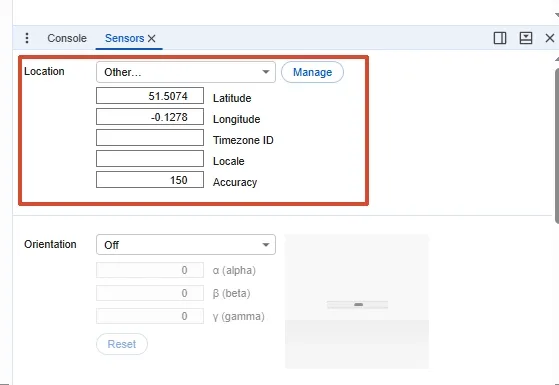
- Allow site location access if prompted, then trigger the location feature again or reload so the page requests a fresh position.
- Select No override to restore normal behavior.
When you spoof geolocation in Chrome this way, your public IP and native desktop apps stay unchanged. The override applies to the inspected page; check its scope and state after switching tabs, closing DevTools, or restarting. Location unavailable also lets you test how the page handles a failed position request.
Method 2: Use a Geolocation Spoofing Extension
A geolocation-spoofing extension is useful for repeated coordinate tests without keeping DevTools open. The Spoof Geolocation extension for Chrome lists support for custom coordinates, getCurrentPosition(), and watchPosition().
Its documented setup works as follows:
- Install it from the Chrome Web Store and review the requested permissions.
- Open your test page and trigger its location feature. When the extension prompts for coordinates, enter the target latitude and longitude.
- Use fixed values for repeatability. Privacy-noise approaches deliberately vary the position and serve a different purpose.
- Reload and check a fresh result. If the feature tracks position continuously, verify updates as well as its first reading.
- When testing is complete, disable the extension, reload the page, and request a fresh position to check that normal location behavior has returned.
The publisher says the extension reuses the entered coordinates for subsequent requests. It also modifies permission-query results, so DevTools is preferable for testing the browser’s native permission flow.
A coordinate-only extension leaves IP routing and browsing data unchanged. It can move a store-finder pin, but it does not create separate London and Tokyo cookie stores or network exits.
Method 3: Change IP Location with a VPN or Proxy
To change IP-based country selection, route the relevant traffic through a proxy or VPN with an exit in your target region:
- Choose the region in your VPN client or obtain a proxy endpoint.
- Connect the VPN, or enter the proxy’s protocol, host, port, and required credentials.
- Check the public IP inside the browser you will use.
- Confirm the estimated country or region, then load the target feature.
A device VPN typically routes system traffic according to its rules, including any split-tunneling exceptions. A browser-profile proxy applies routing to its configured environment, making it practical to keep London and Tokyo sessions open together.
When you change IP in the browser for recurring checks, a stable exit makes comparisons easier. Keeping the same UK exit while testing two landing-page versions, for example, removes an unnecessary network variable.
Residential proxies are an option when the workflow calls for consumer ISP exits. They are not universally required, and an ISP classification does not establish reputation or guarantee access. SOCKS5 supports TCP and UDP at the protocol level, but actual browser and WebRTC routing depends on implementation.
Scope: A VPN or proxy changes the IP seen for routed traffic. Browser coordinates, language, time zone, and saved account region remain separate settings.
Method 4: Manage Multiple Regional Profiles with RoxyBrowser and a Proxy
Maintaining London, New York, and Tokyo environments involves more than coordinates. You also need the right proxy, permissions, cookies, and regional preferences for each check. RoxyBrowser is a multi-profile antidetect browser that supports isolated browsing environments, proxy binding, and custom browser geolocation settings. Saving these settings in separate profiles reduces repeated setup for regional checks.
This London ad-verification workflow combines a UK exit with fixed coordinates for a location-aware page.
- Create a named profile.
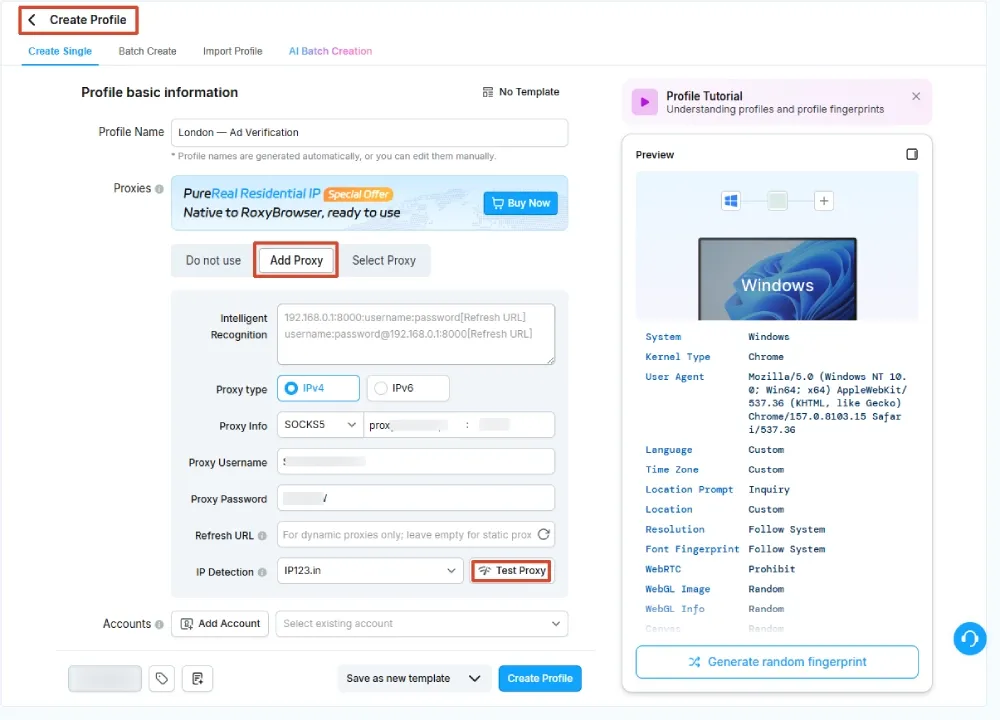
In the desktop app, select Create Profile and enter London — Ad Verification under Profile Name. A new profile provides a separate browsing-data environment. For a first-visit test, leave optional cookie imports empty; for a returning-visitor test, retain that profile’s browsing data between runs.
- Bind the UK proxy.
Under Proxy → Add, choose the protocol and enter the host, port, and credentials supplied by your provider. Select Test Proxy, review the result, and Save. A stable exit is useful when comparing the same page over several days. If authentication fails or the country is wrong, check the endpoint before adjusting browser coordinates.
- Set the reported position.
Under Basic Settings → Location → Custom, enter latitude 51.5074 and longitude -0.1278. Based on IP address is an alternative for broad regional checks: it uses an estimate associated with the exit. Fixed coordinates suit a specific store radius or map point. Location Prompt controls access separately; Inquiry lets you handle the site’s request manually.
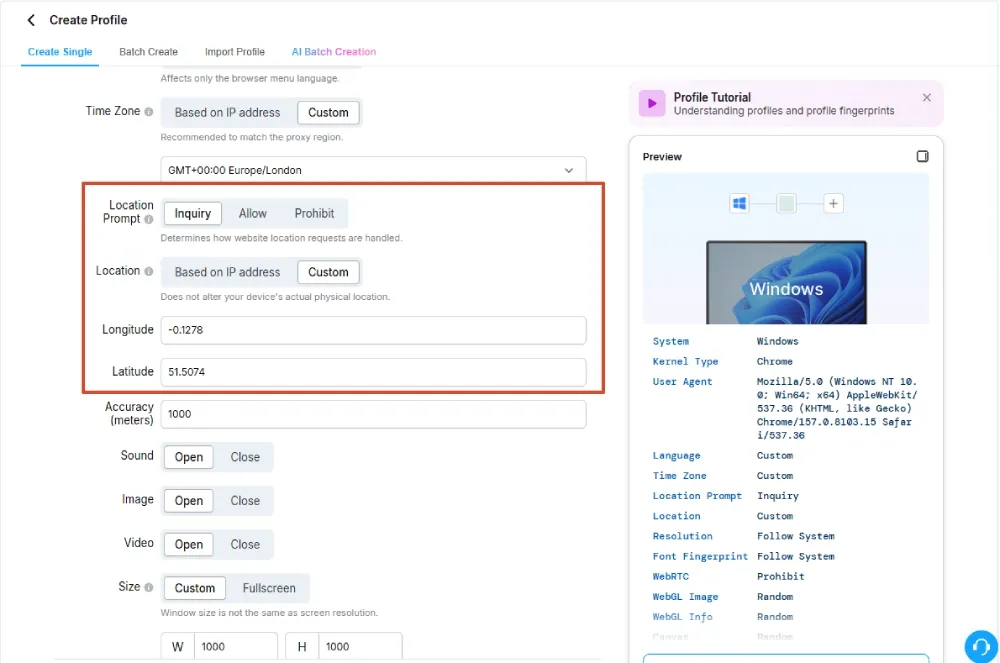
- Review regional and network settings. In Basic Settings, review Language and Time zone.
For a UK English test using London time, the intended values are en-GB and Europe/London. Browser display language and website language are distinct controls. Advanced Fingerprint Settings includes WebRTC and Canvas controls; these address browser behavior and device fingerprinting rather than changing the exit IP. A page with a browser-based support call needs a functional call test if you alter WebRTC behavior.
- Open the regional page.
Finish with Create Profile, then select Open from Profiles. Check the public IP in that window, open the campaign landing page or authorized preview, and grant location access if requested. Record concrete outcomes: GBP pricing, the selected branch, or the regional page variant. Verify browser coordinates independently of the IP lookup.
- Save a repeatable baseline.
Close and reopen the profile, then check that routing, location settings, and intended browsing data persist. Record the date and login state. Separate New York — Ad Verification and Tokyo — Ad Verification profiles keep later regional checks from inheriting London’s preferences.
This workflow reduces repeated configuration for landing-page verification, local SEO spot checks, and authorized account management. Its observations describe your test conditions; ad delivery and search rankings also depend on factors beyond location.
Use RoxyBrowser to manage multiple accounts in separate regional profiles. Create your first profile, verify its IP and coordinates, then add the next region.
How to Verify Your Browser and IP Location
After you spoof geolocation, verify the network exit, browser coordinates, and website behavior separately. Each answers a different question.
- Public IP: Run an IP lookup inside the profile used for the test. Record the address, estimated region, and lookup provider. An IP map pin confirms a database estimate, not browser-reported coordinates.
- Browser coordinates: Open the BrowserLeaks Geolocation API test over HTTPS. Allow access, then inspect latitude, longitude, accuracy, and timestamp. Request a fresh result after making a change. Test updates when the feature uses
watchPosition(). - Actual website: Check the expected outcome, such as GBP pricing, a London branch, or a regional page. Record any signed-in account or saved delivery address that affects the result.
London coordinates plus a UK IP classification can be sufficient for a country-level test even if the map pins differ. A store-radius test needs the specific coordinates and a suitable accuracy value.
For troubleshooting, inspect Intl.DateTimeFormat().resolvedOptions().timeZone, navigator.languages, and the request’s Accept-Language header. Review WebRTC and DNS routing when network behavior calls for it. A DNS resolver’s location alone does not establish physical position, and a fingerprint score does not prove that a regional feature works.
Why Does a Website Still Show Your Original Location?
A website may keep using another location signal after you change browser coordinates. A London map alongside USD prices, for example, suggests separate map and currency logic. If the expected feature does not change, identify its data source before repeating the override.
| Symptom | What to check |
|---|---|
| Coordinates changed, but the country did not | IP-based localization and saved account region |
| VPN is active, but the map remains local | Site permission and fresh browser coordinates |
| Location requests fail | HTTPS, permission, provider availability, and page or frame Permissions Policy |
| Results differ across tabs or after restart | DevTools scope, extension site access, and saved profile settings |
| Old coordinates or content remain | Cached positions, cookies, delivery address, and personalization |
| IP checkers disagree on the city | Database differences; compare country, region, and provider information |
Cookies and account history are especially useful to check after the network and coordinates are correct. An explicit delivery-country choice may take precedence over automatic localization. A time-zone or language difference provides context; it does not automatically imply spoofing, account suspension, or a shadowban.


