
Most people fire up Incognito Mode and assume they’ve just thrown on an invisibility cloak. You feel like a ghost—your boss can’t see what you’re doing, websites can’t track your clicks, and your digital footprint vanishes. The truth? Not even close. Let’s break down exactly what Incognito Mode is, how it works, and its real privacy boundaries. We’ll also look at why professionals who need serious security skip Incognito entirely and use anti-detect browsers.
What is Incognito Mode?
According to Wikipedia, Incognito Mode (or private browsing) is a feature in most web browsers that enhances user privacy. In this mode, the browser initiates a temporary session separate from its main session and user data. The browsing history is not recorded, and local data related to the session, like Cookies and Web cache, are deleted once the session ends.
That means once you close the window, your computer simply forgets you were ever there—no saved history, no auto-filled passwords, and no logged-in accounts.

How Incognito Mode Works?
The core mechanism of Incognito Mode can be summarized by two technical concepts: “temporary sandboxing” and “memory storage.” Here is a look at how it works under the hood, using Google Chrome as an example:
1. Creating a “Temporary Sandbox”
When you open an Incognito window, the browser does not load your standard user profile. Instead, it sets up an isolated area—a temporary sandbox—within your system. All your clicks, browsing activity, and logins are securely locked inside this sandbox, ensuring they do not interfere with your main browser environment. Because of this strict isolation, all your browser extensions—like ad blockers or password managers—are disabled by default. You have to manually allow them in your settings if you want them to run in an Incognito session.
2. Storing Data in RAM
In standard browsing mode, website caches and cookies are physically written to your computer’s hard drive. Incognito Mode, however, stores all this temporary data directly in computer’s active memory (RAM).
3. Triggering the “Self-Destruct” Sequence
Because the data only lives in RAM, the moment you click the “X” to close the Incognito window, the system immediately frees up that memory. As the sandbox is destroyed, all your browsing history and form data instantly disappear.
However, this process does not touch your permanent storage. If you download a PDF or save a new bookmark while in the temporary sandbox, those files and links will remain securely on your device even after the sandbox is destroyed.
Why Do People Actually Use Incognito Mode?
Incognito Mode’s temporary sandbox is incredibly useful for everyday convenience. Most people use it:
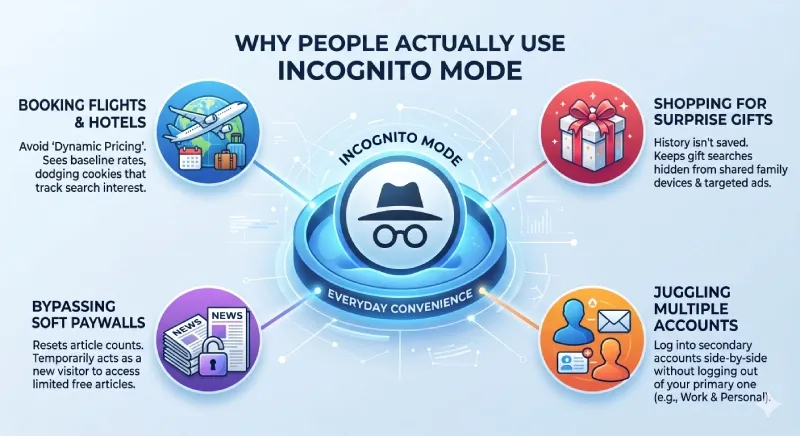
Booking Flights & Hotels: Going incognito gives you a fresh session, helping you dodge “dynamic pricing” and see the baseline rates.
Shopping for Surprise Gifts: If you share a computer, the last thing you want is for retargeted ads to ruin a surprise. Incognito wipes your local history, ensuring your gift searches won’t follow your family around the web.
Bypassing Soft Paywalls: Many news sites use cookies to limit how many free articles you can read. Opening an incognito window makes you look like a brand-new visitor, temporarily resetting the meter.
Juggling Multiple Accounts: Need to check your personal Gmail while working? An incognito tab lets you log into a secondary account side-by-side without logging out of your primary one.
Incognito Mode - How to Turn On and Off?
Turn on Incognito Mode
In most browsers, you can easily open Incognito Mode by clicking the menu icon (usually three dots or hamburger menu) in the upper-right corner.
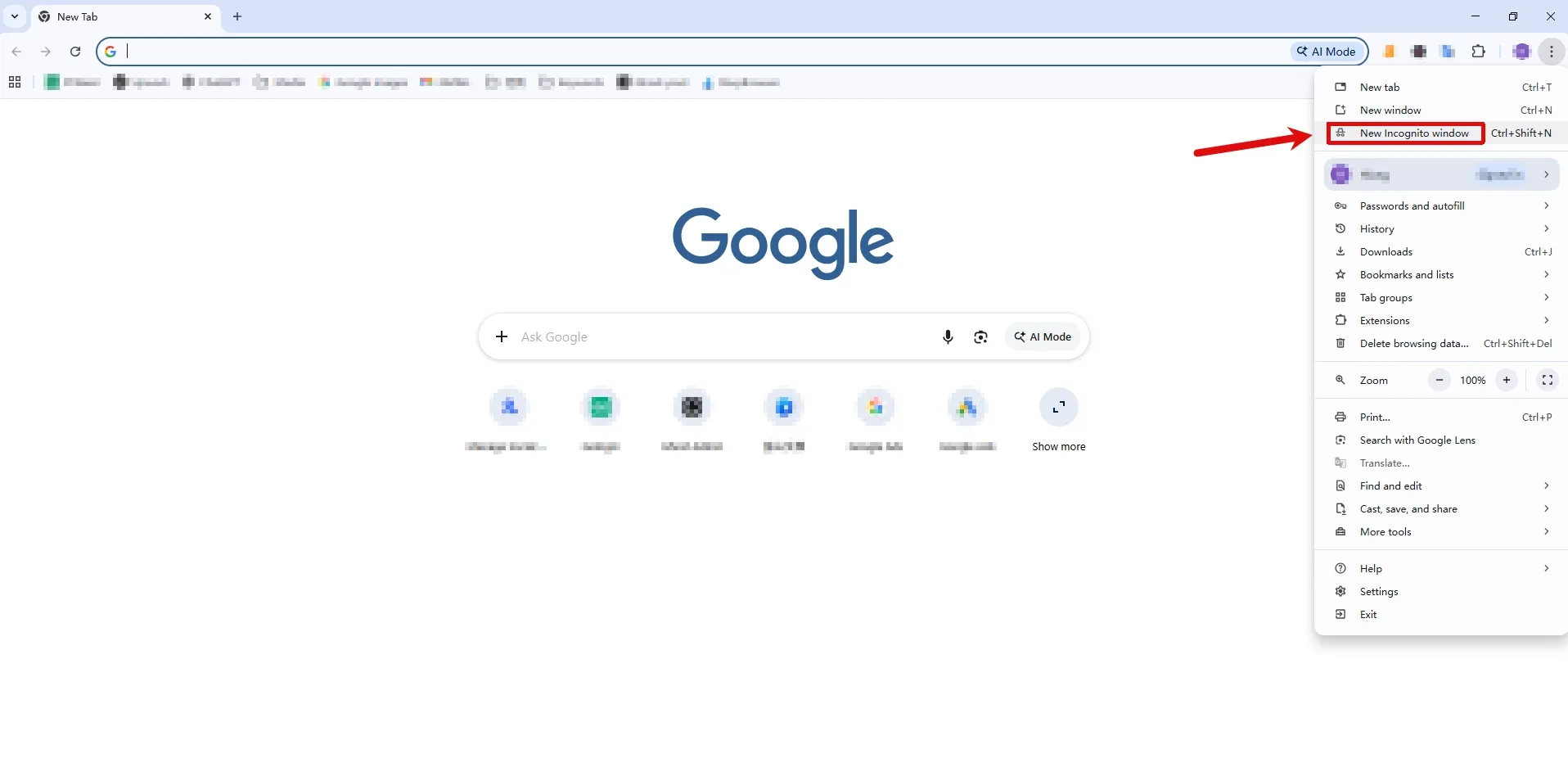
But if you want to save time, the fastest way is to use a keyboard shortcut. Here’s a quick cheat sheet for the four major browsers across different operating systems:
| Web Browser | Windows / Linux | Mac | Mobile (iOS / Android) |
|---|---|---|---|
| Google Chrome (Incognito Mode) | Ctrl + Shift + N | ⌘ + Shift + N | Tap the top-right or bottom-right three-dot menu > select “New Incognito tab” |
| Microsoft Edge (In Private Window) | Ctrl + Shift + N | ⌘ + Shift + N | Tap the top-right or bottom three-dot menu > select “New In Private tab” |
| Mozilla Firefox (Private Window) | Ctrl + Shift + P | ⌘ + Shift + P | Tap the top-right or bottom three-line menu > select “New private tab” |
| Apple Safari (Private Browsing) | N/A | ⌘ + Shift + N | Tap the bottom-right Tabs icon > swipe to the bottom menu and select “Private” |
Turn off Incognito Mode
Desktop (Windows / Mac): Simply click the “X” in the corner of your browser window (top-right for Windows, top-left for Mac) to close it out.
Mobile (Phones & Tablets): Tap the Tabs icon at the bottom of your browser, switch over to the private browsing section (usually marked with a dark mask or glasses icon), and simply swipe the open pages away or hit “Close all Incognito tabs.”
Is Incognito Mode Really Private?
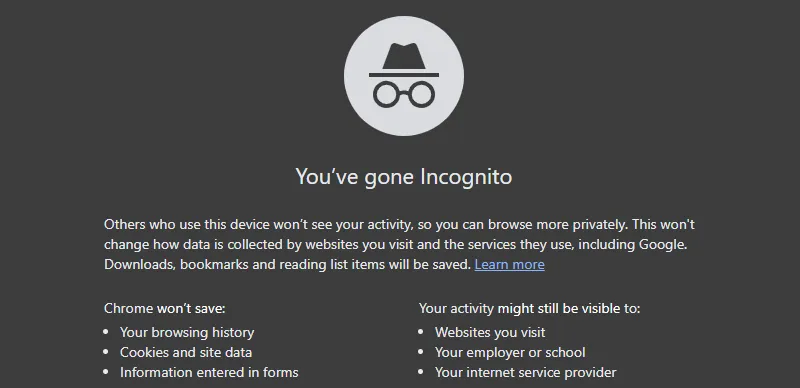
Let’s be clear: “Incognito” doesn’t mean “Invisible.” The official disclaimer on Google Incognito Mode start page clearly states:
Your activity might still be visible to: websites you visit, your employer or school, your intermet service provider.
You’re likely falling for one of these three dangerous myths:
Myth 1: “Websites Can’t Track Me Anymore”
Actually, your IP address is still fully exposed. Incognito Mode is not a VPN or a proxy. It does nothing to hide your network address. When you visit sites like Amazon or Facebook, your real IP is broadcasted in every data packet. Not only do platforms see who you are, but they can also pin your location down to your city or neighborhood.
A Quick Note on VPNs: You might think turning on a VPN alongside Incognito Mode solves this problem. While a VPN will mask your IP address, it offers zero protection against hardware tracking. Platforms don’t just look at your network; they look at your device, which brings us to the next major risk.
Myth 2: “It Prevents Account Bans and Linkage”
Your “Browser Fingerprint” gives you away instantly. This is the silent killer for e-commerce and social media managers. Anti-fraud systems scan your hardware—everything from screen resolution to GPU and sound card data—to create a unique “fingerprint.” Opening 100 incognito windows won’t help; the underlying hardware fingerprint remains identical.
Myth 3: “My Boss and ISP Can’t See My History”
Your network leaves a massive paper trail. Incognito Mode wipes data on your hard drive, but it can’t touch data traveling through the air. If you’re on office Wi-Fi or a home ISP, every DNS request is logged at the router level. Your employer and ISP can see every domain you’ve visited, offering zero protection.
Incognito Mode vs. Anti-Detect Browser
If Incognito Mode doesn’t actually hide your identity, what does? For business operations that require true anonymity, the standard solution is an anti-detect browser.
| Comparison Detail | Standard Incognito Mode | Anti-Detect Browser |
|---|---|---|
| Core Logic | Simply wipes local cache and history. | Deeply masks hardware fingerprints and isolates environments. |
| IP Protection | ❌ No Protection: Your real IP is fully exposed and visible to websites. | ✔️ Full Isolation: Bind a unique proxy IP to each profile for true physical isolation. |
| Browser Fingerprinting | ❌ Exposed: Websites can still see your actual hardware and device ID. | ✔️ Customizable: Generates 160+ unique parameters per profile to ensure you look like a new user. |
| Multi-Account Ops | ❌ High Risk: Easily flagged by platforms, leading to mass account bans. | ✔️ Zero-Linkage: Run hundreds of accounts simultaneously with zero risk of association. |
| Team Collaboration | ❌ Non-Transferable: Sessions vanish once the window is closed; cannot be shared. | ✔️ Cloud Sync: Team members can share profiles and take over sessions without re-logging. |
| Target Audience | Casual users looking to hide browsing history from roommates. | Professionals in E-commerce, Social Media Marketing, and Affiliate Marketing. |
Conclusion
If you just want to keep your browsing history off the device you’re using—like when you borrow a coworker’s laptop, log into a personal account on a public computer, or simply want to hide your searches from your family—Google Incognito Mode gets the job done perfectly. But if you need actual online anonymity to stop platforms from tracking your real IP, hardware specs, and browsing habits, or if you need to safely manage multiple accounts without risking a ban, you need a dedicated anti-detect browser to create completely isolated network environments.


