
TL;DR
- Yes, you can have multiple Discord accounts.
- Creating a second account takes a unique email and about two minutes. You cannot reuse the email on an existing account.
- Desktop is easier than mobile.
- Two accounts and twenty accounts are different problems.
- Multiple accounts are not a loophole. Discord states enforcement can extend across accounts it determines belong to the same user.
Introduction
People run multiple Discord accounts for reasons that have nothing to do with abuse. A gamer keeps one account for late-night raids and another for the professional servers where recruiters lurk. A community manager runs five servers for five different clients and can’t let a single ban take down all of them. A developer needs a clean account to test a bot without spamming real members. These are everyday reasons to want more than one login, and none of them break Discord’s rules.
None of that is against the rules: you can hold multiple Discord accounts, and Discord officially supports up to 5 of them through its built-in Account Switcher. But managing 2 accounts, 20 accounts, and 200 accounts are three different problems. The first is a two-minute setup. The last requires fingerprint isolation, dedicated proxies, and a management dashboard — or every account you own becomes collateral when one gets flagged.
This guide walks the full range: creating your second account, switching on desktop and mobile, understanding how accounts get linked, and the professional-scale setup that keeps dozens of accounts from getting linked together.
Can I Have Multiple Discord Accounts?
Yes, Discord permits one person to hold multiple accounts. Plenty of users keep separate logins for gaming, work, server moderation, bot testing, and privacy, and none of that violates the rules.
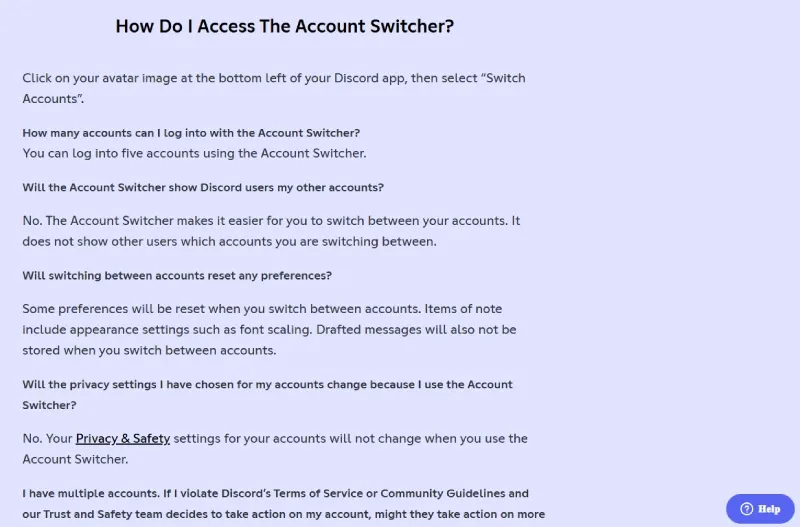
Discord’s own support documentation gives the clearest signal: the official desktop Account Switcher exists for users with multiple accounts and supports five logged-in accounts at one time. Discord also states that if one account violates the Terms of Service or Community Guidelines, action may extend across any related accounts the company can determine belong to the same user.
That creates an important distinction:
- Having multiple accounts is not the issue.
- Using multiple accounts for abuse is the issue — ban evasion (rejoining a server you were banned from), spam (mass DMs or server joins), vote manipulation (stacking polls and giveaways), raid coordination, or harassment (circumventing a block).
- Running several accounts carelessly on the same environment can create account-linkage risk even when the use case itself is perfectly legitimate.
The Account Switcher number gets misread constantly, so it’s worth clarifying: the 5-account cap applies to the switching tool, not to how many accounts you’re allowed to own. You can create more than 5 — you just can’t load all of them into native switching at once.
One enforcement reality matters before you scale. If one account commits a serious violation and Discord’s systems tie it to your others through a shared IP, device, or fingerprint, the penalty can spread. That is exactly why isolation becomes the central concern once you pass a handful of accounts — a point the rest of this guide keeps returning to.
Link vs. Add: What You’re Actually Looking For
Searches for “how to link Discord account” and “how to add another account on Discord” sound similar but want two completely different things. Sorting out which one you mean saves a lot of confusion.
If You Want to “Link” External Services (Spotify, Xbox, etc.)
Discord uses Account Connections to attach outside platforms — Spotify, Xbox, PlayStation, Steam, Twitch — to your existing profile. It shows what you’re playing, verifies roles, or displays badges.
To do it: Settings → Connections → Add [Service], then authorize the account. (Official guide: Account Connections on Discord)
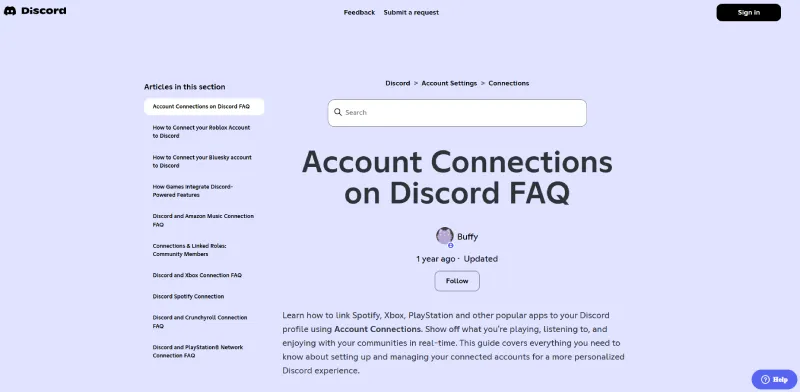
This does not create a second Discord account and does not merge anything. It only decorates the profile you’re already signed into.
If You Want to “Add Another Discord Account”
This means creating or switching to a second or third Discord login — the actual subject of this guide. The methods covered below include:
- Discord’s Account Switcher (up to 5 accounts)
- Separate browser profiles
- Mobile account switching and app cloning
- Antidetect browser profiles for professional scale
One hard limit applies no matter which method you pick: Discord cannot merge two accounts. There is no feature to combine data, friends lists, server memberships, or Nitro between accounts. Each account stays fully independent for its entire life.
Quick Decision Guide
| Your Goal | What You Need | Where to Go |
|---|---|---|
| Connect Spotify / Xbox / PlayStation | Link an external service | Settings → Connections |
| Use a second Discord account | Add or create another account | Keep reading below ↓ |
| Merge two Discord accounts | Not possible | Each account stays separate |
How to Make a Second Discord Account
Creating a second account is straightforward. The one firm requirement: Discord needs a unique email address for every account — you cannot reuse the email on your existing one. Phone verification may also be requested, especially for fresh accounts on a new network, so for legitimate multi-account use plan on a separate, genuine phone number for each account that requires it.
Step-by-Step (Desktop / Browser)
- Log out of your current account, or open an incognito window so you don’t disturb your active session.
- Go to
discord.com/register. - Enter a new email, username, password, and date of birth.
- Open the verification email Discord sends and confirm the address.
- Complete phone verification if prompted.
Using a fresh incognito window matters here — it gives the new account a clean session without your existing login’s cookies bleeding in.
Step-by-Step (Mobile)
Discord’s official Getting Started on Mobile guide shows the same basic flow on iOS and Android:
- Open the mobile app and tap Register on the login screen.
- Enter a display name, username, email address or phone number, and password.
- Finish setup and verify the account.
One useful detail from Discord’s mobile guide: if a new account stays unverified, Discord adds five random digits after the username seven days after creation. That’s a concrete reason to verify early instead of treating setup as optional.
Setup Rules That Reduce Headaches Later
- Email aliases are not true separation. Gmail’s
+tagtrick (yourname+discord2@gmail.com) routes to one inbox, and Discord can detect that all those aliases share a root address. For accounts you want genuinely separate, use distinct mailboxes. - Unique credentials. Set a different password for every account and store them in a password manager. Reused passwords are both a security hole and a soft linkage signal.
- Separate recovery info. Give each account its own recovery email and phone where possible. Shared recovery details are one of the strongest links Discord can draw between accounts.
- Enable 2FA immediately. Authenticator apps are preferred over SMS, which is vulnerable to SIM-swap attacks.
A Note on “Free Discord Accounts”

When people search for free Discord accounts, the honest interpretation is simple: Discord accounts are free to create. You never need to pay for one.
What the phrase should not mean is buying pre-made accounts from a third-party seller. That route is a trap:
- Account theft risk — many resold accounts are stolen, and the original owner can reclaim them.
- Instant bans — purchased accounts often carry prior violations and can be disabled the moment you log in.
- Compromised security — the seller keeps the original email and recovery access and can lock you out at will.
- No recovery — with no verified ownership, Discord support can’t help you.
The safe interpretation of free Discord accounts: create your own with unique, secure credentials and control the full credential chain from day one.
Why Multiple Discord Accounts Get Linked and Banned
Having multiple Discord accounts is allowed. Getting them linked is the risk. Discord runs as a web app on the Chromium engine, which means it can read the same browser and network signals every anti-fraud system reads. Discord does not publish a public technical checklist for linkage detection, but large platforms consistently look for overlap across these signals.
How Discord Detects Related Accounts
- Browser fingerprinting — Your browser exposes a Digital Fingerprint built from Canvas Fingerprinting (a hidden
<canvas>renders an image, and small GPU/driver/font differences produce a unique pixel hash viatoDataURL()), WebGL renderer strings, font enumeration, timezone, screen resolution, andnavigator.hardwareConcurrency. Combined, these identify your physical machine even after you clear cookies. - IP address tracking — Several accounts active from the same IP is one of the cleanest linkage signals there is. Reused home or office IPs cluster accounts immediately.
- Device fingerprinting — Hardware identifiers, the User-Agent String, and OS details persist across logins on the same device.
- Phone and email verification — Tying multiple accounts to the same phone number or recovery email creates an explicit, permanent link in Discord’s records.
- Behavioral patterns — Login times, typing rhythm (Keystroke Dynamics), the servers you overlap in, and your interaction habits build a behavioral profile that follows you between accounts.
- Cookie and session overlap — Shared authentication tokens and persistent storage (LocalStorage, IndexedDB) connect sessions that look separate on the surface.
The technical core most people miss is the fingerprint. A defense system extracts the pixel-hash differences a specific GPU produces when rendering a set image, and that becomes a stable Canvas fingerprint. Clearing cookies does nothing to it. Real isolation has to change the signal at the rendering layer — through modifications in the Chromium Core that inject tiny, natural-looking variance — not just swap a User-Agent String. WebRTC connections can also expose your real IP via RTCPeerConnection even behind a proxy, which is why SOCKS5 proxy support for WebRTC traffic matters.
There’s a second nuance worth more than the raw list: fingerprint consistency. A profile claiming to be a Windows laptop in New York but showing a mismatched timezone, language, GPU profile, or network path looks unnatural. The detection signal is often the contradiction between parameters, not any single value.
A Concrete Failure
An agency ran 15 client community accounts through one machine using separate Chrome profiles. The cookies were isolated, but every profile reported the same Canvas hash, WebGL renderer, and residential IP. When one account got reported for spam in a server, Discord’s review tied the shared fingerprint to the rest, and several otherwise-clean client accounts were restricted in the same sweep. The profiles isolated the wrong layer.
The Risk Model in Three Lines
- Having multiple accounts = allowed
- Detectable cross-contamination between them = risk
- Understanding isolation before you scale = essential
For 2–5 accounts, risk is low with native methods — a casual user with a personal and a gaming account is not on anyone’s radar. For 10+ accounts, shared fingerprints and IPs become a liability, and Profile Isolation becomes mandatory.
How to Switch Between Multiple Discord Accounts on Desktop
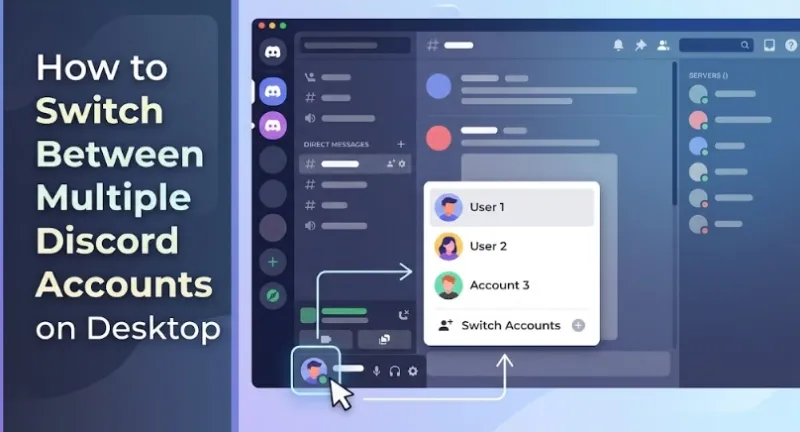
On desktop you have four native ways to run multiple Discord accounts. They differ in how many accounts they hold and whether you can use them at the same time, but they share one ceiling: every one runs on the same machine, so they share the same device fingerprint and IP. That’s fine for a few personal accounts and a problem at scale.
Method 1: Official Account Switcher (Best for 2–5 Accounts)
Discord’s own switcher is the cleanest option for a small number of accounts.
- How to access: Click your avatar in the lower-left corner → Switch Accounts → Add Account (Settings → Account Switcher also works).
- How switching works: Pick an account and you’re in — no logout required.
- What persists / resets: Local app settings and cache persist; your active server view, open DMs, and notification focus shift to the selected account.
- Limitation: A maximum of 5 accounts, all tied to the same device fingerprint and IP.
- Best for: Casual users with 2–5 personal accounts who aren’t worried about detection.
Method 2: Different Browser Profiles (2–4 Accounts)
Chrome, Edge, and Brave let you create separate browser profiles, each with its own cookies, cache, and extensions.
- How to set up: Browser Settings → Add Profile → open
discord.comin the new profile → sign in. - Run simultaneously: Each profile can keep Discord open side by side.
- Limitation: Profiles still share the same underlying browser fingerprint — same Canvas, WebGL, and IP — so they isolate cookies but not your machine identity.
- Best for: Users who need to watch 2–4 accounts on screen at once.
Method 3: Different Browser Types (2–3 Accounts)
Run the Discord desktop app plus Chrome plus Firefox plus Edge, each signed into a different account.
- Each browser keeps its own separate session.
- It still shares device-level fingerprints and your single IP address.
- Best for: Quick simultaneous monitoring without the setup of profiles.
Method 4: Discord Client Variants (2–3 Accounts)
Discord ships multiple builds — Stable, PTB (Public Test Build), and Canary — plus the web version. Each holds its own login session.
- Sign into a different account on each build to run them in parallel.
- Same fingerprinting limitations as every other native method.
- Best for: Developers and testers who want isolated environments for bot or feature work.
Quick Comparison Table
| Method | Max Accounts | Simultaneous? | Setup Time | Isolation Level | Best For |
|---|---|---|---|---|---|
| Account Switcher | 5 | No | ~1 min | Low | Casual users |
| Browser Profiles | 3–4 | Yes | ~5 min | Low | Monitoring |
| Different Browsers | 3–4 | Yes | ~2 min | Low | Quick access |
| Client Variants | 3–4 | Yes | ~10 min | Low | Testing |
If you only need a couple of accounts and don’t care whether they look related, any of these works. The moment isolation matters, none of them do — which is the gap the professional section addresses.
How to Have Multiple Discord Accounts on Mobile
Running multiple Discord accounts on mobile follows the same logic as desktop but with tighter constraints — and an important caveat about official support.
The Mobile Reality
At present, Discord’s official Help Center clearly documents mobile account creation and mobile Account Connections, but it does not document a native mobile Account Switcher the same way it documents the desktop switcher. That matters if you’re specifically researching multiple discord accounts on mobile, because many ranking pages assume mobile has full parity with desktop when the official documentation does not confirm it. In practice:
- The app supports switching, but it’s more limited than desktop switching.
- There are no simultaneous sessions — only one account is live at any moment, and only the active account reliably receives push notifications.
- iOS and Android are not equal here; Android gives you more room to work.
The honest summary: mobile is workable for two accounts, awkward for three, and inefficient beyond that.
Method 1: Native Account Switching
The built-in answer for most people.
- How to add: Profile → Settings → Add Account.
- How to switch: Swipe on your profile icon, or go to Settings → Switch Account.
- Limitations: Only one account receives notifications at a time, you can’t view two accounts at once, and all of them still link through the same device fingerprint.
- Best for: Casual users juggling 2–3 accounts.
Method 2: App Cloning (Android Only)
Android lets you run a second copy of the Discord app with fully separate data — the closest thing to true isolation on a phone.
- Built-in options: Samsung Secure Folder, Xiaomi Dual Apps, OnePlus Parallel Apps.
- Third-party tools: Parallel Space, Island, Shelter.
- Pros: Genuine simultaneous sessions and better data separation than native switching.
- Cons: Cloning can trip security flags, drains battery faster, and doesn’t exist on iOS.
- Best for: Android users who need 2–3 truly separate accounts on one device.
Method 3: Mobile Browser Workaround
When the app won’t cooperate, the web version fills in.
- Open
discord.comin a mobile browser and request the desktop site for full functionality. - Use multiple tabs or private windows for different accounts.
- Pros: No extra app; works on both iOS and Android.
- Cons: Clunky interface, reduced functionality, unreliable notifications.
- Best for: Emergency access or a quick temporary switch.
Method 4: Professional Mobile Management
For account managers who need mobile access to a larger set, the workflow leans on proxies and an antidetect setup. In practice you create and configure isolated profiles on desktop, then monitor them from mobile — keeping the heavy isolation work where the tools are strongest while staying mobile for day-to-day checks.
iOS vs. Android Comparison
| Feature | iOS | Android |
|---|---|---|
| Native switching | ✓ Yes | ✓ Yes |
| App cloning | ✗ No | ✓ Yes (built-in or 3rd party) |
| Browser workaround | ✓ Limited | ✓ Better |
| Fingerprint isolation | Low | Low (slightly better with cloning) |
| Best native method | Account Switcher | App cloning + Account Switcher |
Managing Multiple Discord Accounts at Scale (10+ Accounts)
Everything above works for a handful of accounts. Past that, the native toolkit quietly stops protecting you, and the failure mode is expensive. Running multiple Discord accounts at this scale is a different discipline than casual switching.
When Native Methods Break Down
- Account linking risk: Beyond 5 accounts, the shared signals add up. Discord’s fraud detection flags the same fingerprint and IP appearing across many accounts.
- No true isolation: Browser profiles and the Account Switcher separate cookies, but they all ride the same device fingerprint and IP. The thing that actually identifies you is unchanged.
- Ban cascades: Because the accounts are linked, one flagged account can pull the others into review. A single violation stops being a single-account problem.
- Management chaos: No central dashboard, no per-account proxy control, and no way to share access with a team without handing over passwords.
The Professional Solution: Antidetect Browsers + Proxies
To run multiple Discord accounts that genuinely look unrelated, you isolate at two layers at once: the browser environment and the network. An antidetect browser handles the first; proxies handle the second.
What antidetect browsers do
- Generate a unique, internally consistent Browser Fingerprint for each profile.
- Fully isolate cookies, cache, LocalStorage, IndexedDB, and session data per profile (Profile Isolation).
- Spoof Canvas, WebGL, fonts, timezone, and hardware signatures at the Chromium Core level rather than with surface-level overrides.
- Run dozens or hundreds of profiles in parallel without cross-contamination.
The quality bar is Browser Fingerprint Consistency: every parameter in a profile has to agree with the others. If the User-Agent String claims Windows 11, then navigator.platform should read Win32 and the timezone should be a Windows-valid value. A mismatch between any two parameters is itself the detection signal — which is why simple UA spoofing fails and kernel-level modification is the standard for serious tools.
What proxies add
- A unique IP per account, so accounts don’t cluster on one address.
- Geographic diversity that matches each account’s intended location.
- Protection against IP-based account linkage.
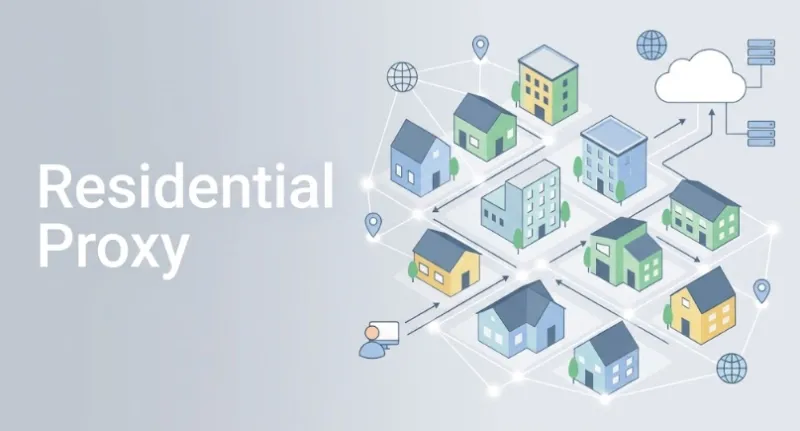
Proxy type is not a detail you can skip. A residential proxy carries the ASN of a consumer ISP and earns high trust. A datacenter proxy carries an ASN like AWS (AS16509), which platforms read as automation. The trap is fake “residential” IPs: buy a cheap proxy whose underlying ASN still resolves to a datacenter, and the account looks no safer than with no proxy at all. For account work, a SOCKS5 Proxy is the preferred protocol because it carries both TCP and UDP and can route WebRTC traffic, which otherwise leaks your real IP.
The complete stack
- Antidetect browser — fingerprint isolation
- Proxy service — IP isolation (one clean residential or mobile IP per account)
- Separate credentials — unique email, phone, and payment method per account
- Warm-up protocol — gradual, human-looking activity on new accounts
Each layer closes a linkage vector. Skip one and the others can’t fully cover for it — an isolated fingerprint on a shared IP still clusters, and a clean IP behind a duplicated fingerprint still clusters.
Best Antidetect Browsers for Discord Account Management
The tools below are judged on the same four criteria: fingerprint quality, proxy integration, team features, and cost/free access. None of them can promise zero bans — anyone who claims otherwise is overselling — but they differ meaningfully in how cleanly they isolate accounts.
1. RoxyBrowser
RoxyBrowser is built around multi-account management rather than retrofitted for it, and that shows in the depth of its isolation.
- Fingerprint depth: Customization reaches 210+ parameters at the Chromium Core level — Canvas, AudioContext, fonts, and mobile-specific traits like battery and Bluetooth, not just a swapped User-Agent. Each profile behaves as an independent device. (Survival rates depend on setup discipline, not the tool alone.)
- Current Core: Built on a Chromium 149 Core for up-to-date compatibility and detection resistance.
- Built-in IP supply: A self-operated proxy store with 90M+ clean nodes across 200+ countries and regions, including dedicated social-media and cross-border e-commerce lines, backed by 99.9% SLA support. You bind an IP to a profile in roughly 30 seconds, without sourcing proxies elsewhere.
- Proxy flexibility: Supports HTTP, HTTPS, and SOCKS5, plus residential and mobile proxies.
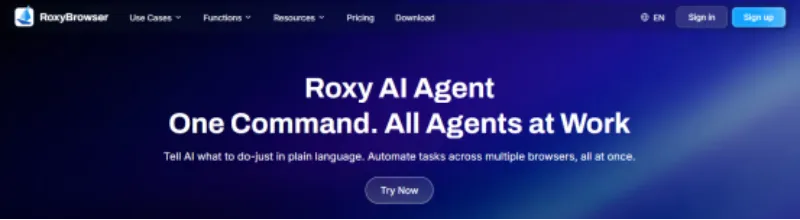
- AI and automation: As one of the first antidetect platforms to ship a real AI Agent, it lets you drive 100+ browser windows from a single plain-language instruction — no RPA scripting — with MCP protocol and custom Skills support.
- Team collaboration: Share profiles without sharing passwords, with granular permission tiers and per-user audit logs for studios of 100+ people.
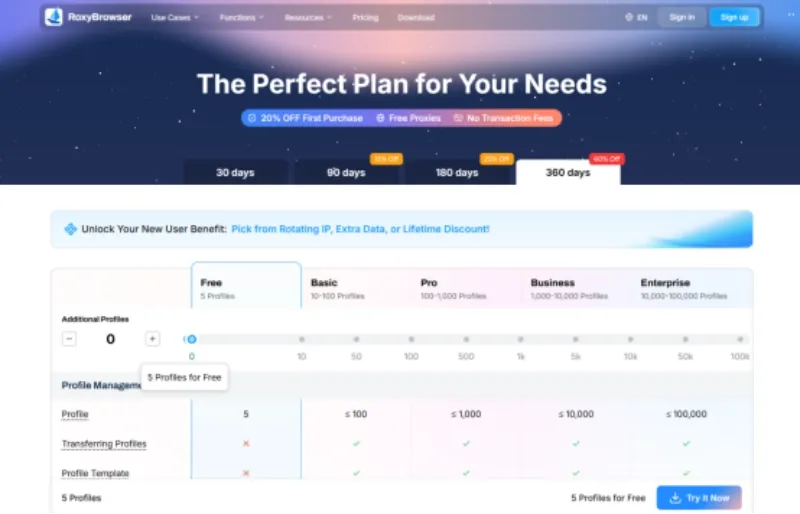
- Free tier: Available for testing before you commit.
- Best for: Community managers, agencies, and businesses running 10–200+ accounts.
2. Multilogin
- Strong fingerprinting through its Mimic (Chromium) and Stealthfox (Firefox) browsers; mature, enterprise-grade reputation.
- Higher learning curve and one of the pricier options; no free tier.
- Best for: Large enterprises with dedicated security teams.
3. GoLogin
- A reasonable balance of usability and price, with both web-based and desktop apps.
- Solid fingerprinting, though not as deep as RoxyBrowser’s parameter coverage.
- Best for: Mid-scale users (5–50 accounts) who prioritize cost.
4. AdsPower
- Popular in e-commerce and marketing, with strong team features; general-purpose fingerprinting not tuned for any one platform.
- Best for: Users already running e-commerce accounts who want to add Discord.
Comparison Table
| Browser | Free Profiles | Fingerprint Quality | Proxy Integration | Team Features | Best For |
|---|---|---|---|---|---|
| RoxyBrowser | ✓ Yes | Excellent (210+ params) | ✓✓✓ Built-in 90M+ IPs | ✓✓✓ Advanced | 10–200+ accounts |
| Multilogin | ✗ No | Excellent | ✓✓ Bring your own | ✓✓ Good | Enterprises |
| GoLogin | ✓ Limited | Good | ✓✓ Bring your own | ✓✓ Good | Budget-conscious |
| AdsPower | ✓ Limited | Good | ✓✓ Bring your own | ✓✓✓ Advanced | E-commerce + Discord |
How to Set Up Multiple Discord Accounts in RoxyBrowser
The whole point is one profile = one fingerprint = one IP = one account, with nothing shared between them.
Step 1: Get RoxyBrowser
Download RoxyBrowser, install it, and create your account. The free tier is enough to test the workflow on a few accounts first.
Step 2: Create Browser Profiles
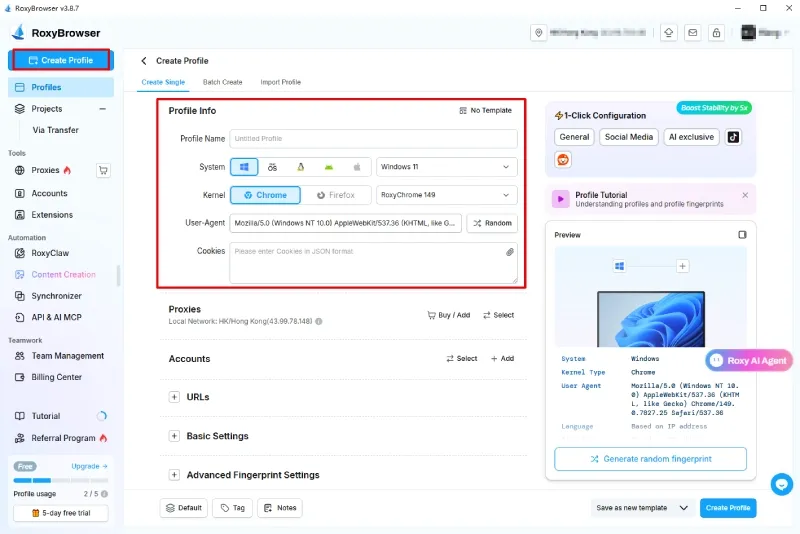
Click Creat Profile for each Discord account. Let the auto-recommended fingerprint settings generate a consistent environment (tuned for Browser Fingerprint Consistency, so you don’t hand-match parameters). Name profiles clearly — “Discord – Gaming Community” or “Discord – Client A” — so the dashboard stays readable as it grows.
Step 3: Configure and Bind Proxies
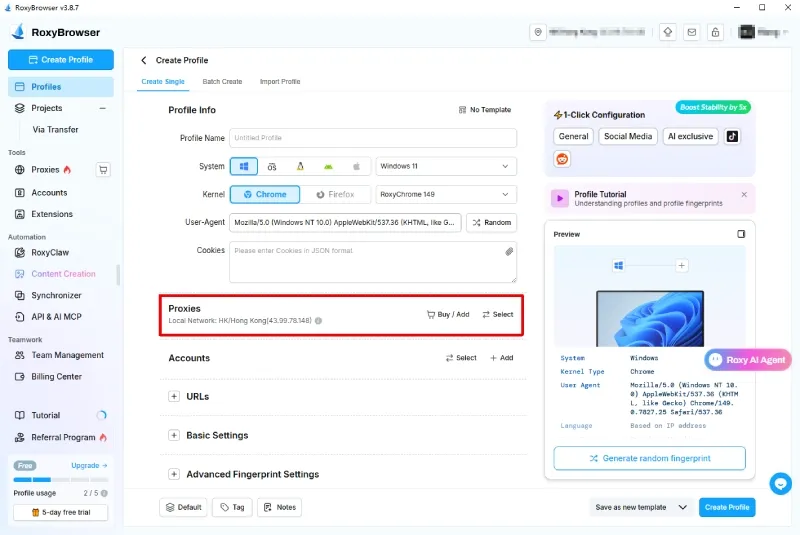
Assign one residential or mobile proxy to each profile — never share an IP across accounts you want unrelated. Pull from RoxyBrowser’s built-in store or add your own SOCKS5 details. Confirm each proxy’s real ASN reads as a consumer ISP, not a datacenter, before you bind it (Proxy Binding ties that IP to the profile so it stays consistent on every launch).
Step 4: Open and Log In
Launch each profile into a completely clean, isolated Chromium session, then sign into its Discord account — or create a new one inside that clean environment. Enable 2FA and verify a unique email and phone per account. Creating the account inside the isolated profile means it’s born with the right fingerprint and IP, with no contaminated history.
Step 5: Warm Up and Run
New accounts need a gradual ramp (see below). Use the dashboard to monitor every account from one place, set up team access if you’re collaborating, and keep activity regular and human. For repetitive tasks across many windows, the built-in AI Agent can run them from a single instruction.
Best Practices for Discord Account Safety
Tools isolate accounts; habits keep them isolated. These apply whether you have 3 accounts or 300.
Identity Isolation
- One identity per account: Its own email, phone, payment method, and recovery info. Shared recovery details are among the strongest links Discord can draw.
- No credential reuse: A different password for every account, stored in a password manager.
- Distinct personas: Don’t copy the same profile picture, bio, or username pattern across accounts you want unrelated. Identical cosmetics are a manual giveaway no fingerprint tool can hide.
Proxy Best Practices
- Quality over price: Use residential or mobile proxies; avoid free VPNs and datacenter proxies. A low-cost IP whose ASN still resolves to a datacenter is exactly how cheap proxies fail.
- Geographic consistency: Keep each account’s IP location stable. An account that logs in from three countries in a day reads as compromised or automated.
- Dedicated over shared: Dedicated proxies (one account per IP) are safest for high-value accounts; shared IPs reintroduce the clustering you’re trying to avoid.
Warm-Up Protocol
New accounts that jump straight into heavy activity look automated. A workable ramp:
- Day 1–3: Basic profile setup, verify, browse servers, read.
- Week 1: Join 1–2 relevant servers, react and read lightly.
- Week 2–4: Gradually add messaging and server participation.
- Avoid: Mass-joining 50 servers, copy-paste messages, and rapid-fire friend requests on day one.
Security and Compliance
- 2FA on every account: Authenticator apps over SMS.
- Regular audits: Check active sessions and authorized apps periodically; revoke anything you don’t recognize.
- Watch for early flags: Unexpected verification prompts, sudden captchas, or temporary restrictions are signals to slow down and review your setup.
- Stay inside the rules: No isolation stack fixes spam, ban evasion, manipulation, or harassment. If the behavior is the problem, the tooling won’t save it. Respect servers that prohibit alts.
Which Method Fits Your Needs?
Match the method to your scale. Over-engineering 2 accounts wastes effort; under-engineering 20 gets them linked.
I Need 2 Accounts (Personal + Gaming/Work)
- Best method: Discord’s native Account Switcher
- Cost: Free
- Risk: Very low
I Need 3–5 Accounts (Multiple Communities)
- Best method: Account Switcher on desktop + native switching on mobile; separate browser profiles if you need them on screen at once
- Cost: Free
- Risk: Low
I Need 5–10 Accounts (Community Manager)
- Best method: RoxyBrowser free tier + basic residential proxies
- Cost: Proxy costs on top of the free browser tier
- Risk: Low, with proper isolation
I Need 10–50 Accounts (Professional Management)
- Best method: A paid RoxyBrowser plan + dedicated residential proxies
- Cost: Varies by plan
- Risk: Very low, with proper protocols
I Need 50+ Accounts (Agency / Business)
- Best method: RoxyBrowser’s business tier + premium residential/mobile proxies + team features
- Cost: Scales with seat and profile count
- Risk: Very low, with dedicated multiple account management
If you’re already running other platforms at scale, the same manage multiple accounts workflow is identical for Discord, Telegram, and social media management across other networks.
Conclusion: Choosing Your Path
The right method tracks your scale, not your ambition:
- Casual users (2–5 accounts): Discord’s built-in Account Switcher is the answer — fast, free, and officially supported.
- Mobile-primary users: Native switching works on both iOS and Android; Android users can add app cloning for true simultaneous access. Just remember mobile lacks the documented desktop switcher.
- Professional management (10+ accounts): A purpose-built antidetect browser becomes necessary. Real fingerprint isolation, dedicated proxies, and team features are what stop one flagged account from dragging down the rest.
Running multiple Discord accounts is allowed and, for community managers, content creators, and anyone separating work from personal life, increasingly normal. The decision that actually matters is the isolation method you pair with your scale — get that right and your accounts stay independent and stable.
Ready to manage multiple Discord accounts safely?


