
Google Chrome is the benchmark for broad compatibility and everyday use. The right choice changes when tracking prevention, Windows integration, advanced tab processing, gaming resource controls, or privacy-isolated business environments matter more than Google services.
This guide compares ten Chromium-based browsers through their engine, technical differentiators, platform fit, and operating constraints, so you can identify the best Chromium browser for your actual requirements.
TL;DR
Choose Google Chrome for broad compatibility and Google services. Choose Microsoft Edge for Windows and Microsoft 365, Brave for privacy defaults, Vivaldi for tab-heavy work, and Opera GX for gaming resource controls. Their common Blink and V8 foundation does not make their privacy model, update path, or workflow capabilities equivalent.
For business teams with a legitimate need to keep authorized projects or client workspaces separate, RoxyBrowser addresses a different category from consumer browsers: managed environments with privacy isolation across browser storage, fingerprint settings, and approved network configuration.
At a Glance: The 10 Best Chromium Browsers by Use Case
| Browser | Browser Engines | Best Use Case | Key Technical Differentiator |
|---|---|---|---|
| Google Chrome | Blink / V8 | Best Chromium browser for broad compatibility | Google service sync, automatic updates, and mature extension support |
| Microsoft Edge | Blink / V8 | Best Chromium browser for Windows and Microsoft 365 | Windows integration, Sleeping Tabs, and enterprise policy controls |
| Brave | Blink / V8 | Best Chromium browser for privacy by default | Shields-based tracker, cookie, and script controls |
| Vivaldi | Blink / V8 | Best Chromium browser for customization and multitasking | Tab stacks, workspaces, tiling, and configurable shortcuts |
| Opera | Blink / V8 | Best Chromium browser for built-in productivity | Sidebar integrations and workspace-oriented interface tools |
| Opera GX | Blink / V8 | Best Chromium browser for gaming | User-configurable CPU, RAM, and network limit controls |
| Cromite | Blink / V8 | Best Chromium browser for Android privacy | Chromium-derived Android hardening and reduced Google integration |
| Ungoogled Chromium | Blink / V8 | Best Chromium browser for minimal Google integration | Reduced Google web-service dependencies and manual control |
| Thorium | Blink / V8 | Best Chromium browser for desktop performance testing | Platform-specific Chromium compilation and optimization focus |
| RoxyBrowser | RoxyChrome (Chromium-based) / RoxyFirefox 146 | Best Chromium browser for isolated business workflows | C++ environment management, privacy isolation, IP binding, AI Agent, and team governance |
What Is a Chromium Browser?
A Chromium browser uses the open-source Chromium project as its foundation. Chromium supplies the Blink rendering engine, the V8 JavaScript engine, developer tools, and much of the extension compatibility that people associate with Chrome. Vendors can add their own user interface, privacy choices, synchronization services, update systems, and business features.
The codebase is not identical to Google Chrome. Chrome adds Google branding, proprietary media components in some distributions, a built-in updater, and Google service integrations. Chromium itself is publicly developed; its project documentation and source are available through the Chromium Project.
For example, a website built and tested for Chrome will usually render similarly in Edge, Brave, Opera, and Vivaldi because they share Chromium’s rendering engine. Similar rendering does not mean identical privacy behavior, performance, or data handling. That shared foundation makes the difference between Chromium itself and Google’s Chrome distribution the next useful comparison.
Chromium vs. Google Chrome
Chromium is the upstream open-source browser project; Google Chrome is Google’s consumer browser built on that project. Chrome is normally the safer choice for users who want automatic updates, straightforward Google Account sync, and the broadest compatibility with services tested specifically on Chrome.
Chromium builds can reduce Google integration or expose different configuration choices, but those benefits can introduce maintenance work. A user installing Ungoogled Chromium, for example, may need to handle extension installation and updates more deliberately than in Chrome.
Security depends heavily on keeping any browser current. Google’s Chrome update guidance explains how Chrome delivers updates on supported platforms. The next decision is whether a standard browser profile is sufficient for your work or whether a managed environment is genuinely required.
Standard Chromium vs. Antidetect Browsers
Standard Chromium browsers are designed for personal browsing and ordinary organizational use. Antidetect browsers serve a specialized, legitimate need: operating authorized workspaces with stronger data separation and management controls. The distinction is clearest when the browser, storage, network, and governance layers are compared directly.
| Evaluation area | Standard Chromium browser and profiles | Antidetect browser environment |
|---|---|---|
| Primary purpose | Everyday browsing, separate personal or work logins, and standard enterprise policies | Managed, isolated workspaces for authorized client, regional, or team workflows |
| Persistent storage | Profiles can keep cookies, history, extensions, and some local data apart | Profiles are designed to isolate Cookies, LocalStorage, IndexedDB, cache, service workers, and session state |
| Browser environment | Shared device and browser context can still expose Canvas, WebGL, AudioContext, UA-CH, locale, display, and other signals | A fingerprint profile is configured as a coherent set of browser-facing values for each environment |
| Network configuration | Usually inherits the device network or a browser-wide proxy setting | Can bind an approved proxy configuration to an individual profile and align it with time zone and locale settings |
| Team operations | Basic browser sync or operating-system administration | Role-based access, environment sharing, templates, and activity records for governed workflows |
| Main constraint | Not intended to create many independently configured managed environments | Does not remove platform obligations, identity requirements, or fraud controls |
A user-agent override alone is not environment isolation. If the stated operating system conflicts with navigator.platform, locale, time zone, WebGL metadata, or network location, the inconsistency can become a detectable anomaly. Teams evaluating an antidetect browser should use it only alongside clear authorization, platform compliance, least-privilege access, and audit controls. With those categories defined, the wider appeal of Chromium becomes easier to explain.
Why Chromium-Based Browsers Dominate the Market
Chromium-based browsers dominate because the project gives vendors a mature rendering engine, a large extension ecosystem, regular web-platform development, and broad developer familiarity. For users, the immediate benefit is that a Chrome Web Store extension commonly works across several Chromium browsers. That shared foundation is why the best Chromium browser comparison starts with workflow, not rendering-engine compatibility alone.
There is also a trade-off. A shared engine can concentrate ecosystem dependence: an extension incompatibility, a rendering change, or a security issue may affect multiple browsers at once. Browser choice should therefore include update policies, privacy controls, and the vendor’s ability to maintain its Chromium fork, rather than relying on engine lineage alone. Those trade-offs define the evaluation criteria below.
How We Evaluate the Best Chromium Browsers
We evaluate each browser through six practical questions:
- Compatibility: Does it work reliably with modern sites, web apps, and Chrome extensions?
- Privacy and data controls: Are tracking protections useful by default, and can users understand the settings?
- Updates and maintenance: Is there a clear path for receiving security fixes?
- Productivity: Does it improve real work through tabs, sidebars, workspaces, or service integration?
- Performance controls: Does it provide credible controls for resource use on the operating systems it supports?
- Workflow fit: Is it intended for personal browsing, a managed organization, or a specialized environment?
We do not treat a longer feature list as an automatic win. A privacy feature that breaks a checkout flow, or a performance setting that needs frequent adjustment, may be less useful than a simpler browser that fits your work.
The best chromium based browser is the one whose trade-offs match the task and can be maintained safely. In practice, the best Chromium browser is the browser you can update, understand, and use consistently. A sound best Chromium browser decision also checks the engine, data boundaries, and maintenance burden together. These criteria frame the ten options below.
The 10 Best Chromium Browsers
1. Google Chrome - Best for Broad Compatibility
Google Chrome is the best Chromium browser for people who need predictable access to websites, Google Workspace, and the Chrome extension ecosystem. Its Blink renderer and V8 JavaScript engine are the reference target for many web applications, while signed-in users can use Google sync and supported platforms receive automatic updates. See the official Chrome product page for current platform and update information.
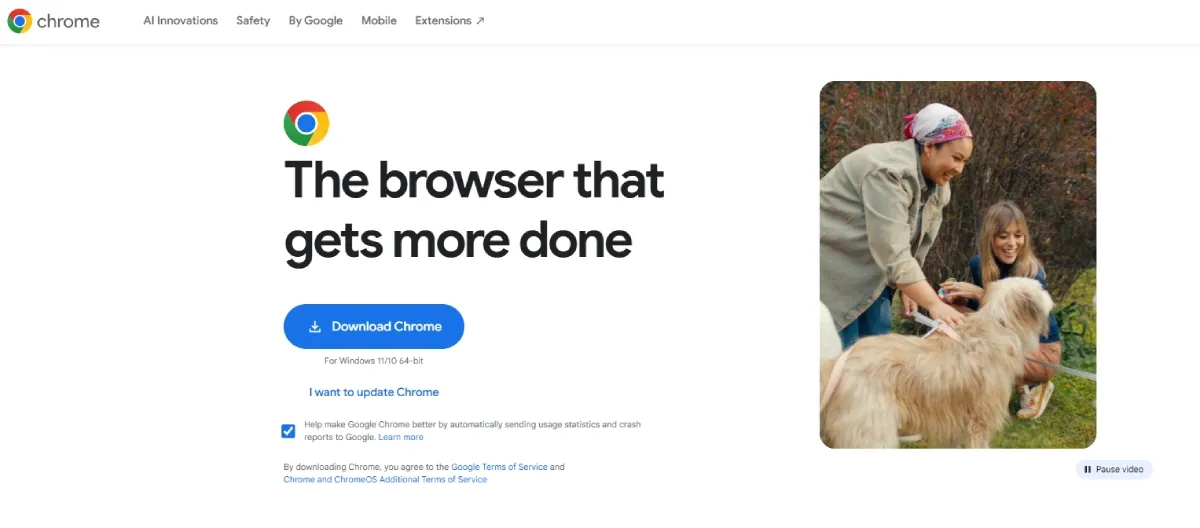
Chrome is less compelling when reduced Google integration or built-in tracker blocking is a primary goal. You can add privacy extensions and review permissions, but those choices require ongoing maintenance. It is a sensible default where compatibility costs more time than customization saves.
2. Microsoft Edge - Best for Windows and Microsoft 365
Microsoft Edge is a strong option on Windows, especially where Microsoft 365, Windows sign-in, and organizational policies are already part of the workflow. Its Sleeping Tabs feature can suspend inactive tabs, while vertical tabs, collections, and enterprise policies help people who keep many documents and web applications open. Current features and platform support are documented on the official Microsoft Edge page.
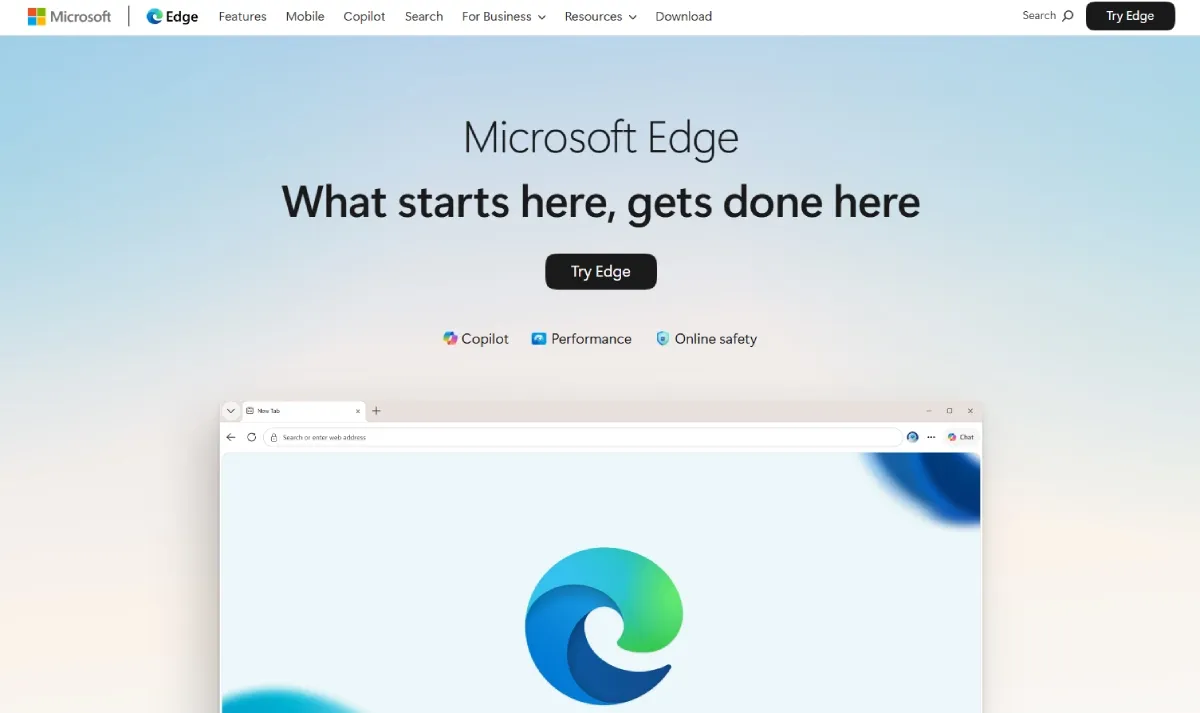
Users who prefer fewer vendor-service prompts may find Edge’s integrations distracting. In a Microsoft 365 team, however, the browser, operating system, and identity tooling are designed to work together.
3. Brave - Best for Privacy by Default
Brave is the best Chromium browser for privacy when you want tracker and ad blocking without configuring several extensions first. Its Shields feature applies built-in controls for third-party trackers, cookies, scripts, and fingerprinting protections on a per-site basis, reducing reliance on an extension stack for basic tracking prevention. See the official Brave browser page for the current Shields feature set.
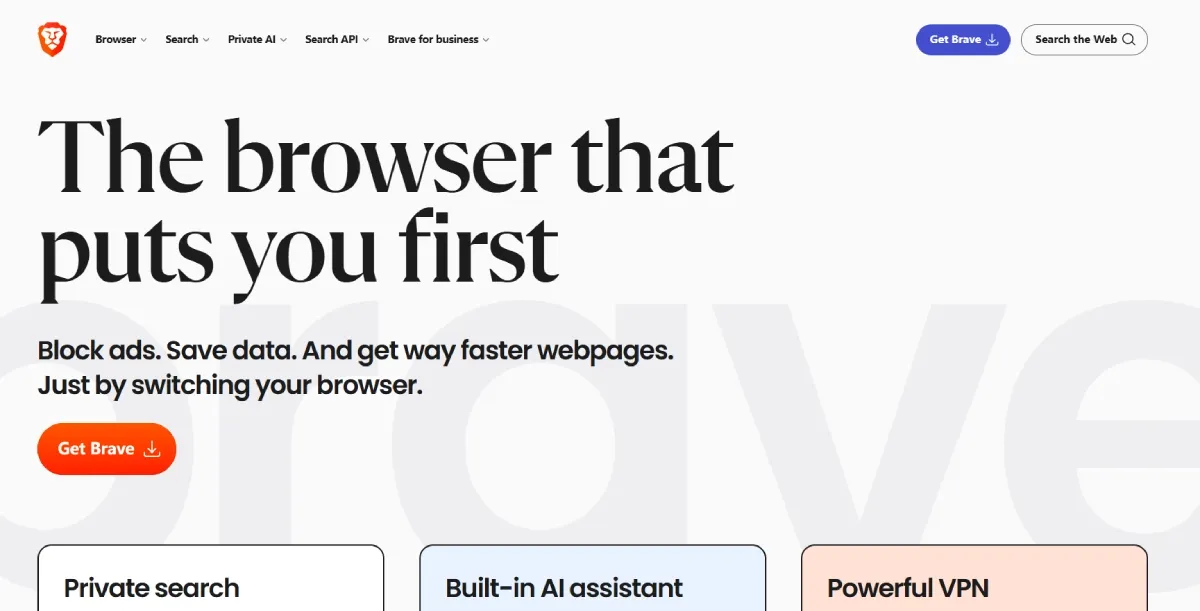
Those defaults can affect sites that rely on third-party scripts for payments, embedded media, or authentication. Adjust protections only for a trusted site rather than disabling them globally. Brave remains a practical everyday option when privacy defaults matter more than service integration.
4. Vivaldi - Best for Customization and Multitasking
Vivaldi is designed for users who want to shape the browser around their working habits. Its tab stacks, workspaces, panels, split-screen tab tiling, custom keyboard shortcuts, and interface settings are useful when research, support queues, or documentation work creates a large number of open pages. These features are listed on Vivaldi’s official features page.
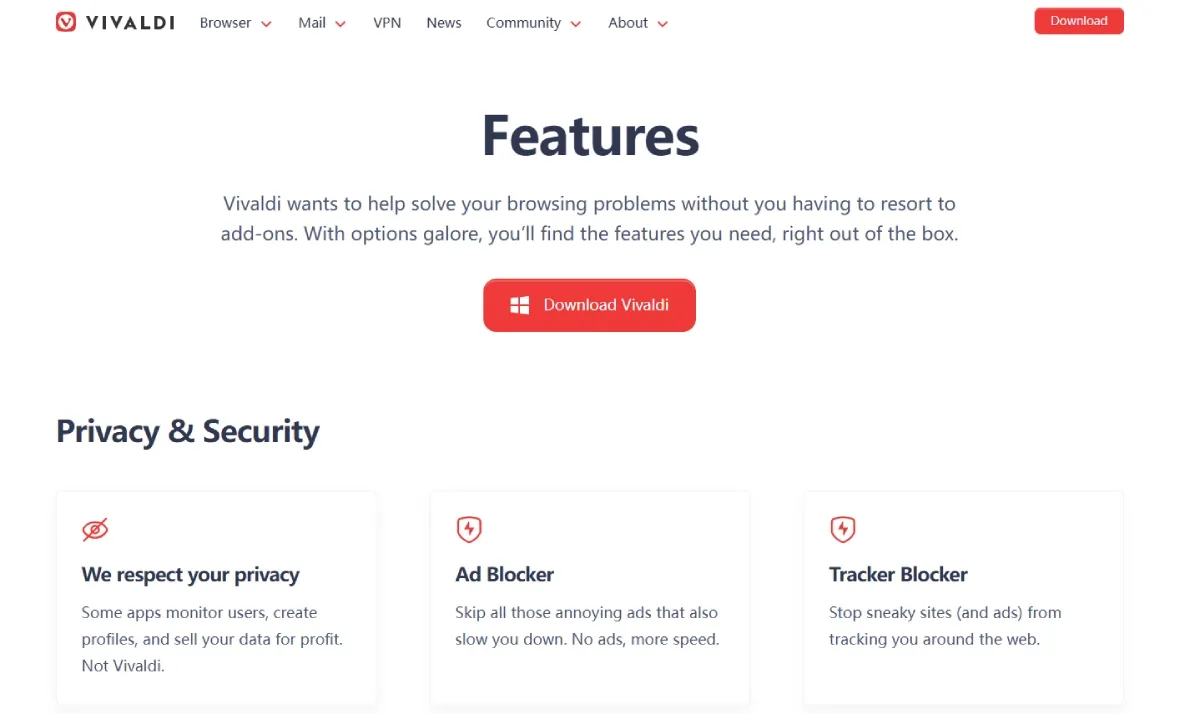
The cost is complexity. Tab stacks can help a researcher grouping twenty pages by project, but Chrome or Edge may be easier to maintain for someone who opens only a few pages each day.
5. Opera - Best for Built-In Productivity Features
Opera combines a Chromium foundation with a sidebar, workspaces, and integrated convenience features. The native sidebar can keep supported communication and media services separate from the main tab strip, which suits users who prefer an integrated interface instead of several extensions. Current integrations are described on the official Opera features page.
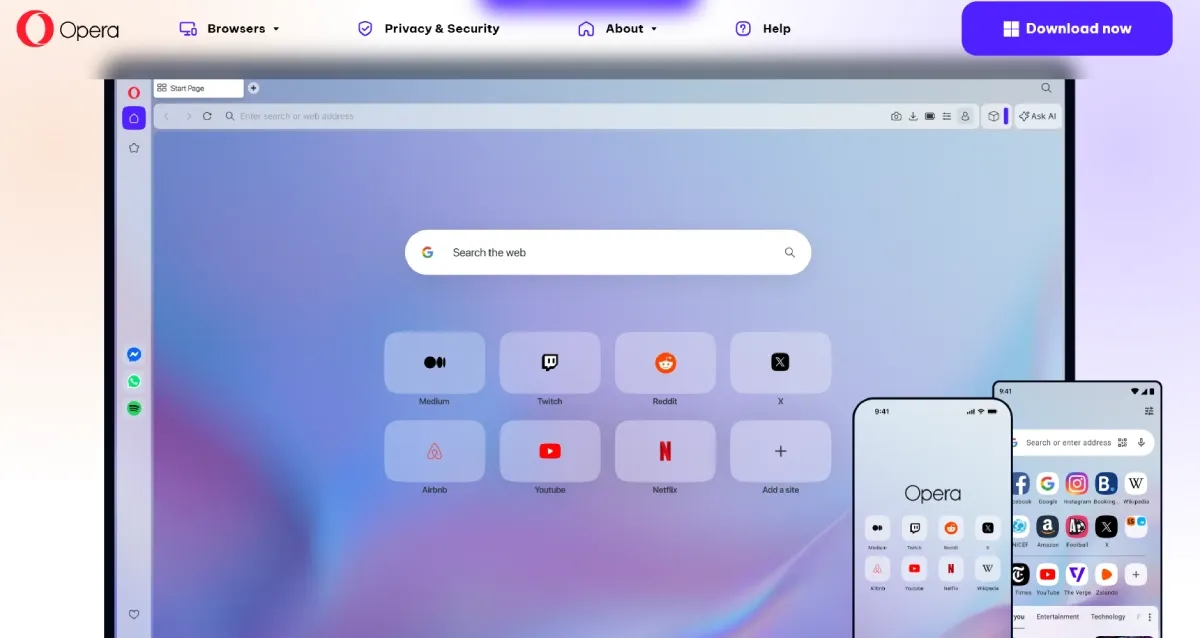
Bundled tools add interface surface area and may duplicate services you already use. Opera suits an individual who values its sidebar workflow, while a tightly managed organization may prefer Edge or Chrome for established policy and identity controls.
6. Opera GX - Best for Gaming
Opera GX adapts Opera’s Chromium base for gaming-oriented use. Its GX Control tools expose user-configurable CPU, RAM, and network limits, which can be helpful when a game, stream, voice chat, and browser compete for a laptop’s resources. The official Opera GX page documents the current GX Control options.
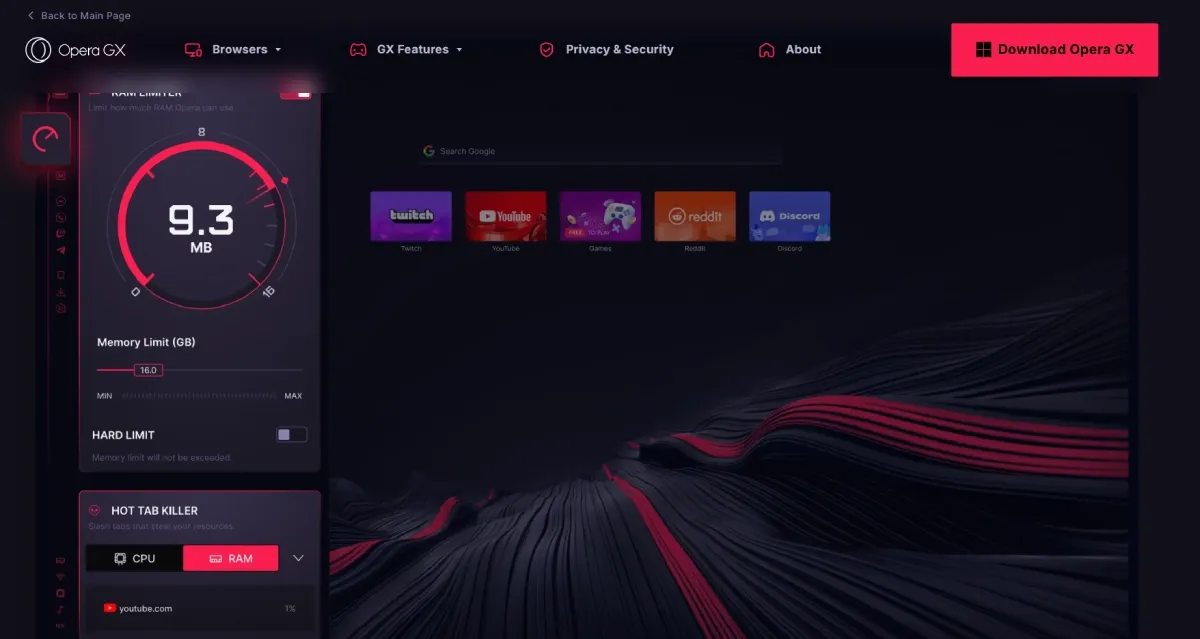
Resource limits do not replace adequate memory or diagnosing a heavy extension. A player streaming a match while using browser-based guides may benefit from a browser cap; a finance or admin team is unlikely to need the gaming interface.
7. Cromite - Best for Privacy-Focused Android Browsing
Cromite is a Chromium-derived Android browser focused on privacy-related hardening and reduced Google integration. It is relevant for Android users who want a Blink-based mobile browser with more restrictive defaults than Chrome normally provides, including built-in content-blocking controls. Verify the current Android release and security-update cadence in the official Cromite repository.
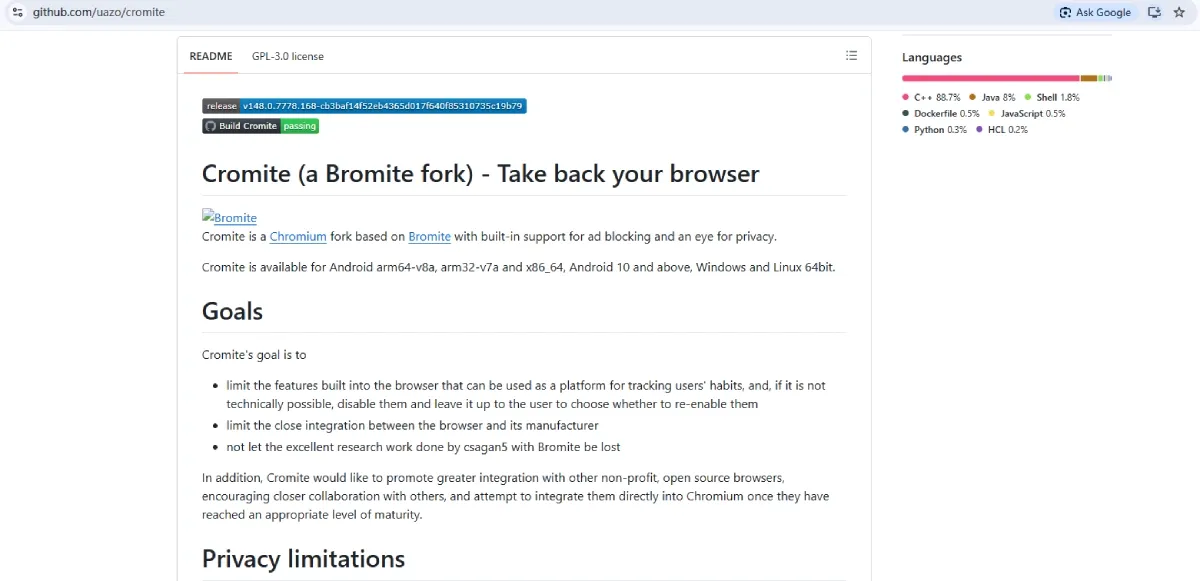
Android browser availability, signing, and release cadence can change. Obtain builds only from official project channels and check the current update status before relying on one for sensitive tasks. For Android, timely security patches matter as much as privacy defaults.
8. Ungoogled Chromium - Best for Minimal Google Integration
Ungoogled Chromium removes or disables many Google web-service dependencies from a Chromium build. It appeals to desktop users who want Chromium behavior without Chrome’s standard Google integration, but its reduced integration means that extension installation, synchronization, and update management can require more manual work. The project’s scope and build guidance are maintained in the official ungoogled-chromium repository.
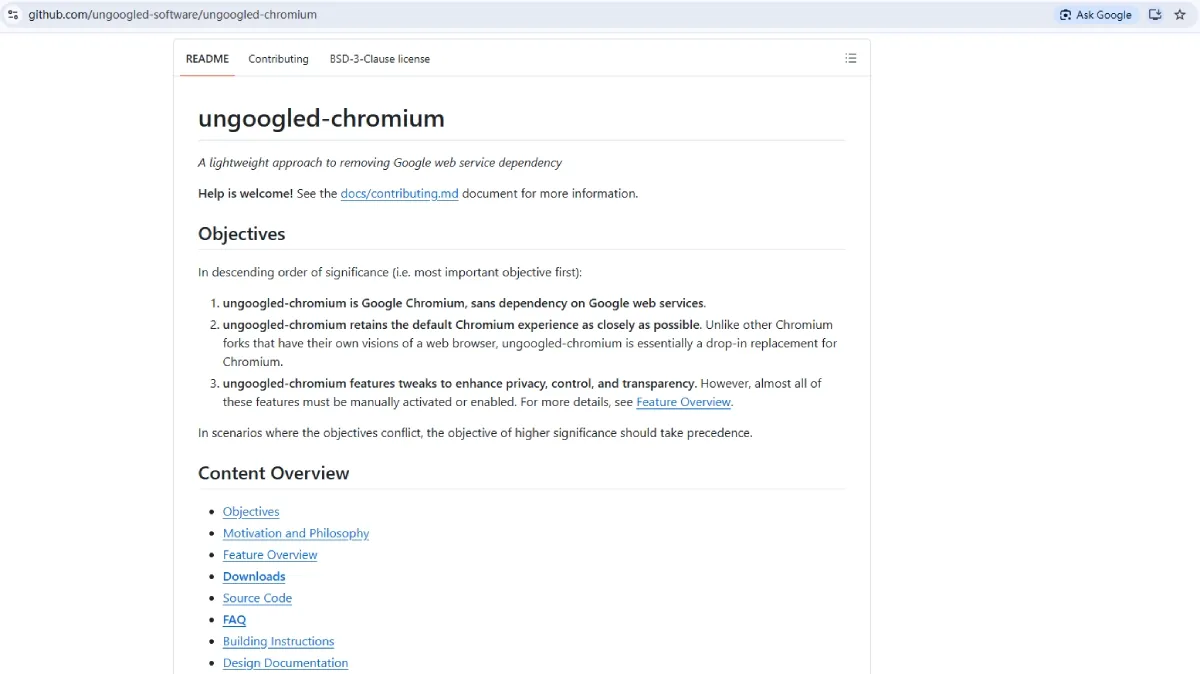
The reduction in convenience is real: account sync and easy extension installation may need alternatives or manual work. It suits technically confident users who can monitor their chosen distribution and keep it current; it is not the best browser based on Chromium for someone who wants a zero-maintenance setup.
9. Thorium - Best for Performance-Focused Desktop Use
Thorium offers Chromium-derived desktop builds that emphasize compiler and platform optimizations. It can interest experienced desktop users investigating performance on a specific supported system, particularly where the build’s target CPU features match the deployed hardware. Check the current release and supported targets on the official Thorium site.
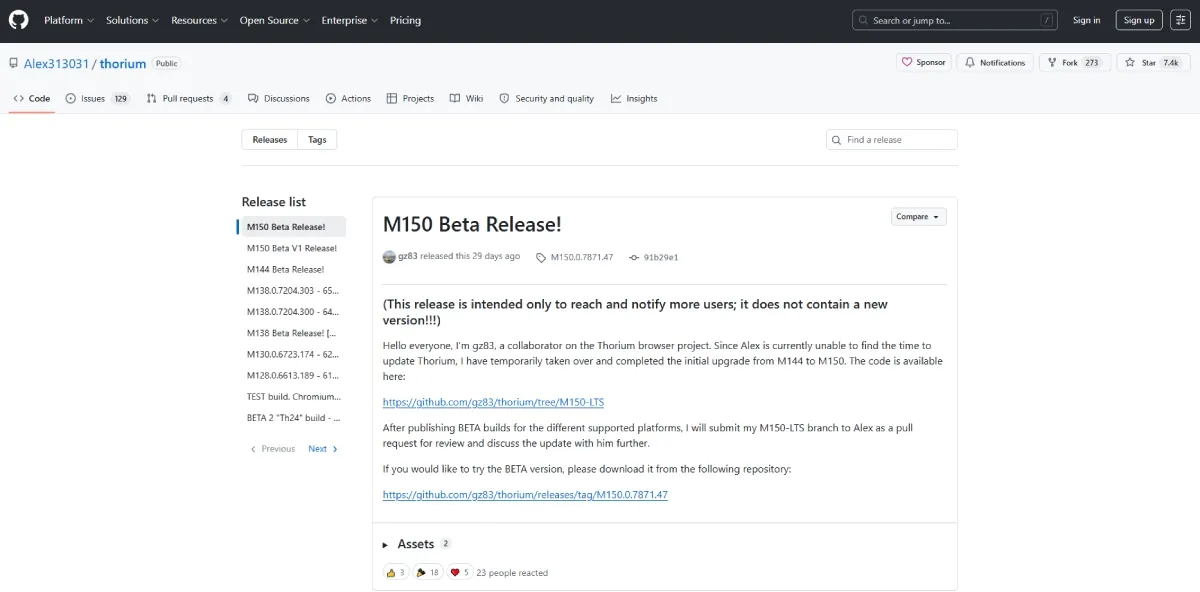
Performance claims need context. A faster benchmark on one CPU does not guarantee faster web applications, and a build configuration is of little value if security updates lag behind Chromium. Before adopting Thorium, verify the current release, supported operating system, extension needs, and update cadence.
10. RoxyBrowser - Best for Managed, Isolated Business Workflows
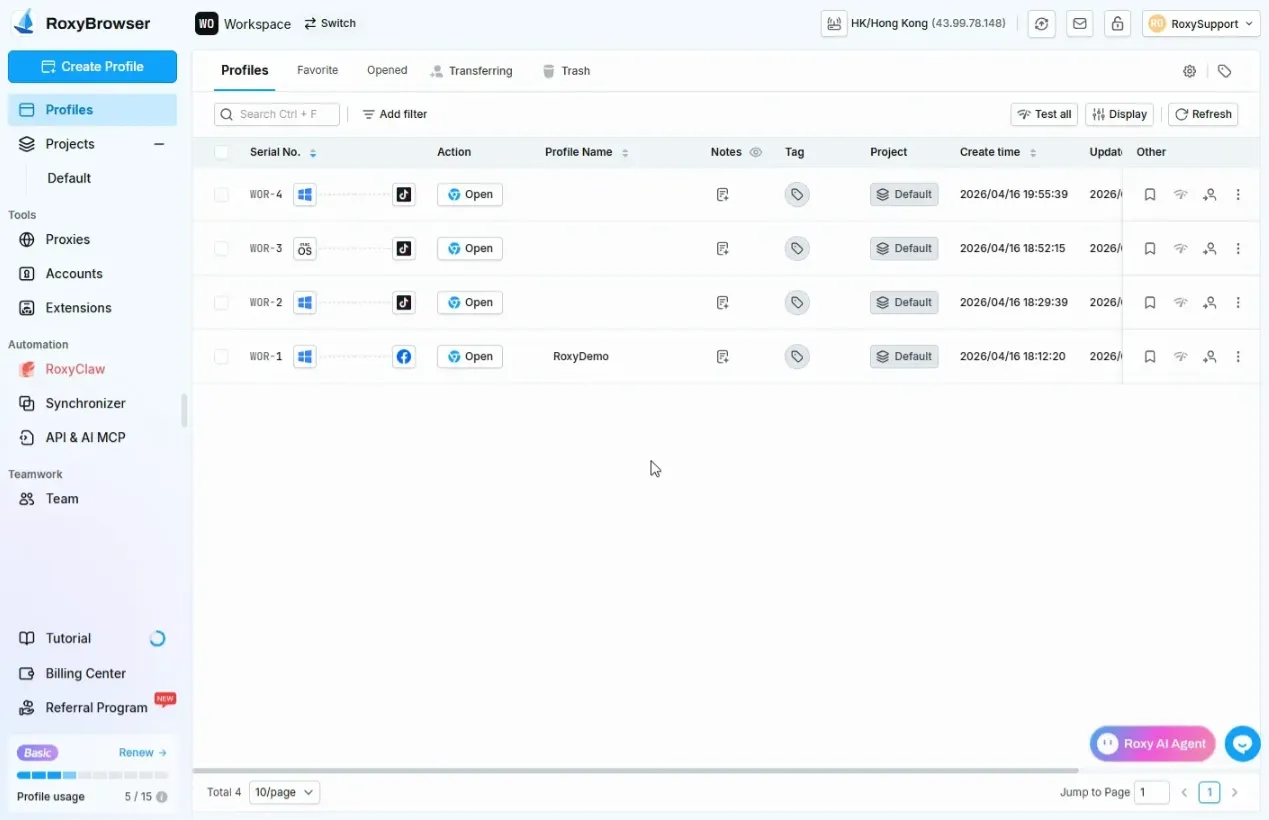
RoxyBrowser is a fingerprint browser built around the Chromium-based RoxyChrome engine, with RoxyFirefox available as an additional engine option. It is designed for teams that need managed separation between authorized client, regional, or business-account workspaces.
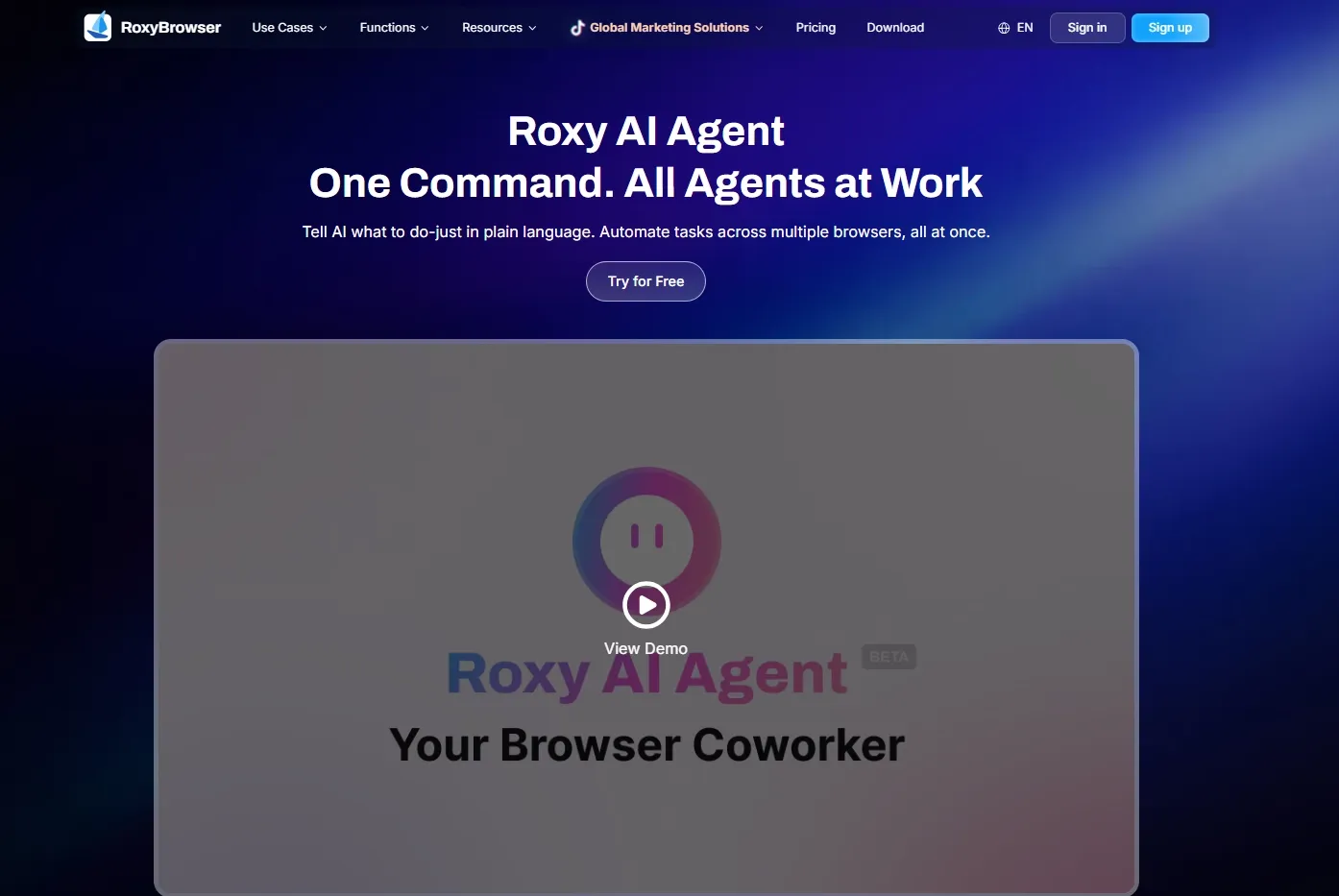
Chrome, Edge, and other consumer Chromium browsers can separate ordinary cookies and profiles, but RoxyBrowser is designed to manage a fuller workspace at the profile level: persistent browser data, environment settings, proxy configuration, and workspace access. That makes it a specialized option for controlled business operations, not a replacement for an ordinary personal browser.
Its advantage is profile-level consistency and governance. A fingerprint profile brings browser-facing settings, such as platform, time zone, language, display characteristics, and network location, into one managed environment rather than relying on a user-agent override alone.
RoxyBrowser also supports governed multi-account management, profile-level permissions, auditable handoffs, and AI Agent, MCP, and custom Skills support for browser operations. It is most appropriate when those controls are required for an authorized workflow; for ordinary browsing or simple personal privacy controls, Chrome, Edge, or Brave is usually simpler.
How to Choose the Right Chromium Browser
Start with the type of work you need the browser to support, then narrow the shortlist by maintenance and control requirements.
-
Decide whether you need a personal browser or a managed team workspace. For personal browsing, research, and normal work accounts, start with a consumer browser. For a team that must keep authorized client, regional, or business-account workspaces separately governed, evaluate a managed environment such as RoxyBrowser.
-
Choose the consumer-browser priority that matters most. Choose Chrome for broad site and extension compatibility; Edge for Windows and Microsoft 365 work; Brave for built-in tracker blocking; Vivaldi for intensive tab and workspace management; Opera for a sidebar-led interface; or Opera GX when gaming resource controls matter. Do not choose by feature count: choose the browser that removes the most friction from your daily workflow.
-
Only choose a specialist build if you can maintain it. Cromite, Ungoogled Chromium, and Thorium are better suited to users who can validate releases, extensions, platform compatibility, and update cadence themselves. If you need automatic updates and predictable support, a mainstream browser is usually the safer choice.
-
Choose RoxyBrowser only when the added controls solve a real business requirement. It is appropriate when an authorized team needs profile-level separation, proxy binding, role-based access, and controlled handoffs across distinct workspaces. It is unnecessary for ordinary browsing or simple personal privacy needs, where Chrome, Edge, or Brave will usually be easier to operate.
| If this describes your work | Start with |
|---|---|
| You need the broadest everyday compatibility | Google Chrome |
| Your work is centered on Windows and Microsoft 365 | Microsoft Edge |
| You want privacy protections with minimal setup | Brave |
| You organize many tabs, projects, and research sessions | Vivaldi |
| You need a managed, authorized team workspace with profile controls | RoxyBrowser |
The Bottom Line
Choose Chrome or Edge when reliable everyday compatibility is the priority, Brave when you want stronger privacy defaults, and Vivaldi when tab and workspace control matters most. Specialist builds are worthwhile only when you are prepared to manage their updates and compatibility.
RoxyBrowser remains within this comparison through its Chromium-based RoxyChrome engine, but its product role differs from consumer browsers: it is for authorized teams that need managed profile isolation, workspace permissions, and controlled handoffs. The best choice is the browser that matches your workflow and can be maintained reliably over time.


