
Need to know how to log out of Netflix quickly? Whether you’re switching accounts or securing your profile after someone else used it, logging out properly is essential. Understanding the logout process helps protect your viewing history and prevents unauthorized access to your account.
But here’s an interesting thought: What if you never had to log in at all?
RoxyBrowser just launched Netflix Space, offering free premium Netflix streaming without any login required. No account management, no password hassles, no logout concerns—just instant access to thousands of HD movies and shows. Before we explore this alternative, let’s cover everything you need to know about how to log out of Netflix on every device.
Why You Need to Log Out of Netflix
Selling or giving away your device requires removing your account. Someone borrowed your phone, and you want to clear their viewing history. Switching to a different Netflix profile or account. Suspicious activity suggests unauthorized access to your account. Traveling and using public or hotel devices. Preventing kids from accessing your adult profile. Security best practices after using shared computers.
How to Log Out of Netflix on Different Devices
How to Log Out of Netflix on Web Browser (Computer)
Logging out from Netflix’s website is the most straightforward method:
Step 1: Go to Netflix.com and ensure you’re signed in.
Step 2: Click your profile icon in the top right corner.
Step 3: Select “Sign out” from the dropdown menu.
Step 4: Confirm you’ve been logged out when you see the sign-in page.
This method works on Chrome, Firefox, Safari, and all major browsers. You’re immediately logged out of Netflix on that specific browser.
How to Log Out of Netflix on Mobile Devices (iPhone/Android)
Mobile apps handle logout differently than web browsers:
Step 1: Open the Netflix app on your phone or tablet.
Step 2: Tap “My Netflix” or the profile icon in the bottom right corner.
Step 3: Tap the menu icon (three horizontal lines) in the top right.
Step 4: Scroll down and select “Sign Out.”
Step 5: Confirm by tapping “Sign Out” again when prompted.
This logs you out of the Netflix app on that specific device only. Other devices remain signed in.
How to Log Out of Netflix on TV
Smart TVs make the logout process less obvious:
Step 1: Open Netflix on your smart TV.
Step 2: Navigate left to open the menu sidebar.
Step 3: Scroll down to “Get Help” or “Settings.”
Step 4: Select “Sign out” from the options.
Step 5: Confirm you want to sign out.
Some smart TV models require going to Settings > Account > Sign out. The exact path varies by TV brand (Samsung, LG, Sony, etc.).
How to Log Out of Netflix on Streaming Devices (Roku, Fire TV, Apple TV)
Streaming devices each have unique interfaces:
For Roku:
- Press Home button > select Netflix > press Star (*) button > select “Remove channel” > confirm removal
For Fire TV/Fire Stick:
- Open Netflix > select Settings gear icon > select “Sign out” > confirm
For Apple TV:
- Open Netflix > swipe down to access top menu > scroll right to Settings > select “Sign out”
These methods ensure you’re properly signed out of Netflix on streaming devices.
How to Log Out on Game Consoles (PlayStation/Xbox)
Gaming consoles require specific steps:
Step 1: Launch Netflix from your console’s home screen.
Step 2: Press Circle (PlayStation) or B (Xbox) to go back to the Netflix home.
Step 3: Navigate to the left menu and select Settings (gear icon).
Step 4: Choose “Sign out” and confirm your choice.
This removes your Netflix credentials from the gaming console completely.
How Do You Log Out of Netflix on All Devices at Once?
Sometimes you need to sign out of Netflix everywhere simultaneously—especially if you’ve lost a device or suspect unauthorized access.
Using the Netflix Website to Log Out All Devices
Step 1: Sign in to Netflix.com on any web browser.
Step 2: Click your profile icon and select “Account.”
Step 3: Scroll down to the “Security and Privacy” section.
Step 4: Click “Sign out of all devices.”
Step 5: Confirm by clicking “Sign Out” in the popup.
This immediately disconnects all devices from your Netflix account. Everyone will need to sign in again with your password.
Important Note: It may take up to 8 hours for all devices to be fully logged out due to caching. Most devices disconnect within minutes, but some (especially older smart TVs) take longer.
No-Login-Required Solution: Watch Netflix for Free on RoxyBrowser
While knowing how to sign out of Netflix is useful for account management, many users are discovering a better approach: not logging in at all. RoxyBrowser eliminates the hassle of account credentials, password management, and logout concerns.
What is RoxyBrowser?
RoxyBrowser is a powerful anti-detect browser designed for privacy and multi-account management. It creates isolated browsing environments with unique digital fingerprints, making it essential for professionals managing multiple online identities without being detected and banned.
Originally built for e-commerce, digital marketing, and business use, RoxyBrowser now brings its technology to entertainment with Netflix Space.
Introducing Netflix Space: Free Premium Netflix Without Login
RoxyBrowser just launched Netflix Space—a revolutionary feature offering free premium Netflix access. No account creation, no login credentials, no password to remember, and definitely no logout needed.
What Makes Netflix Space Different
Netflix Space provides a pre-configured premium Netflix environment accessible instantly. There’s no Netflix account to create or manage. Simply open RoxyBrowser, click Netflix Space, and start streaming immediately in full HD quality.
Key Benefits
- Zero login requirements—instant access with one click
- Full HD streaming (1080p) matching Netflix Premium quality
- Complete U.S. Netflix library including originals and exclusives
- No ads, no buffering, no limitations
- No payment method or credit card required
- Secure, legal streaming environment
How Much You Save
Netflix Premium officially costs $24.99/month. Even Netflix Standard would cost you $17.99/month. RoxyBrowser’s free offer puts premium entertainment in your hands without spending a cent.
How to Set Up RoxyBrowser and Access Free Netflix
Getting started is incredibly simple. Here’s how to watch Netflix for free in just 3 easy steps:
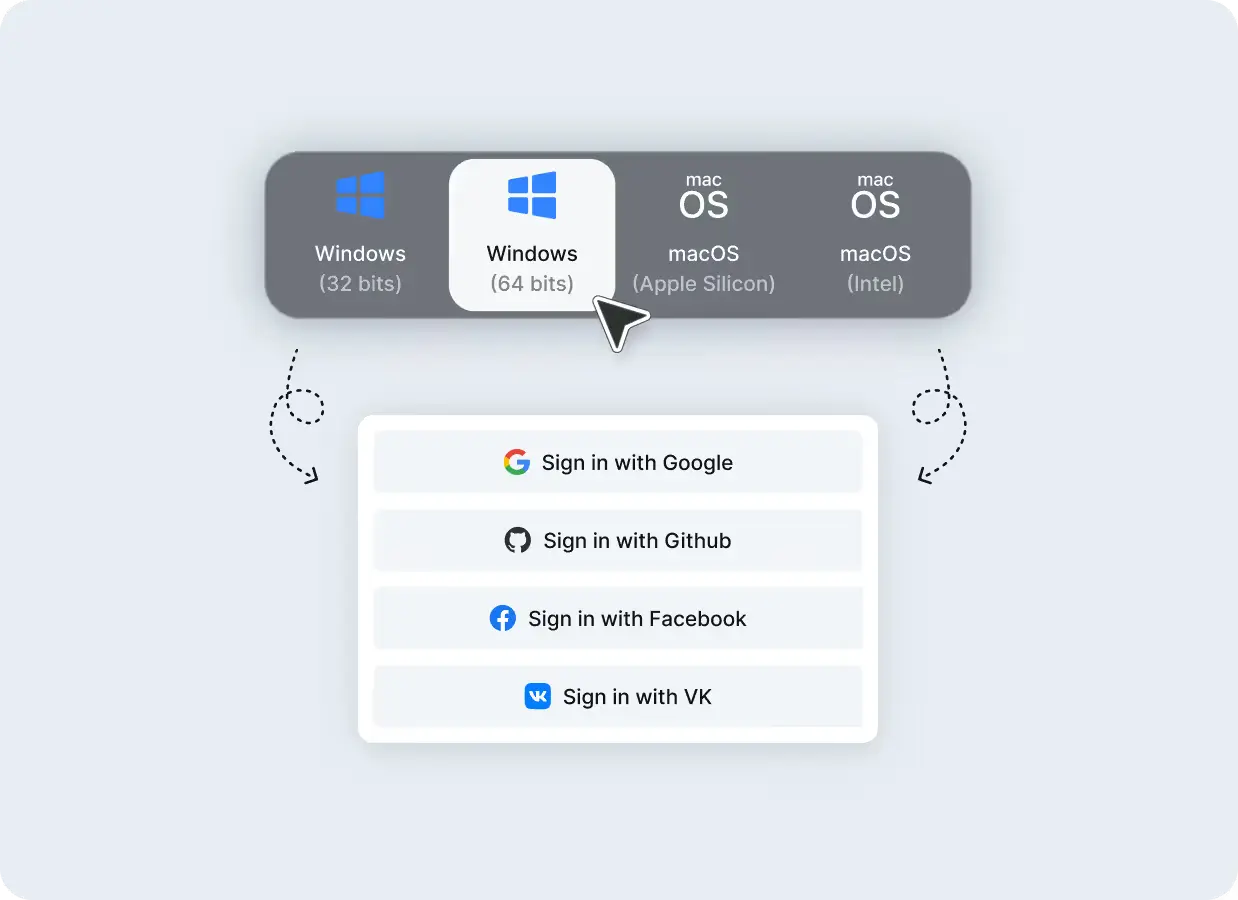
Step 1: Download and Install
Download the application for your operating system (Windows or macOS). Install the software on your computer and create a free account using your email address.
Step 2: Access Netflix Space
Open RoxyBrowser and enter Netflix Space once it pops up or locate Netflix Space on your main dashboard.
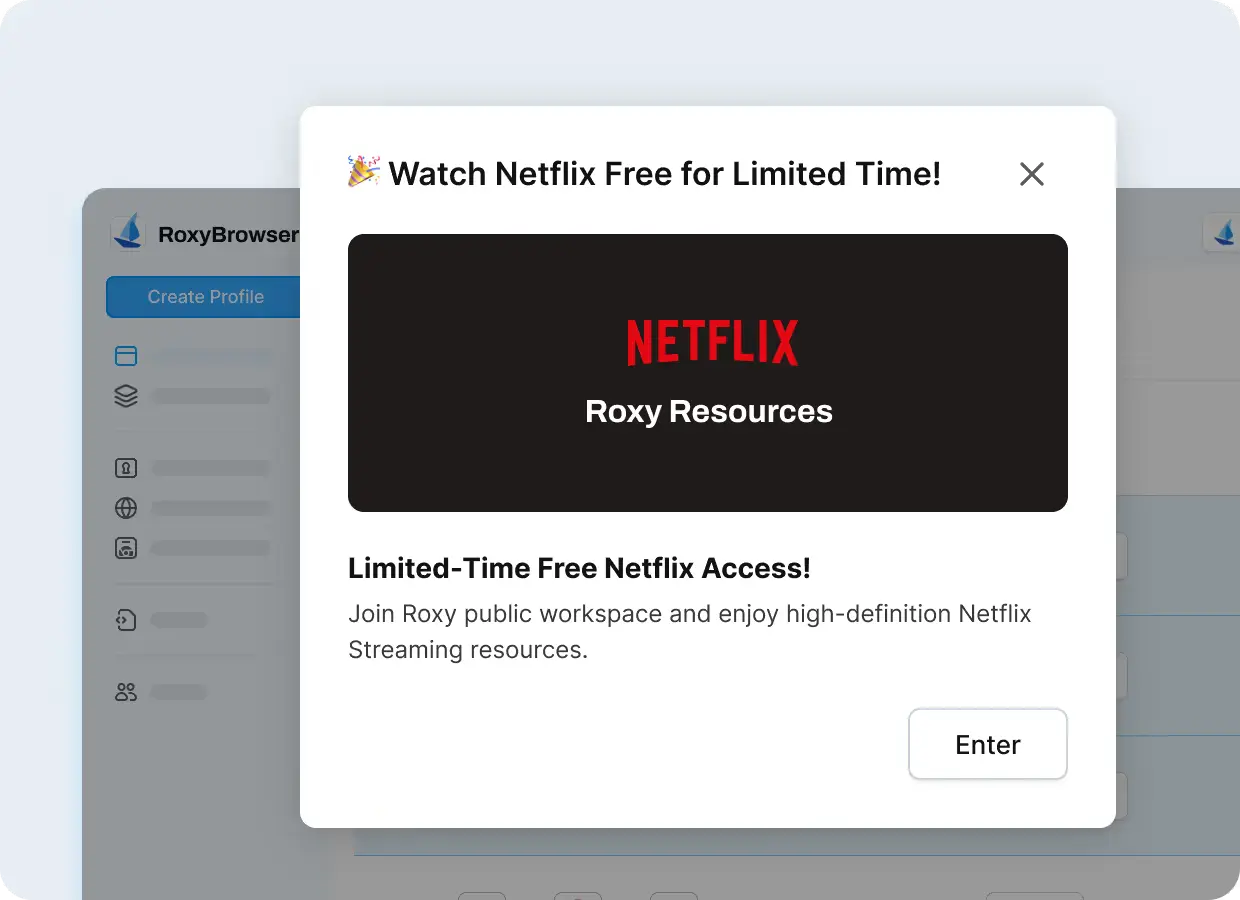
Step 3: Start Watching Immediately
Click the “Open” button to launch a browser window with Netflix Premium already loaded and ready.
That’s it! You’re now enjoying premium Netflix completely free. No need to worry about how to log out of Netflix because you never logged in.
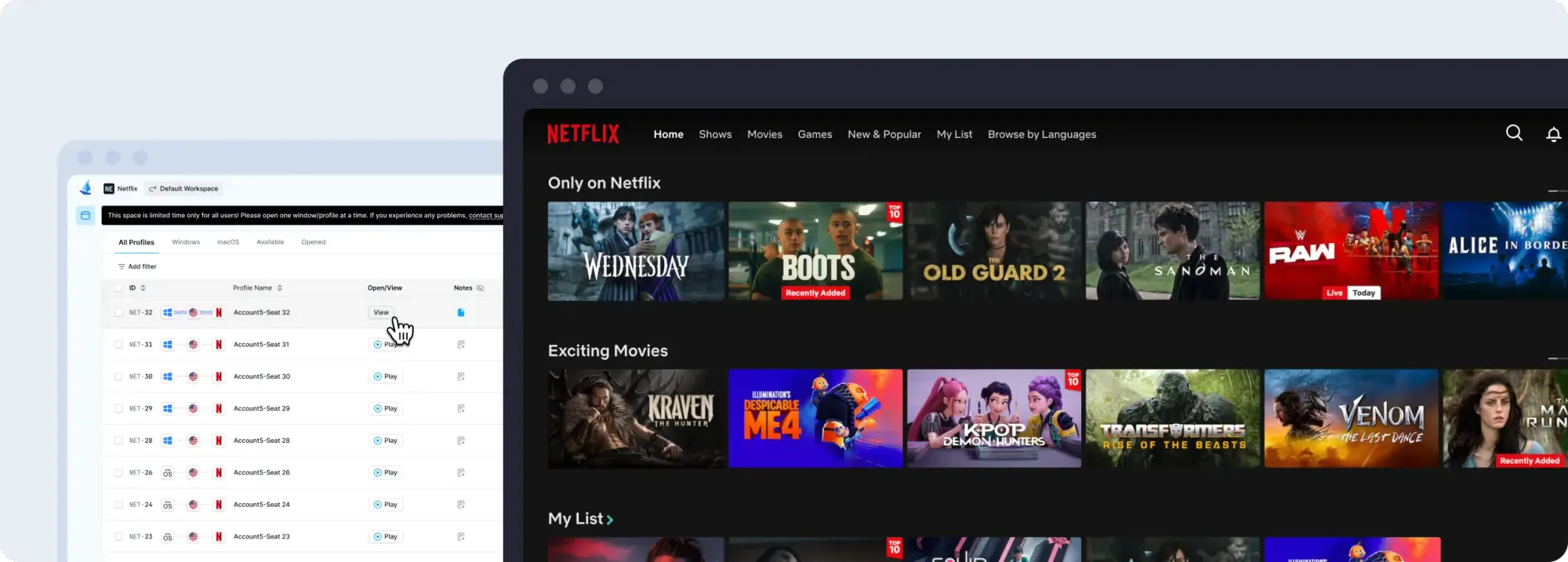
Why RoxyBrowser Eliminates Netflix Login Hassles
Traditional Netflix requires constant account management: remembering passwords, logging in and out, managing profiles, switching accounts, and updating payment methods. RoxyBrowser removes all these friction points.
With Netflix Space, you skip entirely past the login wall. No credentials to remember or forget. No password resets. No two-factor authentication delays. No concerns about logged out of Netflix on different devices.
The pre-configured premium environment means instant access every time. Just click and watch. It’s Netflix simplified to its purest form—pure entertainment without barriers.
For shared households, this solves profile conflicts. Everyone can use RoxyBrowser’s Netflix Space without affecting others’ viewing histories or recommendations. No more accidentally logging out of Netflix when someone else signs in.
Final Thoughts
Understanding how to log out of Netflix remains important for traditional subscribers. However, RoxyBrowser presents a compelling alternative that eliminates login concerns entirely.
Try RoxyBrowser today and access Netflix Space completely free. Experience premium streaming without the hassle. Join thousands discovering the easiest way to watch Netflix in 2025!
FAQ
Will logging out of Netflix delete my viewing history?
No, logging out doesn’t delete your watch history or preferences. Your account data remains stored on Netflix’s servers. Viewing history only deletes if you manually remove it from account settings.
How do I know if someone else is using my Netflix account?
Check “Recent device streaming activity” in your Account settings. This shows all devices that accessed your account recently with dates and locations. If you see unfamiliar activity, change your password immediately.
Does RoxyBrowser’s free Netflix require any login credentials?
No credentials required. RoxyBrowser provides a pre-configured premium Netflix environment. Simply download the browser, open Netflix Space, and start watching. No account creation, no password, no login screen.
Can I use RoxyBrowser’s Netflix Space on multiple devices?
RoxyBrowser currently only runs on Windows and macOS computers. The Netflix Space feature is accessible from any device where RoxyBrowser is installed with your account. Each user gets their own free access.


