
Preview
OpenClaw is one of the most popular open-source MCP clients right now. Want to know how to empower your OpenClaw with efficient AI automation? Deploy an MCP (Model Context Protocol) server, and you can let AI directly drive browser tools. This guide walks you through connecting to an MCP service in OpenClaw using mcporter, allowing you to make a generational leap with RoxyBrowser browser.
This tutorial is designed for beginners, giving you the most comprehensive guidance for OpenClaw installation and configuration. Follow the step-by-step instructions to efficiently use the MCP server within OpenClaw. By integrating RoxyBrowser MCP, you can directly drive the RoxyBrowser Anti-Detect Browser to accomplish automated tasks.
All instances of sensitive information such as keys and tokens in this document are represented by placeholders. Replace them with your own values.
1. Prerequisites
Before deploying OpenClaw, ensure your local environment meets the following requirements:
- Node.js installed (v22 or higher recommended; check with
node -v) - npm installed (included with Node.js; check with
npm -v) - OpenClaw installed (proceed to Step 2 if not installed)
2. Installing OpenClaw and mcporter Core Components
2.1 Install OpenClaw (if not already installed)
Execute in the terminal:
After installation, you can confirm by running openclaw --version.
2.2 Install mcporter
mcporter is the tool OpenClaw uses to connect to and manage MCP servers. it is a mandatory installation:
After installation, run mcporter list to test it (you may see a message indicating no configuration is present, which is normal at this stage).
3. Creating the mcporter MCP Configuration File
mcporter identifies MCP servers through a config.json-style configuration file. You must place this configuration file in a fixed location.
3.1 Configuration File Paths (by System)
| System | Configuration Directory | Full Configuration File Path |
|---|---|---|
| Windows | C:\Users\YourUsername\.mcporter |
C:\Users\YourUsername\.mcporter\mcporter.json |
| macOS / Linux | ~/.mcporter |
~/.mcporter/mcporter.json |
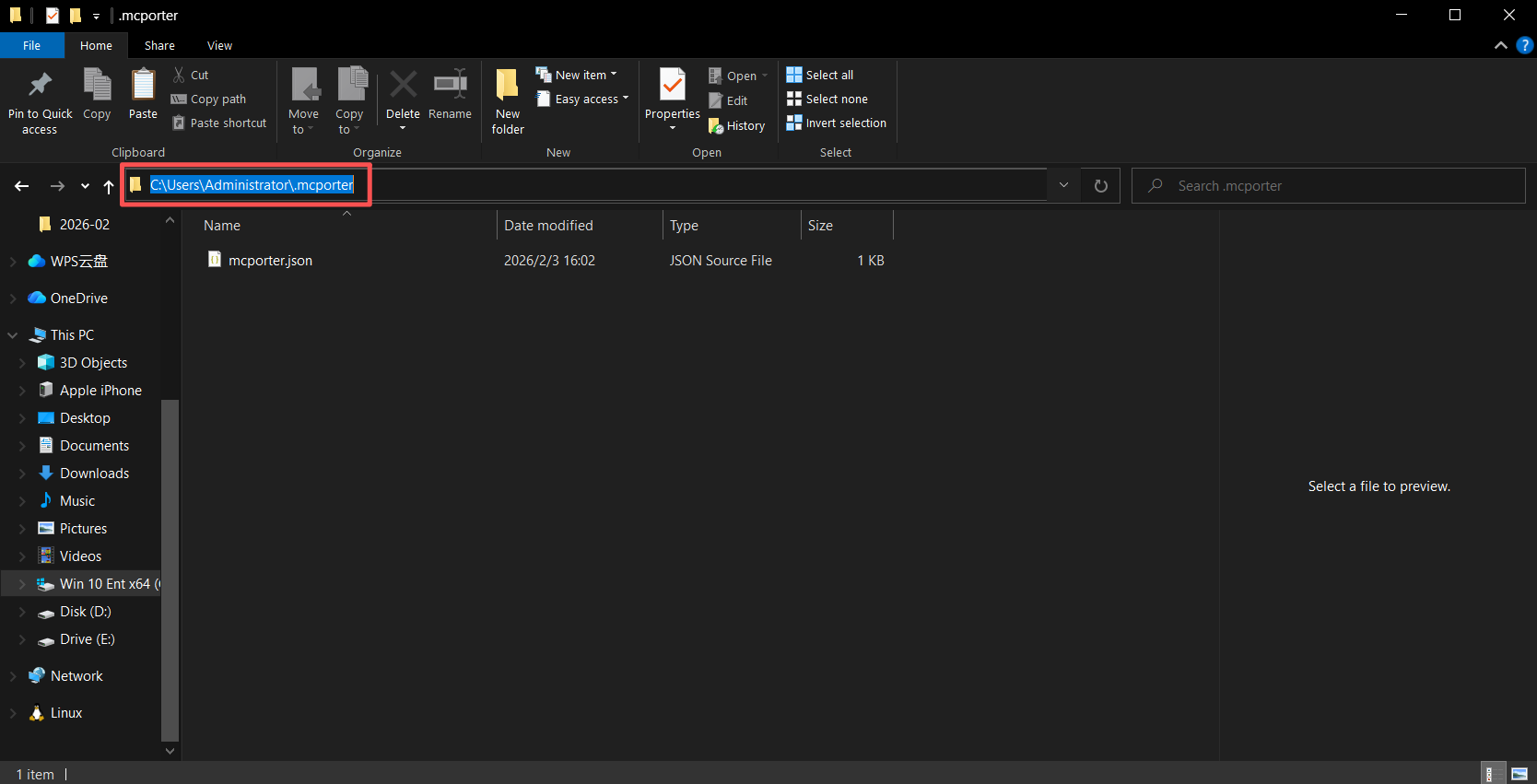
Note: Replace “YourUsername” with the username of your current system login account.
On Windows, enter %USERPROFILE% in the File Explorer address bar to view your current user directory.
3.2 Create Configuration Directory
Windows (PowerShell):
macOS / Linux:
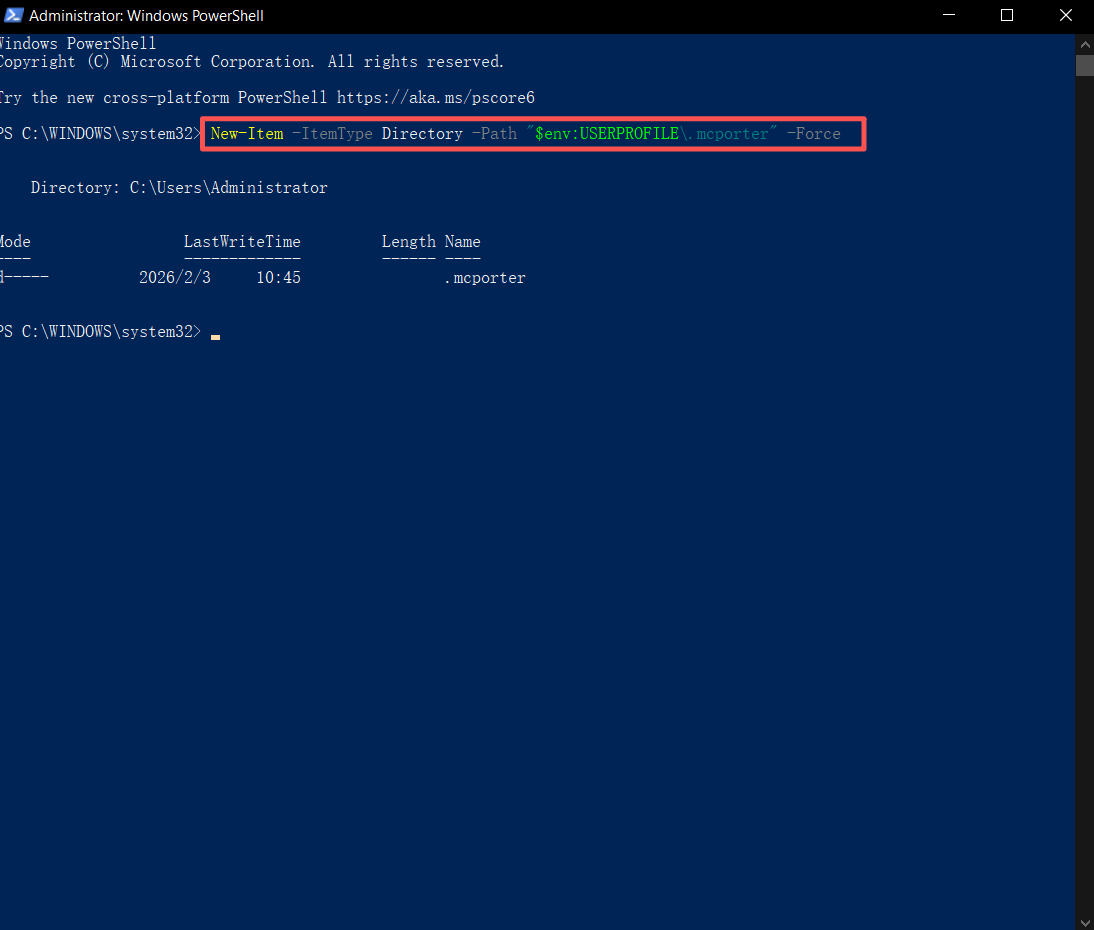
3.3 Write the Configuration Content
Open (or create) the mcporter.json file mentioned above using Notepad or any text editor, and fill it with the following content.
You must replace YOUR_ROXY_API_KEY and YOUR_ROXY_API_HOST with your local RoxyBrowser information.
Parameter Description:
| Field | Meaning |
|---|---|
mcpServers |
List of MCP servers to connect to |
roxybrowser-openapi.env.ROXY_API_KEY |
RoxyBrowser API key |
roxybrowser-openapi.env.ROXY_API_HOST |
RoxyBrowser service address, typically localhost http://127.0.0.1:50001 |
command / args |
Run the corresponding npm package with npx; -y enables automatic confirmation for installation |
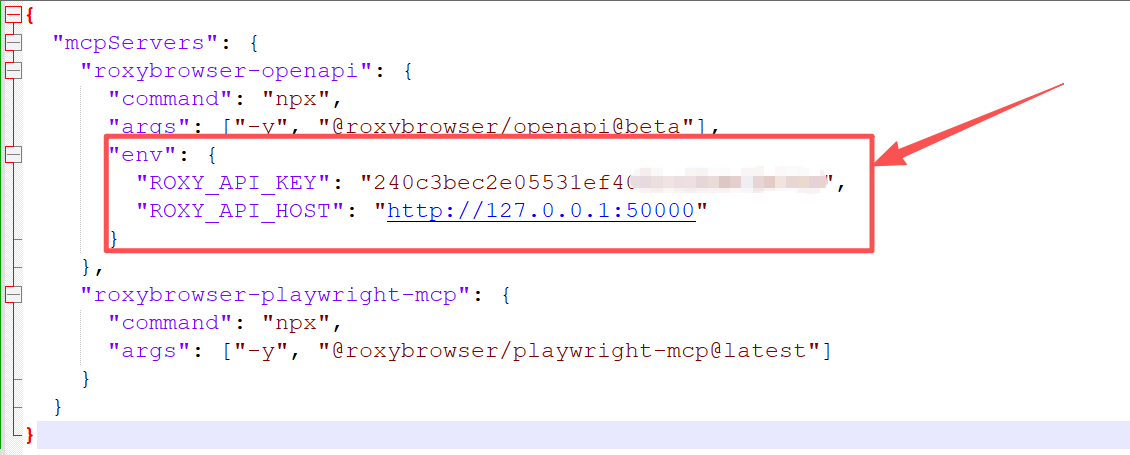
If you don’t need a particular MCP for now, you can delete the entire corresponding key (e.g., delete the whole roxybrowser-openapi section).
When saving the file, ensure the encoding is UTF-8 and the filename is exactly mcporter.json.
4. Enabling mcporter in OpenClaw and Specifying the Configuration Path
To allow OpenClaw’s AI to “see” these MCPs, you need to:
- Enable the mcporter skill;
- Inform mcporter of the configuration file path via an environment variable (to prevent configuration file not found errors).
4.1 OpenClaw Configuration File Path
| System | Path |
|---|---|
| Windows | C:\Users\YourUsername\.openclaw\openclaw.json |
| macOS / Linux | ~/.openclaw/openclaw.json |
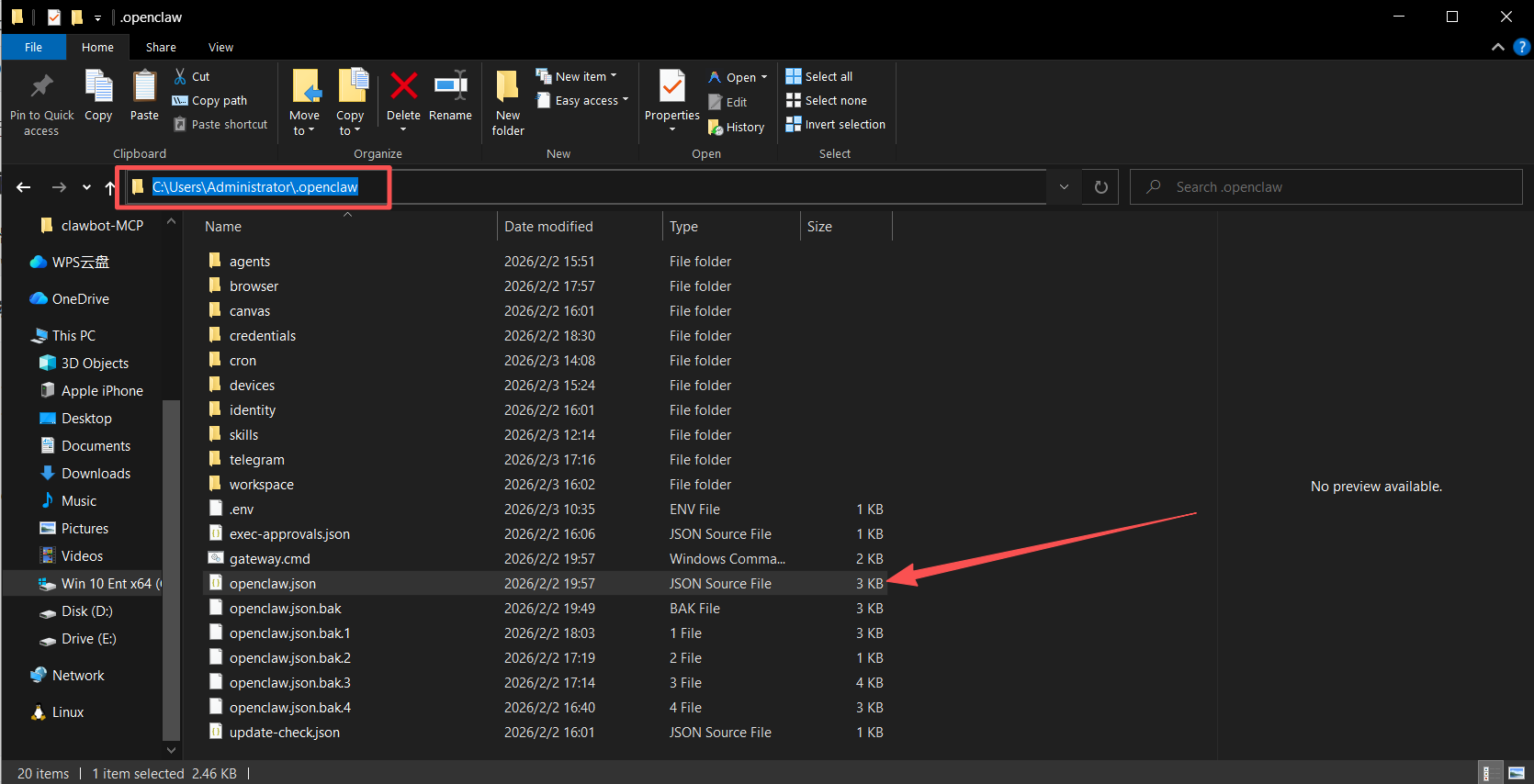
This file is typically generated upon running OpenClaw for the first time. If it’s absent, try running openclaw doctor or launch OpenClaw once before locating it.
4.2 Add mcporter Configuration to openclaw.json
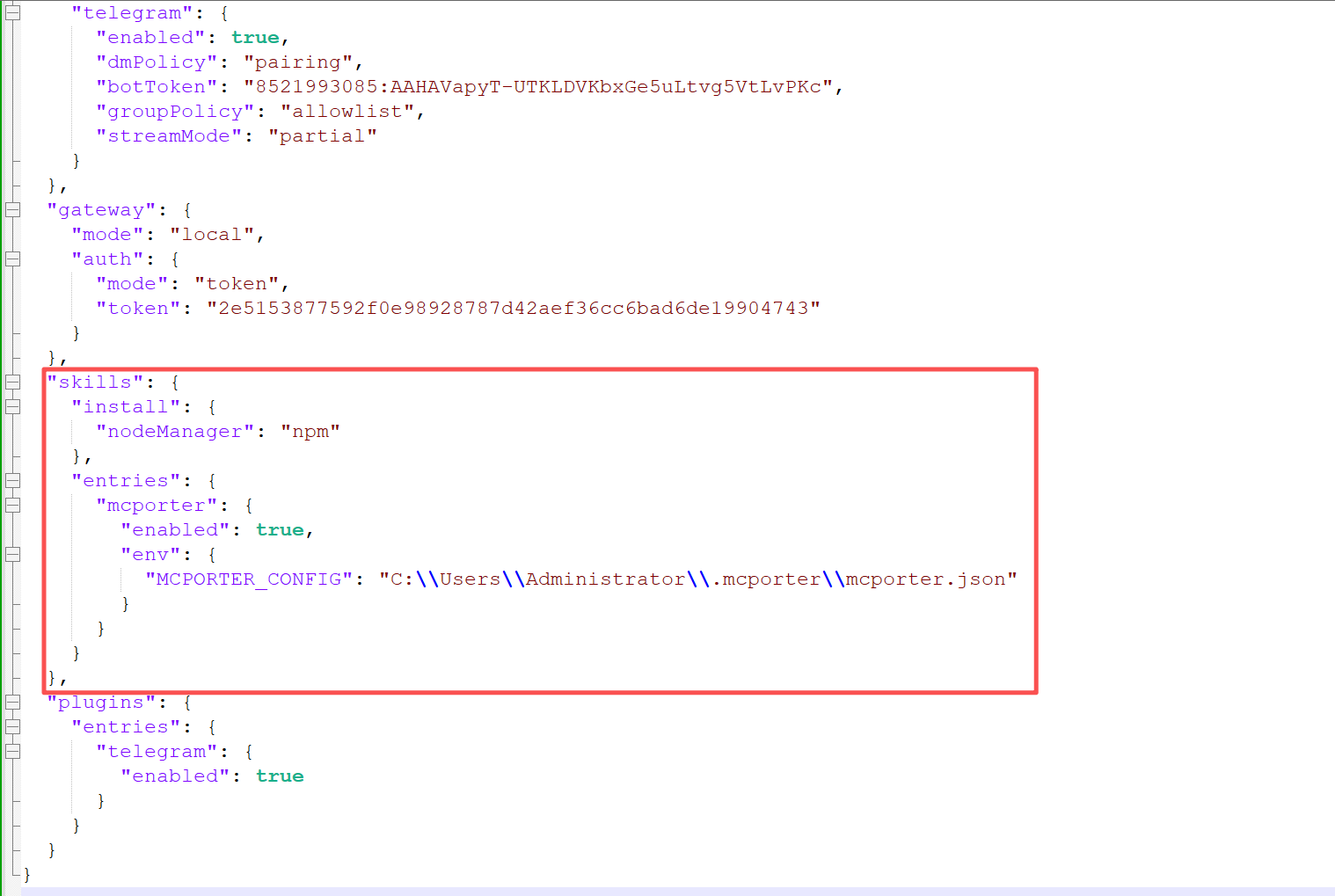
Open openclaw.json in an editor and locate the “skills” section.
If “entries” already exists, add/modify ‘mcporter’ within it. If it’s not present, complete the structure under “skills” as follows.
Target Structure Example:
Important: MCPORTER_CONFIG must be the actual path to mcporter.json on your computer.
- Windows Example (replace
YourUsername):
“MCPORTER_CONFIG”: “C:\\Users\\YourUsername\\.mcporter\\mcporter.json” - macOS / Linux Example:
“MCPORTER_CONFIG”: “/Users/YourUsername/.mcporter/mcporter.json”
Note: Backslashes \ in Windows paths must be written as \\ in JSON.
Save openclaw.json.
5. Restart OpenClaw to Apply Changes
After modifying openclaw.json or mcporter.json, you must restart OpenClaw to load the new configuration.
- If OpenClaw is running as a local service/gateway:
- Press
Ctrl+Cin the terminal running OpenClaw to stop it, then re-execute your usual OpenClaw startup command (e.g.,openclaw gatewayor the “Start Gateway” option in the app).
- Press
- If using the OpenClaw Desktop App:
- Quit the application completely and reopen it.
The new configuration will only be read after a restart.
6. Verifying Successful MCP Installation
6.1 Verify with the mcporter list Command
Execute in the terminal:
If configured correctly, it will list the MCP servers and their respective tools specified in your mcporter.json file. If it reports no configuration found, double-check that the path in Step 3 matches the MCPORTER_CONFIG path in Step 4.

6.2 Verify in the OpenClaw Dialog
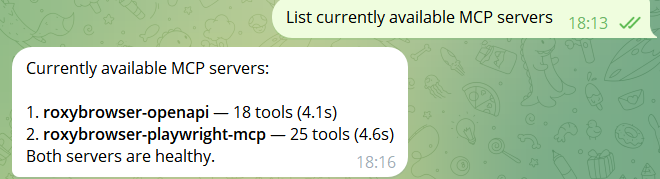
In the OpenClaw chat window, tell the AI:
- “List currently available MCP servers”
or - “Execute mcporter list”
If the AI can list servers like context7 or roxybrowser, it means OpenClaw uses mcporter and recognizes the MCPs correctly.
7. Troubleshooting
| Problem | Possible Cause | Solution |
|---|---|---|
mcporter list shows no configuration |
Configuration file path incorrect or missing | Verify path in Step 3; ensure mcporter.json exists and contains valid JSON |
| OpenClaw AI states “No MCP configuration” | MCPORTER_CONFIG unset or OpenClaw not restarted |
Make sure that env.MCPORTER_CONFIG in Step 4 is an absolute path, then restart OpenClaw |
| npx error or timeout | Network or npm cache issue | Try npm cache clean --force, or use a VPN before running mcporter list |
| No changes after modifying mcporter.json | OpenClaw not restarted or mcporter reading wrong path | Re-confirm MCPORTER_CONFIG points to your modified mcporter.json and restart OpenClaw |
8. Further Reading: Why Use OpenClaw with RoxyBrowser?
-
True AI Automation: After integrating RoxyBrowser MCP into OpenClaw, you can bridge the gap from conversation to execution. For example, you can directly instruct the AI to open a Roxybrowser window with a specific fingerprint and log into Amazon within that window automatically.
-
Open-Source Advantages: Compared to Claude Desktop, OpenClaw offers greater configuration flexibility and more intuitive debugging when working with config.json.
-
Multi-Model Support: You can flexibly switch between mainstream AI models like DeepSeek and GPT-4 within OpenClaw while also using the underlying browser automation capabilities of RoxyBrowser.


