How to Manage Multiple WhatsApp Accounts on One Computer: The Ultimate 2026 Guide
Learn how to run two WhatsApp accounts on one PC. Discover the ultimate guide to secure multiple account management and safely handle multiple WhatsApp accounts using RoxyBrowser.


Today, almost everyone knows you can easily have two WhatsApp accounts on a single smartphone just by downloading both the standard messenger and the Business version. However, managing your daily workflow on a tiny, cluttered mobile screen is incredibly inefficient for serious business tasks.
Furthermore, the native WhatsApp desktop and web versions strictly prevent you from running parallel sessions. This leads to the ultimate question: Is it actually possible to register and efficiently manage multiple WhatsApp accounts directly on your computer?
The answer is an absolute yes. If you want to manage multiple WhatsApp accounts, all you need is a professional anti-detect browser like RoxyBrowser.
Why You Need 2 WhatsApp Accounts—and More
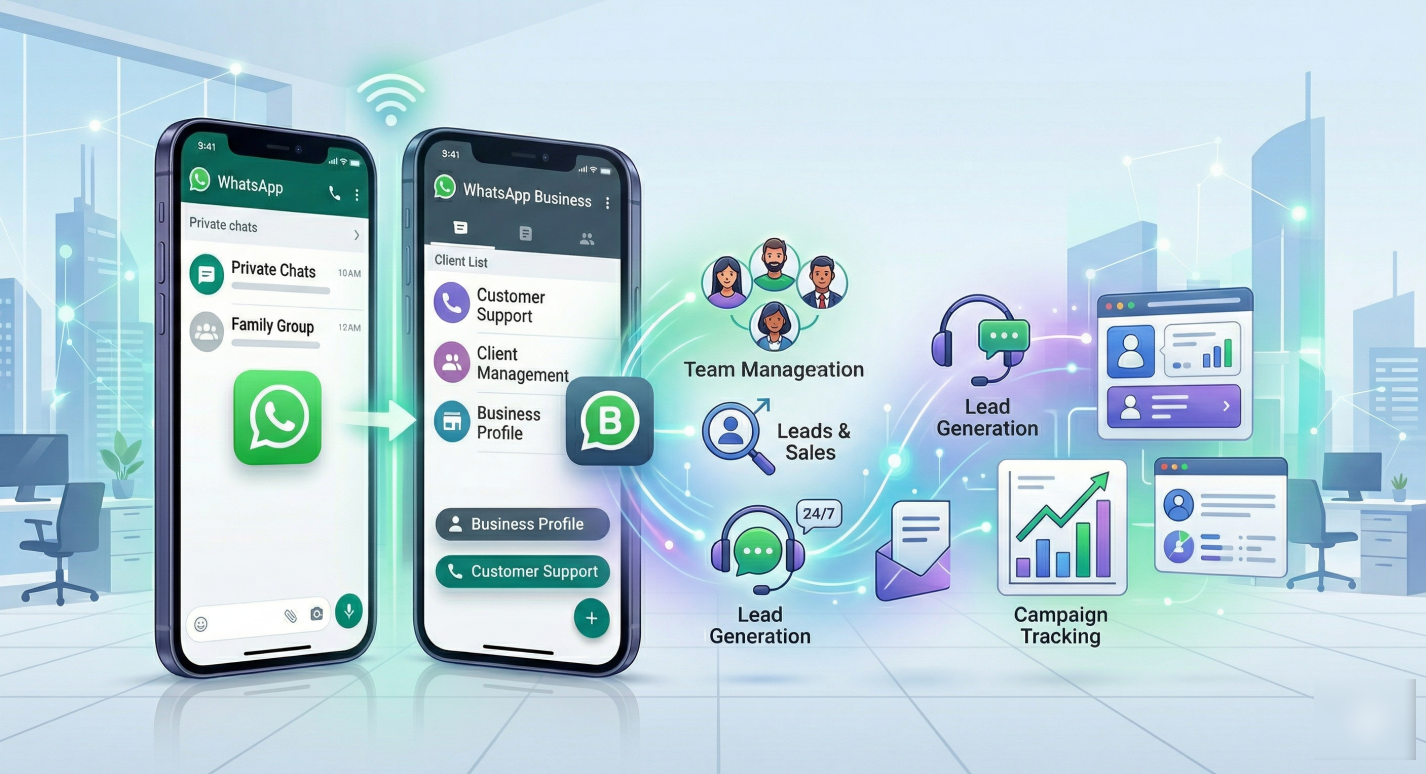
Let's talk about why professionals actually need to do this. For starters, virtual assistants often manage social media and outreach for multiple clients at once. They need to log into different WhatsApp Business accounts without mixing up the data.
Sales representatives face a very similar struggle every day. A rep might handle leads for three different company branches or target entirely different countries. Running 2 whatsApp accounts keeps every customer conversation organized and in the right place.
Marketing agencies take this to a whole new level. They might run a dozen outreach campaigns or surveys simultaneously. Keeping those accounts completely isolated is the absolute only way to prevent massive confusion.
But before we look at software, there is a hard rule that we learn from WhatsApp’s official blog.Every single WhatsApp account must be linked to a unique, active phone number. You cannot bypass this step.
You simply cannot use the exact same phone number for two different accounts. WhatsApp is built so that one account equals one phone number. If you try to verify an existing number on a new setup, it automatically logs you out of the old device.
So, get your phone numbers sorted before you do anything else. You can use dual-SIM phones, eSIMs, or buy virtual numbers online. Just make sure you have a unique number ready to receive that crucial SMS verification code.
Ways to Have Multiple WhatsApp Accounts
People have tried all sorts of clever workarounds to get multiple accounts running on a PC. The most common trick is opening WhatsApp Web in entirely different web browsers. You might put your personal account on Chrome and your work account on Firefox.
While that technically works for just two accounts, it gets annoying incredibly fast. You have to keep your phone connected to the internet and scan a QR code constantly. Plus, sessions time out frequently, leaving you disconnected right when you need to reply to a client.
Another method people try is creating separate user profiles within Google Chrome. They open WhatsApp Web in each user profile. But standard browsers like Chrome are notorious for leaking your real IP address and hardware details.
Some users even try using Android emulators like BlueStacks to install mobile clones directly onto their desktop. But if you have ever tried this, you know it is incredibly slow. Emulators eat up your computer's RAM and will crash if you try to open too many.
The biggest problem with all of these casual methods is the massive risk of bans. WhatsApp's security algorithms are incredibly smart. They can read your graphics card details, your screen resolution, and your installed fonts.
When you run multiple accounts from the same standard browser or IP address, WhatsApp notices. When ten accounts share the exact same hardware fingerprint, you look highly suspicious. Eventually, the platform will ban your accounts, and losing hundreds of warm leads is a disaster.
Why RoxyBrowser is the Best Solution for Multiple Account Management

If you need to handle a lot of accounts safely, ordinary browsers simply cannot hide your digital footprint well enough. You need dedicated software designed for true isolation. This is where antidetect browsers come into play.
RoxyBrowser is the superior choice for multiple account management. It is built specifically to handle high-stakes marketing environments without triggering security flags.
RoxyBrowser doesn't just block simple web trackers. It uses native, kernel-level Canvas and WebGL fingerprint spoofing. Every time you create a new browser profile, it looks like a completely unique, physical computer to WhatsApp.
There is absolutely no shared data, no shared cache, and zero cross-talk between your accounts. Because of this deep-level spoofing, you avoid all the usual logout headaches. You open your profiles, scan your QR codes once, and the sessions stay perfectly active.
Furthermore, RoxyBrowser pairs this secure environment with lightning-fast, highly pure proxy IPs. You can assign a dedicated US IP to one account and a UK IP to another. This matches the exact location of your phone numbers, keeping your accounts safe from regional bans.
Team collaboration also becomes productive. Instead of sharing sensitive QR codes with your employees, you simply share the RoxyBrowser profile. Your team members can open the exact same secure session from their own computers without logging each other out.
Step-by-Step Tutorial: Registering and Managing Multiple WhatsApp Accounts
Step 1: Create Your Browser Profiles
First, download the RoxyBrowser setup from the official website and install it on your computer. Once the installation is complete, sign up for a new account and log into your dashboard.
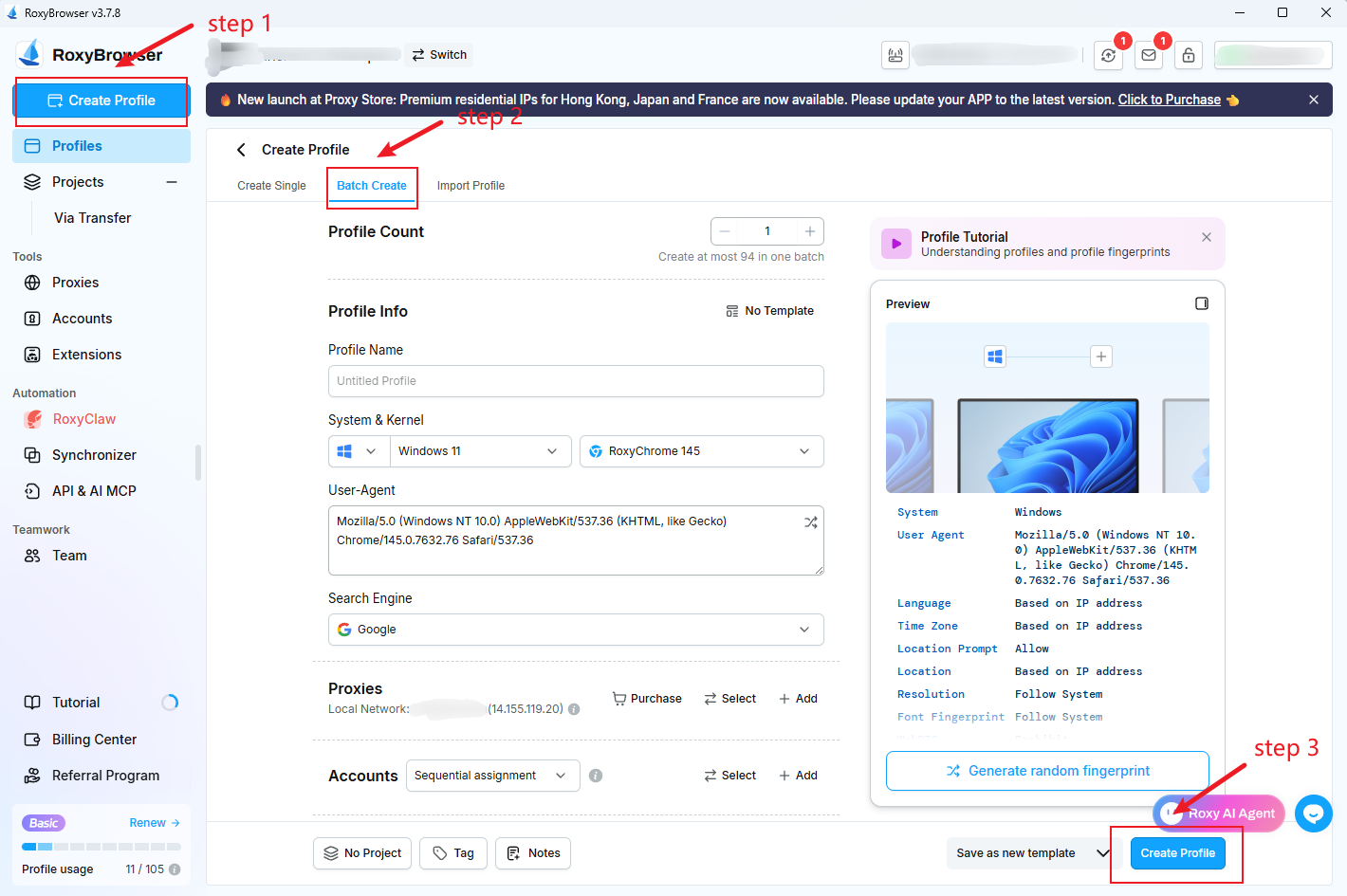
Next, look to the top-left corner of the interface and click the "Create profile" button. Since you are setting up multiple WhatsApp accounts, go straight to the "Batch create" tab.
This option allows you to instantly generate all the separate browser windows you need in one single click. Now you have the blank, isolated environments ready for your registrations.
Step 2: Launch Your Isolated Windows
Once your profiles are ready, simply hit the “open” button next to each one. This action boots up a fresh, dedicated browser environment for every single account.
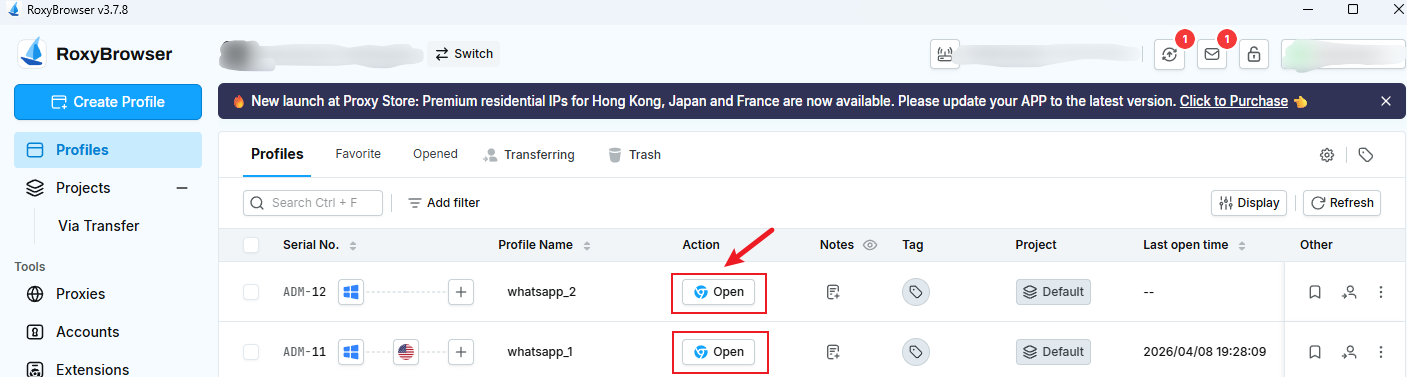
Step 3: Connect to WhatsApp Web
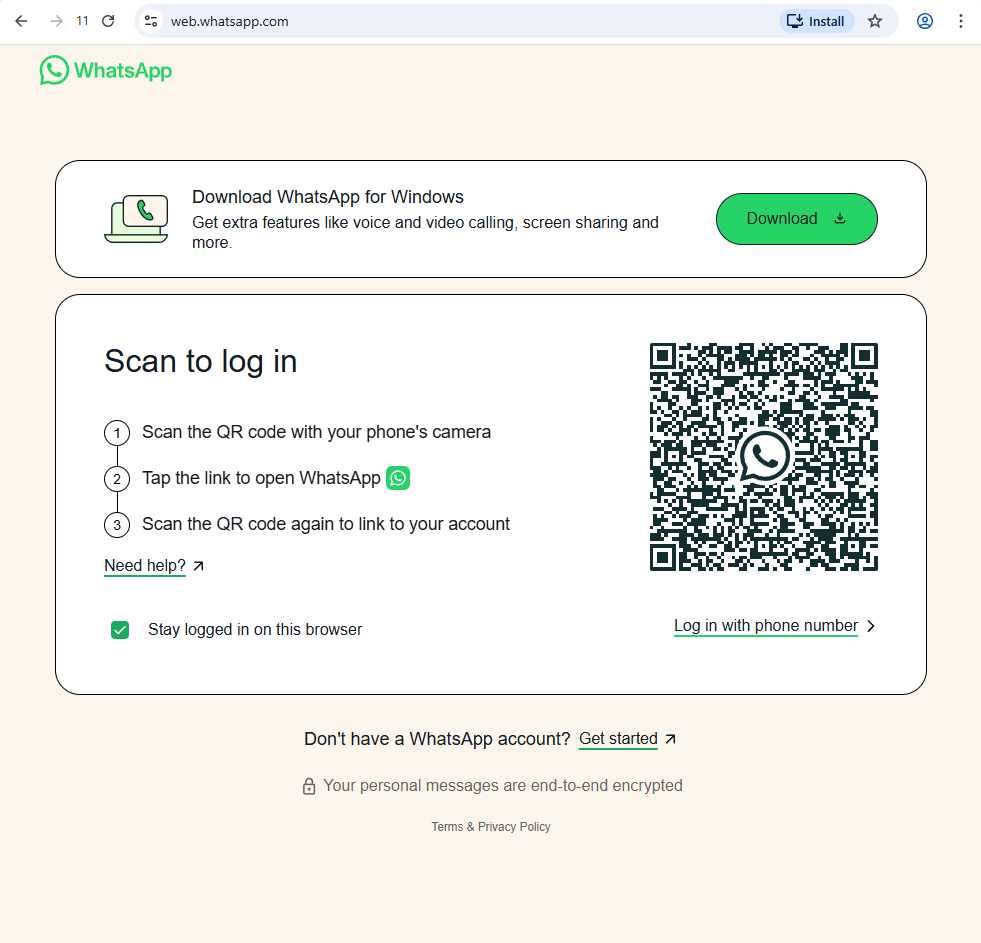
For every new profile you create, navigate directly to web.whatsApp.com. Take the smartphone linked to that specific number and scan the QR code displayed on your screen.
RoxyBrowser automatically securely stores your login data right inside that exact profile. This means you will not have to repeatedly scan QR codes every single time you start your workday.
Once it is done, you are now free to run multiple multiple WhatsApp accounts simultaneously side-by-side on your computer. You can seamlessly switch between different client conversations without ever facing unexpected logouts or account clashes.